> For the complete documentation index, see [llms.txt](https://luw-ai.gitbook.io/luw.ai-studio/llms.txt). Markdown versions of documentation pages are available by appending `.md` to page URLs; this page is available as [Markdown](https://luw-ai.gitbook.io/luw.ai-studio/luw.ai-ai-tools/archiagent.md).

# Archiagent.ai

Ask Archiagent.ai in plain words, by pointing at the scene or by voice, and it builds, furnishes, finishes, renders and checks your project. How the panel works, what needs your OK, what it costs and

Archiagent.ai is the AI architect inside Luw\.ai Studio. You say what you want, and it does the work in the project you have open: it reads what's already there, draws and changes things, furnishes rooms, paints surfaces, and looks at the result to check itself. It can also trace a floor plan from a picture, set up your plot from a land document, make 3D models and textures, and render the design as a photo or a short video.

Everything it changes is real work in your project. You can undo it like your own, and anything that costs credits waits for your OK first.

## Before you start

* **Sign in.** Signed out, opening Archiagent takes you to sign in with your Luw\.ai account.
* **Have a paid Luw\.ai plan.** Chatting with Archiagent isn't part of the free tier.
* **Open a project.** Archiagent works inside one project and bills that work to your account. With none open, the panel shows **Open a project first**; pick or create one from the project selector and come back.

## Ways to ask

The main place is **Edit with AI**, the first tab in the left rail. If the sidebar is too narrow for the chat, it widens itself when the tab opens. You can also reach Archiagent from wherever you happen to be:

* **The start card.** On an empty project, **How do you want to start?** offers **Describe it**: type a brief and click **Build it →**. **Start from an image** looks at a picture you drop in and offers to set up your site, build walls from a plan or make a 3D model.
* **Floor plans.** **Build** → **Floor plan** → **Detect with AI**, or **Open Edit with AI** in the Import dialog, hands a plan to Archiagent to trace.
* **A picture dropped on the canvas.** The Studio says **Looking at your image…** and then suggests what to do with it.
* **Ask AI** in the menu over a selection. The selected objects appear as chips above the message box, and the box asks **What should change? Replace, recolour, move…**
* **Point and ask** (`C`): point at something in the 3D view and ask about it right there. See [Point and ask](#point-and-ask).
* **Voice mode**: talk instead of typing. See [Talk to it](#talk-to-it-voice-mode).
* **The Gallery.** An empty project gallery has a **Render this view** button, which sends that request to Archiagent.
* **Links from other Luw\.ai apps**, once you confirm them in **Start this with AI?**. See [The Luw.ai ecosystem](/luw.ai-studio/luw.ai-ai-tools/luw-ai-ecosystem.md#open-work-from-another-app).

## The panel at a glance

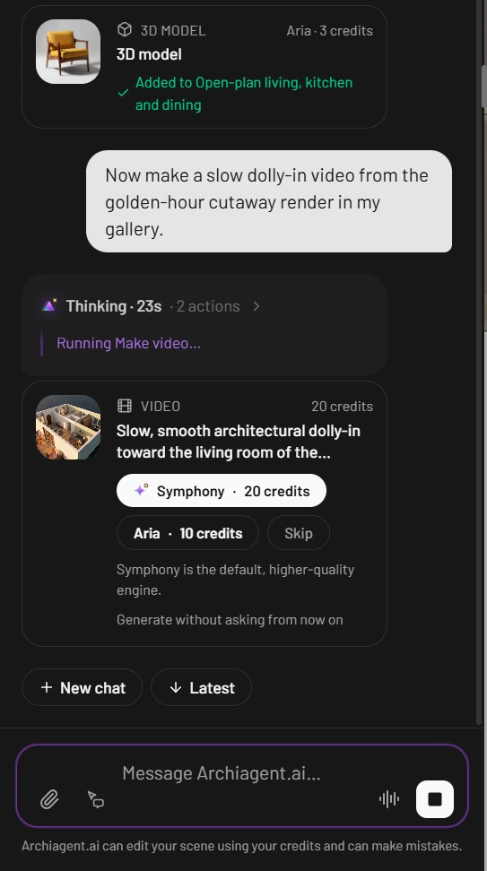
<figure><img src="https://1629954275-files.gitbook.io/~/files/v0/b/gitbook-x-prod.appspot.com/o/spaces%2F3c2lKXqxOtmrzgrQQpGP%2Fuploads%2Fgit-blob-9cbe08f6159fb85208085f77fdedc2ba8fd29a77%2Farchiagent-chat.webp?alt=media" alt="The Archiagent.ai panel: a finished 3D model step marked Aria · 3 credits and Added to Open-plan living, kitchen and dining, a request for a slow dolly-in video, a Thinking · 23s line running Make video, and a video step waiting with Symphony · 20 credits, Aria · 10 credits and Skip, above New chat, Latest and the message box"><figcaption><p>A finished 3D model step, and a video step waiting for you to choose an engine. Nothing is charged until you click one.</p></figcaption></figure>

| Part                        | What it's for                                                                                                                                                                                                                                                                  |
| --------------------------- | ------------------------------------------------------------------------------------------------------------------------------------------------------------------------------------------------------------------------------------------------------------------------------ |
| Header                      | The **Archiagent.ai** name, the [Thinking level](#choose-how-hard-it-thinks) pill and **Chat history**.                                                                                                                                                                        |
| Conversation                | Your messages and the replies. While it works, a line reads **Thinking** with the seconds and the number of actions so far, and says which step is running. Afterwards it folds into **Thought for …**; open it to see every step. Paid steps appear as cards with their cost. |
| **New chat** and **Latest** | Under the conversation: start a fresh chat, or jump back to the newest message after scrolling up.                                                                                                                                                                             |
| Message box                 | **Message Archiagent.ai…**, with **Attach files** and **Point and ask** on the left, and **Voice mode** and Send (or Stop) on the right.                                                                                                                                       |

Underneath, a short note sums up the deal: **Archiagent.ai can edit your scene using your credits and can make mistakes.**

A new chat opens on **Design anything by asking**, with three ideas to try: **Design a 3-bedroom house with a garden**, **Furnish the living room** and **Add a pool behind the house**. Click one to send it.

{% hint style="info" %}
In a narrow sidebar the panel trims itself: the title, the **Point and ask** button and the note go first, and in a very narrow one the Thinking level pill too. Drag the sidebar edge wider to bring them back.
{% endhint %}

## Ask for what you want

Type, press `Enter` (or click Send), and Archiagent gets going. Write in any language you like; it answers in the same one. You'll get better results if you write as you would to a builder standing next to you:

* **Name the place.** "The master bedroom on Level 1" leaves less to guess than "the bedroom".
* **Give sizes.** "A 4.5 × 3.2 m study" or "a hallway 1.2 m wide".
* **Point instead of describing.** Select an object or a room first and say "this", or use Point and ask.
* **Go in steps on big jobs.** Layout first, then doors and windows, then furniture. Each round is easier to check and to undo.
* **Ask for numbers.** "How much space is left in front of the wardrobe?" gets you a measurement.

Some requests to adapt:

* "A single-storey L-shaped house: an open kitchen and living room of about 40 m², two bedrooms and a bathroom."
* "Put a three-seat sofa on the long wall of the lounge, facing the window, with a coffee table in front."
* "Paint all the bathroom walls in a pale grey tile."
* "Add a second floor with the same outline and stairs between the two."
* "Render the living room at golden hour, then make a slow video moving in."

While it works, Send turns into **Stop**. Stopping ends the turn there: what's already built stays (undo it if you don't want it), and any paid step still waiting is skipped without charge.

If a long reply gets cut off, the panel carries on by itself after a short countdown. Click **Cancel** to keep the reply as it is.

## Choose how hard it thinks

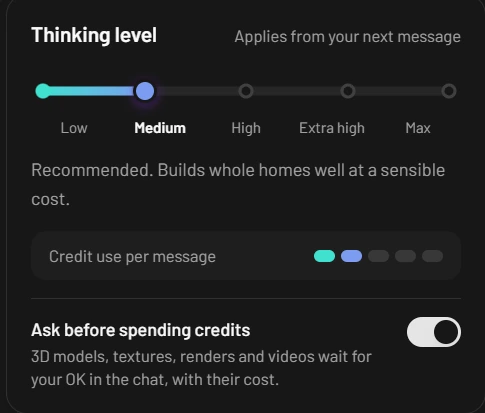
The pill in the header sets the **Thinking level**, how long Archiagent thinks before it acts. A change applies from your next message.

<figure><img src="https://1629954275-files.gitbook.io/~/files/v0/b/gitbook-x-prod.appspot.com/o/spaces%2F3c2lKXqxOtmrzgrQQpGP%2Fuploads%2Fgit-blob-d5ea492f7f954b769bfa8bfe82718bf2db56d8bc%2Fthinking-level.webp?alt=media" alt="The Thinking level popover with a five-step slider set to Medium, the note Recommended. Builds whole homes well at a sensible cost, two of five credit pips filled for Credit use per message, and the Ask before spending credits switch turned on"><figcaption><p>Medium is the default. The pips show how much a message tends to use at each level.</p></figcaption></figure>

| Level          | When to use it                                                                                        | Credit use per message |
| -------------- | ----------------------------------------------------------------------------------------------------- | ---------------------- |
| **Low**        | Quick answers and small edits                                                                         | 1 of 5                 |
| **Medium**     | The recommended level, good enough for whole homes                                                    | 2 of 5                 |
| **High**       | Tricky layouts that need more thought                                                                 | 3 of 5                 |
| **Extra high** | Very thorough work. The Studio warns that it uses about 1.6× the credits of Medium for the same house | 4 of 5                 |
| **Max**        | Only the hardest problems. The slowest level, and the most credits per message                        | 5 of 5                 |

The same popover holds **Ask before spending credits**. See below.

## Approve what costs credits

Building, changing, measuring and furnishing from the catalog are all part of the chat. Four kinds of step cost credits on top: a **3D model**, a **texture**, a **render** and a **video**. With **Ask before spending credits** on (the default), each of these waits in the conversation until you decide.

**One paid step** shows a card with the cost per engine:

* **Symphony · N credits** is the default, higher-quality engine.
* **Aria · N credits** is the lighter one. For 3D models and videos it costs less; for renders and textures both cost the same.
* **Skip** turns it down. The card then reads **Skipped. No credits were used.**
* **Generate without asking from now on** runs this step on Symphony and switches asking off.

**Two or more paid steps**, such as a render followed by a video, come as one plan. The card lists the steps under **Paid steps**, shows the total, and has a **Run on Symphony** switch, on by default, that tells you what Symphony costs compared with Aria. Click **Approve plan · N credits** once and the steps run one after another, each marked **Part of the approved plan**. **Skip** cancels the whole plan.

With asking switched off, Archiagent starts paid steps straight away on Symphony.

While a step runs, its card shows where it's up to, for example **Capturing the view…** and **Rendering…**, or **Picturing it first…**, **Making the 3D model…** and **Placing it in the room…**. When it's done:

* a 3D model says where it was put, such as **Added to** the room's name. If it couldn't place it, **Place in scene** lets you do it.
* a texture says how many surfaces it went on, or that it's **Ready in your textures**.
* a render or a video appears in the chat; **Open full size** shows a render large.

Every result is also filed in the project's **Gallery**, beside the 3D and 2D views, so you can find it, download it or reuse it later. See [Render with AI](/luw.ai-studio/luw.ai-ai-tools/render-with-ai.md).

## Point and ask

Point and ask lets you show Archiagent what you mean instead of describing it.

{% stepper %}
{% step %}

### Turn it on

Tap `C` and the mode stays on until you tap `C` again or press `Esc`. Or hold `C`, point and click while it's down, and the mode ends when you let go. The **Point and ask** button beside the paperclip does the same and brings up the 3D view if it isn't showing.
{% endstep %}

{% step %}

### Pick what you mean

Move over the scene: the thing under the pointer is outlined and named, often with its size. Click it.

* Where a wall and something on it overlap, hold `Alt` to pick the wall.
* `Shift`-click to add more things to the same question.
* Drag a rectangle to ask about an area rather than one object.
* `Ctrl/Cmd + Enter` asks about whatever is under the pointer.
  {% endstep %}

{% step %}

### Say what to do

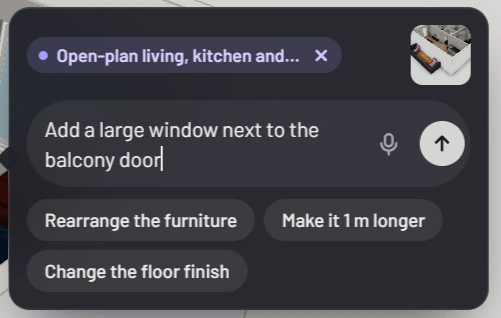
A bubble opens next to it with a chip for what you picked and a small picture of what Archiagent will see. Type your request, or click the microphone to dictate it, or pick one of the suggestions underneath. Press `Enter` to send.
{% endstep %}

{% step %}

### Check the result

A pin marks the spot while Archiagent works. When it's finished, the pin offers **Hold to see before**, which shows the scene as it was for as long as you hold it, **Undo**, **Change more** and **Open in chat**.
{% endstep %}
{% endstepper %}

<figure><img src="https://1629954275-files.gitbook.io/~/files/v0/b/gitbook-x-prod.appspot.com/o/spaces%2F3c2lKXqxOtmrzgrQQpGP%2Fuploads%2Fgit-blob-6f3e7b2ddabf0966d41506cac296397eadf44ccb%2Fpoint-and-ask.webp?alt=media" alt="The Point and ask bubble with the chip Open-plan living, kitchen and…, a thumbnail of the picked room, the request Add a large window next to the balcony door, a microphone and a send button, and the suggestions Rearrange the furniture, Make it 1 m longer and Change the floor finish"><figcaption><p>Asking for a window in the living room, right where it should go.</p></figcaption></figure>

## Attach files

Give Archiagent something to work from: a floor plan, a land document, a sketch, a photo of furniture or of a surface you like.

* Click **Attach files**, or drag files onto the panel (**Drop files to attach**).
* Each file becomes a chip above the message box, with its upload progress. Click its name to preview it or the cross to remove it. A chip marked **failed** didn't upload; remove it and add it again.
* Send once the uploads have finished.

| Type          | Accepted                                    |
| ------------- | ------------------------------------------- |
| Images        | JPEG, PNG, WebP, GIF                        |
| PDF           | Each page becomes a picture, up to 20 pages |
| Text and data | TXT, Markdown, JSON, CSV                    |
| 3D            | GLB, GLTF                                   |

What Archiagent does with a picture depends on what it shows: a plan or sketch becomes walls, doors, windows and named rooms; a land or zoning document becomes your site; a photo of a piece of furniture can become a 3D model, and a photo of a surface a texture. Large photos are scaled down before they're sent, which is plenty to read a plan.

{% hint style="info" %}
If the page that matters is deep inside a long PDF, export it on its own, or tell Archiagent which page to read.
{% endhint %}

## Talk to it: voice mode

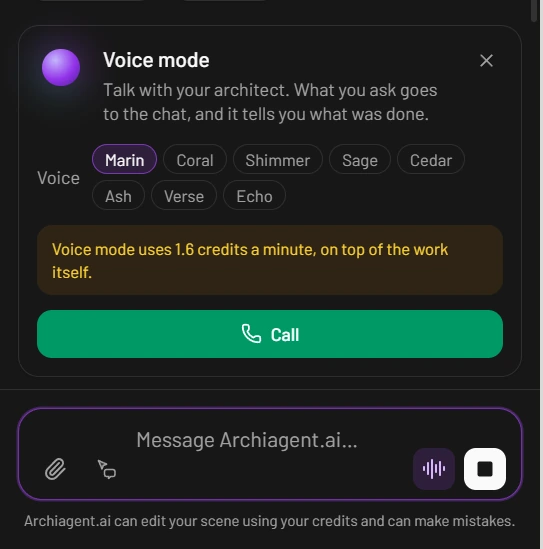
Voice mode turns the chat into a phone call with your architect. You speak, the request goes to the chat, and the voice tells you what was done.

<figure><img src="https://1629954275-files.gitbook.io/~/files/v0/b/gitbook-x-prod.appspot.com/o/spaces%2F3c2lKXqxOtmrzgrQQpGP%2Fuploads%2Fgit-blob-d9554625efafcce14b579bd84e799f4d9d0911d3%2Fvoice-mode.webp?alt=media" alt="The Voice mode card above the message box: Talk with your architect, a choice of eight voices from Marin to Echo, a note that voice mode uses 1.6 credits a minute on top of the work itself, and a green Call button"><figcaption><p>Pick a voice, then call. The note spells out what the call costs.</p></figcaption></figure>

1. Click **Voice mode**, the waveform button in the message box.
2. Choose a voice: **Marin**, **Coral**, **Shimmer**, **Sage**, **Cedar**, **Ash**, **Verse** or **Echo**.
3. Click **Call** and allow the microphone when the browser asks.

A call window opens over the editor. It says what's happening (**Calling…**, **Listening**, **Speaking** or **Architect is working…**), shows the call time with an estimate of the credits so far, and captions the last thing said. **Mute**, **End call** and **Open chat** sit at the bottom, and **Minimize** folds the window into a small pill.

When Archiagent needs an answer, the voice asks you and you reply out loud. Paid steps are announced, but you still approve them with a click in the chat. A call has a time limit; when it's reached the call ends, and you can simply start a new one.

Voice mode costs 1.6 credits a minute, on top of the work it asks for. It needs an open project.

## What Archiagent can do

**Understand the project**

* Read the whole scene, your selection and your room names, and answer questions about them.
* Measure lengths, distances and areas.
* Look at the plan or a 3D view to check its own work, and look back through earlier chats in the project.
* Ask you a short question with a few options when something is unclear.

**Build**

* Draw walls and whole rooms, and change wall heights.
* Add and copy levels; add zones, slabs, ceilings, stairs and elevators.
* Add roofs: gable, hip, shed, gambrel, mansard, Dutch or flat.
* Cut doors and windows into walls.
* Add a swimming pool, fences, trees, street furniture and the surroundings.
* Delete things.

**Furnish and finish**

* Place catalog items, fitted inside the room and clear of door swings; move, turn and resize what's there.
* Place 3D models from your Luw\.ai library, or make a new one from a description or a photo.
* Set colours and materials on walls, roofs, stairs, fences, slabs and ceilings, using your AI textures or making a new one.

**Work from documents**

* Trace a floor plan picture into walls, doors, windows and named rooms.
* Read a land or zoning document and set up the site: the lot outline and limits such as setbacks, storeys, height and floor area. It asks you to [confirm the plot](#confirm-your-plot) first.
* Design a whole building from a brief, keep it inside those limits, and check the result against them.

**Show the design**

* Render the view as a photoreal image, and turn a picture into a short video with a camera move.

Archiagent looks in the catalog and your own libraries before it makes anything new. A 3D model takes about 2–3 minutes and places itself in the room. See [Photo → 3D](/luw.ai-studio/luw.ai-ai-tools/photo-to-3d.md), [AI textures](/luw.ai-studio/luw.ai-ai-tools/ai-textures.md) and [Render with AI](/luw.ai-studio/luw.ai-ai-tools/render-with-ai.md).

## Follow the build

While Archiagent builds, the camera flies to each step so you can watch it happen. The **Follow** switch in the bottom toolbar (the video camera icon) turns this on or off; it's on to begin with, and the browser remembers your choice.

Move the camera yourself during a build and it stays yours. A **Resume following** pill brings the camera back to the build.

## Confirm your plot

After setting up a site from a document or a picture, Archiagent stops and asks **Is this your parcel?** Everything it draws afterwards is measured from that outline, so it's worth a look.

The dialog shows the outline with its **Area** (and the deed's area when one was given), its **Size**, and the **Setbacks**, **Floor area** and **Storeys** when the document had them. If the outline came from a picture with no stated area, a note says the dimensions are approximate.

* **Yes, that's it** lets Archiagent carry on.
* **It's wrong** opens a box for what's off, such as "the lot is a long narrow strip, and the street is at the short end". **Send correction** has it trace again; an empty correction just asks for a fresh attempt.

The dialog waits for your answer: `Esc` and clicks outside it don't close it. You can fine-tune the site later in the **Scene** tab. See [Site and parcel](/luw.ai-studio/building/site-and-parcel.md).

## Undo its changes

You have three ways back, from small to large:

* **One step at a time.** Each change Archiagent makes is its own undo step. `Ctrl/Cmd + Z` steps back, `Ctrl/Cmd + Shift + Z` steps forward again.
* **A whole turn.** Under a reply that changed the scene, **Undo this turn** puts the scene back the way it was when you sent that message, in one go; it also says how many changes that is. Then **Turn undone** offers **Bring it back**. If you edited the scene yourself since, it warns **Your edits since this turn will be undone too.** and asks you to choose **Undo anyway** or **Cancel**.
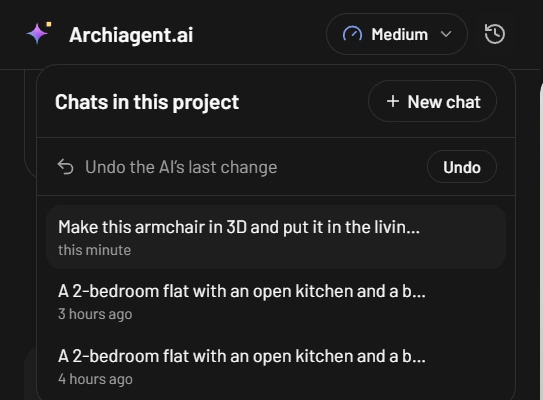
* **After a reload or on another device.** In **Chat history**, **Undo the AI's last change** restores the scene from before Archiagent's latest change, which is kept with the project. It asks **Replace the scene with the one before?** first. Doing it again brings the change back.

If a project is read-only, for example an older project opened outside studio.luw\.ai, Archiagent can't change it and says so. Save a copy to edit it.

## Chat history

Chats are kept with the project. Each turn is saved as it happens, the project opens on its latest chat, and you'll find the same chats on any computer where you sign in.

<figure><img src="https://1629954275-files.gitbook.io/~/files/v0/b/gitbook-x-prod.appspot.com/o/spaces%2F3c2lKXqxOtmrzgrQQpGP%2Fuploads%2Fgit-blob-5172103fd15d790832a307e234b1bd7b4a26e27e%2Farchiagent-chat-history.webp?alt=media" alt="The Chat history menu titled Chats in this project, with a New chat button, an Undo the AI&#x27;s last change row with an Undo button, and three earlier chats with how long ago each was used"><figcaption><p>Every chat in the project, newest first, with the project-wide undo at the top.</p></figcaption></figure>

The clock button in the header opens **Chats in this project**:

* **New chat** starts a fresh conversation; the current one stays in the list.
* Click a chat to open it again. Hover over one to rename or delete it.
* Once there are more than six, a **Search chats** box appears.

Very long chats get slower and use more credits, because the whole conversation goes along with every message. When a chat gets long, a note above the message box suggests starting a new one, and past a certain length the chat stops being saved. The old one stays in the history either way.

## Credits and plans

* Chat needs a paid Luw\.ai plan. Messages are charged by use from your Luw\.ai balance; the [Thinking level](#choose-how-hard-it-thinks) shows how much a message tends to use.
* Paid steps cost the same as making them yourself:

| Step                        | Symphony                  | Aria                      |
| --------------------------- | ------------------------- | ------------------------- |
| 3D model from a photo       | 8                         | 3                         |
| 3D model from a description | 1 for the picture, plus 8 | 1 for the picture, plus 3 |
| Texture                     | 1                         | 1                         |
| Render                      | 1                         | 1                         |
| Video                       | 20                        | 10                        |

* Voice mode adds 1.6 credits a minute.

Your balance is in the top bar. See [Credits](/luw.ai-studio/account/credits.md).

## When something goes wrong

Problems appear in the conversation, starting with a warning sign.

| Message                                                                                    | What to do                                                                           |
| ------------------------------------------------------------------------------------------ | ------------------------------------------------------------------------------------ |
| You're out of chat credits. You can claim your daily free credits, or see pricing options. | Claim your daily free credits or top up on app.luw\.ai, then send the message again. |
| AI chat is available on paid plans.                                                        | Upgrade your plan on app.luw\.ai.                                                    |
| Please sign in first to use Archiagent.ai.                                                 | Sign in from the top bar.                                                            |
| Sign in expired. Please refresh and sign in again.                                         | Reload the page and sign in.                                                         |
| Open or create a project first — Archiagent.ai needs a project to scope its work.          | Open a project from the project selector.                                            |
| You don't have permission to chat in this project.                                         | Open one of your own projects and ask there.                                         |
| Another chat session is already running. Close other tabs and try again.                   | Archiagent works in one tab at a time. Close the other Studio tabs and send again.   |
| Reconnecting to your existing chat session — please retry your message.                    | Send the same message again.                                                         |
| Chat session expired. Send your message again to start a new one.                          | Send your message again.                                                             |
| The chat service is temporarily unavailable. Please retry in a moment.                     | Wait a little and try again.                                                         |
| Your scene is too large for chat right now.                                                | Make this change by hand, or try it in a smaller project.                            |
| Couldn't reach the chat backend after 5 attempts                                           | Check your connection, then send again.                                              |
| Response stopped unexpectedly. Try again.                                                  | The reply broke off. Look at what changed, then ask again.                           |

A paid step that fails says why on its card; when you're out of credits it adds **Get more credits**. A generation that failed after it started shows in the Gallery with **Delete & refund**.

{% hint style="warning" %}
Archiagent can misread a plan or misjudge a size. Look over its work in 2D and 3D before you build on it, and undo what isn't right.
{% endhint %}