> For the complete documentation index, see [llms.txt](https://luw-ai.gitbook.io/luw.ai-studio/llms.txt). Markdown versions of documentation pages are available by appending `.md` to page URLs; this page is available as [Markdown](https://luw-ai.gitbook.io/luw.ai-studio/import-and-export/export.md).
# Export
Download your project as a .luw file, your plan as PNG, SVG or PDF, your building as a GLB, USDZ, OBJ, STL or IFC model, or as 3D-printable parts.
Your projects are saved in the Luw\.ai cloud automatically, but sooner or later you'll want a file: a backup on your own disk, a plan to send to a client, a model to open in another 3D program, or parts to send to a 3D printer. Luw\.ai Studio exports all of these straight from the browser.
There are three places to export from:
| Where | Best for |
| ----------------------------------------- | --------------------------------------------------------------------------- |
| **Projects → Export** (the Export dialog) | Everything in one place: project file, 2D plans, 3D models, 3D print parts |
| **Settings** tab → **Export** | 3D models with extra options, floor plan PDFs in two versions, JSON backups |
| Command palette (`Cmd/Ctrl + K`) | A quick GLB or JSON download |
## Open the Export dialog
1. Click the project selector (the project name) in the top bar to open **Projects**.
2. Click **Export**. It needs an open project.
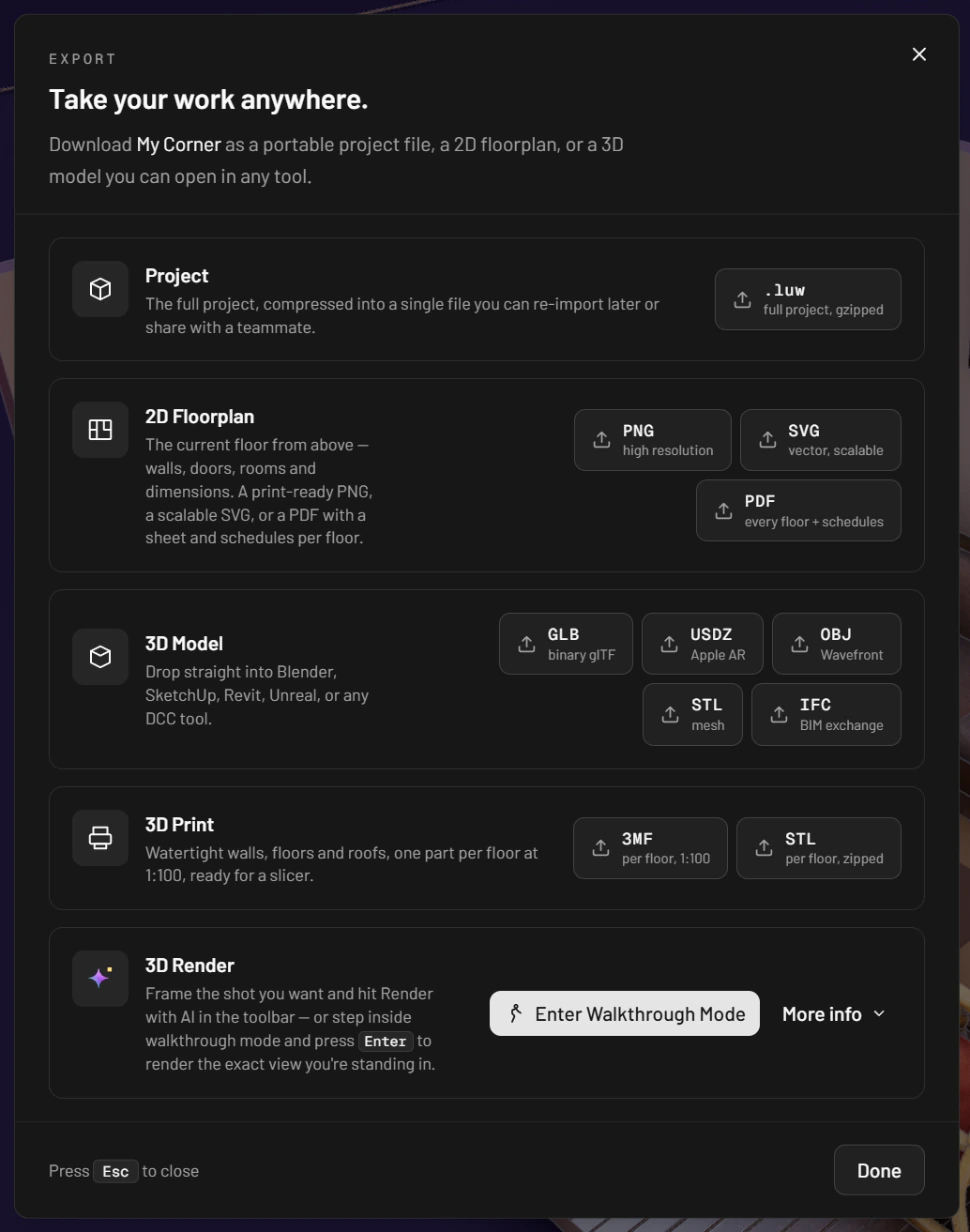
The dialog, titled **Take your work anywhere.**, groups the formats into sections. Click a format button and the file downloads; a short message at the bottom of the dialog tells you if something went wrong or if the file came with warnings.
The Export dialog: every format in one place, grouped by what you want to take away.
## Save the whole project as a .luw file
Under **Project**, click **.luw**. You get the complete project compressed into a single file, named after the project and the date, for example `Lake_House_2026-10-12.luw` (spaces and special characters become `_`).
Keep it as a backup, or pass it to someone who also uses the Studio: they bring it back with **Projects → Import**, which always opens it as a new project. See [Import](/luw.ai-studio/import-and-export/import.md).
## Export a 2D floor plan
The **2D Floorplan** section draws the plan of the floor you're currently on, as seen from above, with walls, doors, windows and rooms. Your zoom and position in the 2D view don't matter; the export frames the whole floor on a white sheet.
### PNG or SVG
* **PNG** (high resolution) is a large image, 6,000 to 12,000 pixels along its long side, good for printing or for a presentation.
* **SVG** (vector, scalable) stays sharp at any size and can be edited in a vector drawing program.
After you click either one, the **Show dimensions** panel asks what to label. Room names are always included.
| Option | Adds | Default |
| -------------- | ----------------------------------- | ------- |
| **Walls** | Wall length strings | On |
| **Openings** | Door and window widths | On |
| **Furniture** | Width × depth of each item | Off |
| **Room areas** | The floor area under each room name | On |
Click **Download PNG** (or **Download SVG**) to save the file, named like `Lake_House_floorplan_2026-10-12.png`. **Cancel** takes you back.
If the current floor has nothing on it yet, you'll see **There is no plan to export yet — draw something on this floor first.**
### PDF
**PDF** (every floor + schedules) creates one landscape A4 document for the whole building. Each floor gets its own page with its name at the top, and pages with schedules follow where the floor has something to list. To add dimension strings, grid lines and door and window marks to these pages, see [Construction drawings](/luw.ai-studio/import-and-export/construction-drawings.md).
The PDF follows the units you work in, and the annotations it shows depend on the **Floor plan mode** in the **Display** menu (**Default** or **Expert**). From the Export dialog you always get the full plan, furniture included. For a version without furniture and rooms, use **Structure only** in the Settings tab (see below).
## Export a 3D model
The **3D Model** section exports the building in five formats that other 3D, CAD and BIM programs can open:
| Button | Format | Good to know |
| -------- | ------------ | ----------------------------------------------------------------------------------------------------- |
| **GLB** | Binary glTF | Keeps materials and textures. The most complete choice for 3D programs, game engines and web viewers. |
| **USDZ** | Apple AR | Apple's format for viewing models in AR on iPhone and iPad. Also keeps textures. |
| **OBJ** | Wavefront | Geometry only. |
| **STL** | Mesh | Geometry only, as raw triangles. Not meant for 3D printing; use **3D Print** below for that. |
| **IFC** | BIM exchange | For BIM software such as Revit or ArchiCAD. Without textures. |
Files are named `model_` plus the date (for example `model_2026-10-12.glb`); an IFC file from this dialog takes the project name instead (`Lake House.ifc`).
Anything you've hidden in the scene stays out of the file, together with everything inside it. That's the simplest way to export, say, the building without its furniture: hide what you don't want first (use **Hide** next to it in the **Scene** tab).
If the dialog says **The 3D view is still starting — try again in a moment.**, give the 3D view a few seconds to load and click again.
## Export parts for 3D printing
The **3D Print** section prepares the building for a slicer rather than for a screen:
* **3MF** (per floor, 1:100) gives you one package with a part for each floor.
* **STL** (per floor, zipped) gives you a ZIP with one STL file per floor.
Either way you get watertight walls, floors and roofs at a scale of 1:100, so a multi-storey house prints as a stack of floors you put together afterwards. Only the structure goes in: furniture is left out, and so is anything you've hidden.
If a part can't be made printable, the export stops and tells you why instead of handing over a file the slicer would refuse. If the parts could be made but some details are on the edge, you'll see **Exported with warnings — check thin parts in your slicer before printing.** Thin features are worth a close look: at 1:100, a 10 cm wall prints just 1 mm thick.
## Render section
The last part of the dialog, **3D Render**, isn't a file format. It's a reminder of the two ways to get a photoreal image of your design:
* **Render** in the viewer toolbar opens the **Create** tab's Render form, and the image arrives in the project's **Gallery**.
* **Enter Walkthrough Mode** closes the dialog and puts you inside the building. Press `Enter` there to hand exactly what you're looking at to Luw\.ai Render AI on app.luw\.ai.
**More info** opens notes on rendering, the walkthrough controls and spawn points. The whole process is on [Render with AI](/luw.ai-studio/luw.ai-ai-tools/render-with-ai.md); walking around is covered in [Walkthrough and VR](/luw.ai-studio/plugins/walkthrough-and-vr.md).
{% hint style="info" %}
Renders, videos and snapshots don't come from this dialog. Open them in the project's Gallery and click **Download**. See [The Gallery](/luw.ai-studio/luw.ai-ai-tools/render-with-ai.md#the-gallery).
{% endhint %}
## Export from the Settings tab
Open the **Settings** tab in the left rail and scroll to **Export**. It has the same exporters with a few more controls.
### 3D model
Open **Export options** first if you want to fine-tune the file:
* **Visible nodes only** (on by default) leaves hidden furniture and other hidden objects out.
* **Include in file** lists optional generated content in your scene that can be built into model files, with a switch for each. GLB and USDZ get it with textures; STL, OBJ and IFC take geometry only. When there's nothing of the kind, it says **No optional procedural content is present.**
* **Viewer surroundings** appears only when your scene has static surroundings that can be exported. These go into GLB and USDZ only.
Then click **Export GLB**, **Export USDZ**, **Export STL**, **Export OBJ** or **Export IFC**. For printing, use **Export 3D print 3MF** or **Export 3D print STL**, which work like the **3D Print** buttons above and respect the **Visible nodes only** switch.
### Floor plan PDF
Under **Floor plan** (the label next to it shows whether you're in **Default mode** or **Expert mode**):
* **Full floor plan**: everything, including furniture and rooms. This is the same PDF as in the Export dialog.
* **Structure only**: the building itself (walls, floors and ceilings, doors and windows, stairs, columns, roofs, fences) without furniture or rooms.
### Save and load a JSON copy
The **Save and load** section keeps a raw copy of the scene:
* **Save build** downloads the scene as a JSON file (`layout_2026-10-12.json`).
* **Load build** reads such a file back. A preview tells you whether it's **Ready to import** or why the Studio **Cannot import this file**, with a count of the levels, walls, doors, windows, items and other parts it contains. Click **Replace current scene** to load it.
{% hint style="warning" %}
**Load build** replaces what's in the open project. To bring a saved project in alongside your current work, export it as a **.luw** file instead and use **Projects → Import**, which always creates a new project.
{% endhint %}
## Quick exports from the command palette
Open the palette with `Cmd/Ctrl + K`, type "export", and choose:
* **Export 3D Model (GLB)** downloads a GLB of the visible scene.
* **Export Scene (JSON)** downloads the scene data as `scene_` plus the date `.json`.
## File names at a glance
| Export | File name pattern |
| -------------------- | ------------------------------------------------------------------------ |
| Project | `_.luw` |
| Floor plan PNG / SVG | `_floorplan_.png` / `.svg` |
| Floor plan PDF | `floor-plan_full_.pdf` or `floor-plan_structure_.pdf` |
| GLB, USDZ, OBJ, STL | `model_.glb` (and so on) |
| IFC | `.ifc` from the Export dialog, `model_.ifc` from Settings |
| 3D print | `print_levels_1-100_.3mf` or `.zip` |
| JSON backup | `layout_.json` (Settings) or `scene_.json` (command palette) |
The date is written as year-month-day.
## Next steps
* [Import](/luw.ai-studio/import-and-export/import.md): bring .luw, DXF and IFC files in as new projects.
* [Screenshots and snapshots](/luw.ai-studio/import-and-export/screenshots.md): save images of your scene.
* [Projects and saving](/luw.ai-studio/getting-started/projects-and-saving.md): how cloud saving works.