> For the complete documentation index, see [llms.txt](https://luw-ai.gitbook.io/luw.ai-studio/llms.txt). Markdown versions of documentation pages are available by appending `.md` to page URLs; this page is available as [Markdown](https://luw-ai.gitbook.io/luw.ai-studio/import-and-export/construction-drawings.md).

# Construction drawings

Switch the 2D plan to Expert mode to place dimension strings, draw a structural grid and tag doors and windows, then export every floor with its schedules as one PDF.

Switch the 2D plan in Luw\.ai Studio to Expert mode and it turns into a drafting sheet: dimension strings that stay attached to the walls they measure, grid lines with bubbles, a tag on every door and window, and a PDF with a plan and schedules for each floor.

For the plain PNG, SVG and PDF downloads, see [Export](/luw.ai-studio/import-and-export/export.md). Room names, colours and quantities are on [Rooms and zones](/luw.ai-studio/building/zones.md).

## Switch the plan to Expert mode

1. Show the 2D plan or the split view.
2. Open **Display** in the viewer toolbar and point to **Floor plan mode**.
3. Choose **Expert** (**Full documentation and annotation controls**). Projects start in **Default** (**Clean plan; dimensions appear with selection**).

The Studio remembers the mode for each project, and the dimension and grid tools only appear in Expert mode. Going back to Default hides your annotations without deleting them, and cancels a dimension you're halfway through.

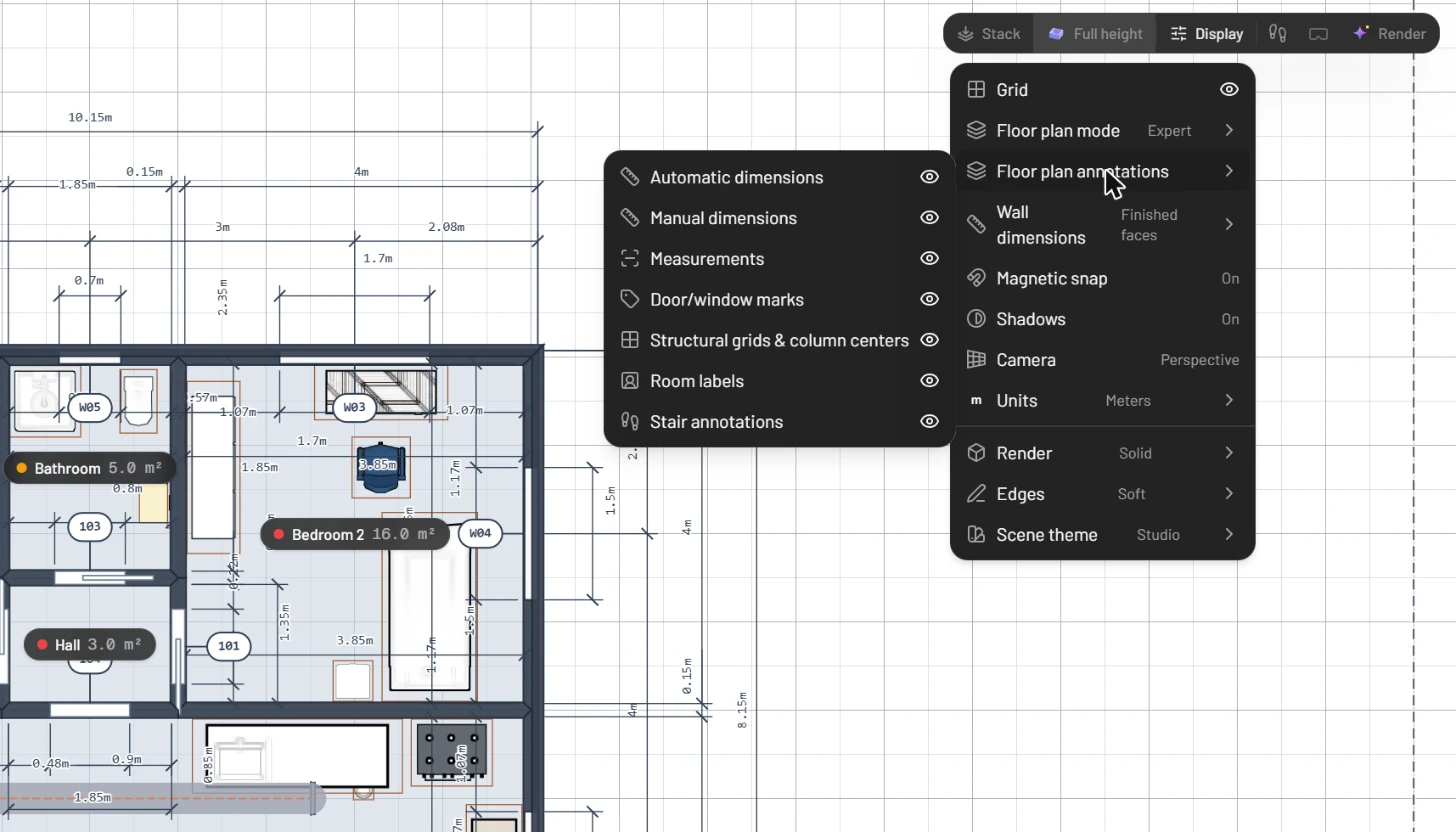
In Expert mode the **Display** menu gains two submenus:

* **Floor plan annotations** shows or hides each layer of the drawing: **Automatic dimensions**, **Manual dimensions**, **Measurements**, **Door/window marks**, **Structural grids & column centers**, **Room labels** and **Stair annotations**. All of them start out visible.
* **Wall dimensions** picks the face that wall dimensions measure to: **Finished faces** (the default), **Wall centerline** or **Face of stud**. Default mode always uses the centreline.

<figure><img src="https://1629954275-files.gitbook.io/~/files/v0/b/gitbook-x-prod.appspot.com/o/spaces%2F3c2lKXqxOtmrzgrQQpGP%2Fuploads%2Fgit-blob-c6c9dc4786c7cb6507c06908731226fbb00efbf6%2Fconstruction-drawings-display-menu.webp?alt=media" alt="The Display menu over the plan with Floor plan mode set to Expert and the Floor plan annotations submenu open: Automatic dimensions, Manual dimensions, Measurements, Door/window marks, Structural grids &#x26; column centers, Room labels and Stair annotations, each with an eye icon; behind it the plan with dimension strings and W01, W03, W04 and 101, 103 marks"><figcaption><p>Expert mode and its annotation layers. Each one can be shown or hidden on its own.</p></figcaption></figure>

## Place a dimension string

Automatic dimensions cover the walls. For anything else, such as window spacing along a facade, place a dimension yourself.

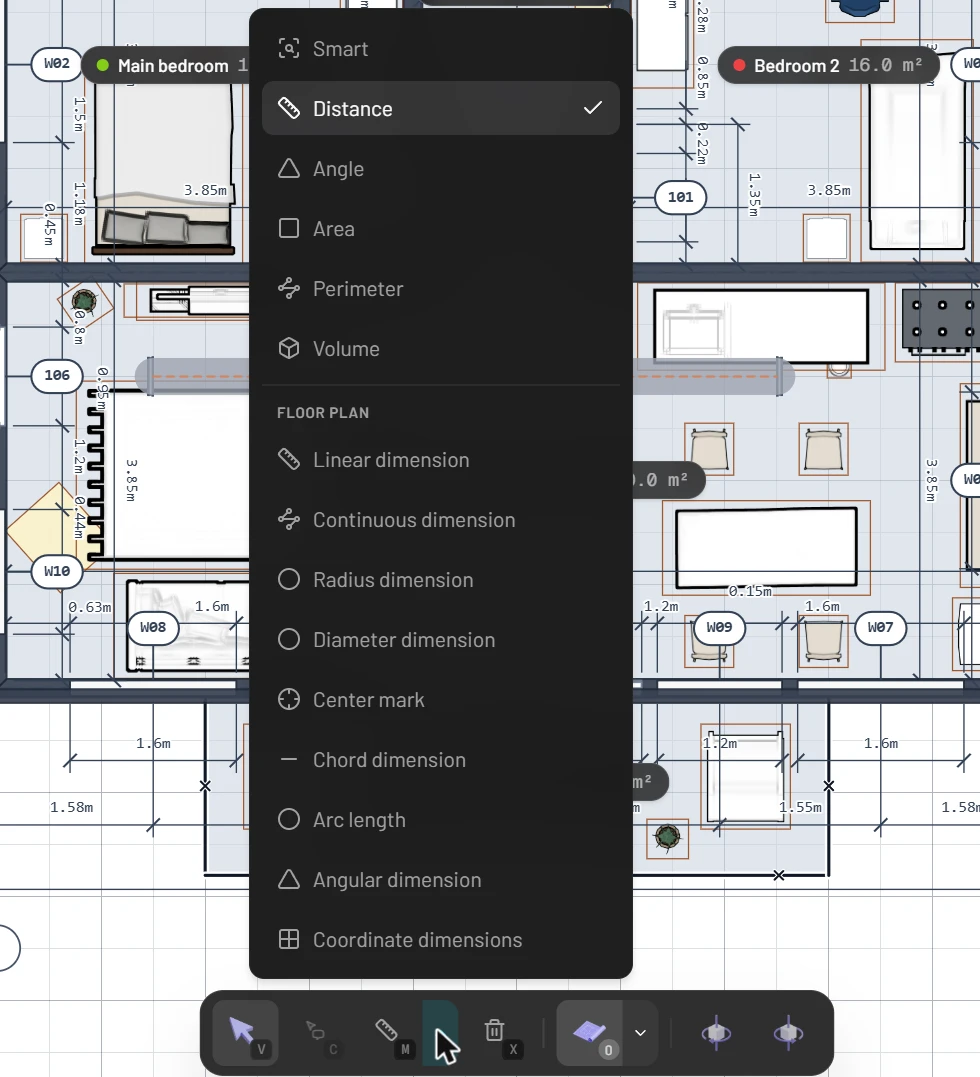
1. In the bottom toolbar, click the arrow next to **Measure**. In Expert mode the menu has a **Floor plan** section under the measuring tools.
2. Pick a dimension type. The Studio switches to the 2D view.
3. Click the points you want to dimension, then click once more where the dimension line should sit.

| Type                                         | How you place it                                                                   |
| -------------------------------------------- | ---------------------------------------------------------------------------------- |
| **Linear dimension**                         | Two points, then the line                                                          |
| **Continuous dimension**                     | A point at each break in the string, then `Enter` or a double-click, then the line |
| **Radius dimension**, **Diameter dimension** | Two points straight across the circle                                              |
| **Center mark**                              | Click a curved wall                                                                |
| **Chord dimension**                          | Click a curved wall (or two points), then the line                                 |
| **Arc length**, **Angular dimension**        | Three points, the middle one being the centre or corner, then the arc              |
| **Coordinate dimensions**                    | A point at each position, then `Enter` or a double-click                           |

While you click, `Backspace` removes the last point and `Esc` steps back; with nothing left to undo, `Esc` leaves the tool. Hold `Alt` to place a point without snapping. Once a dimension is placed, the tool closes and the new dimension is selected.

**Dimensions that stay put.** A point you click on a wall attaches to it. Move the wall or change its length later and the dimension follows. If that wall is deleted, the dimension turns red and its text starts with **UNLINKED**.

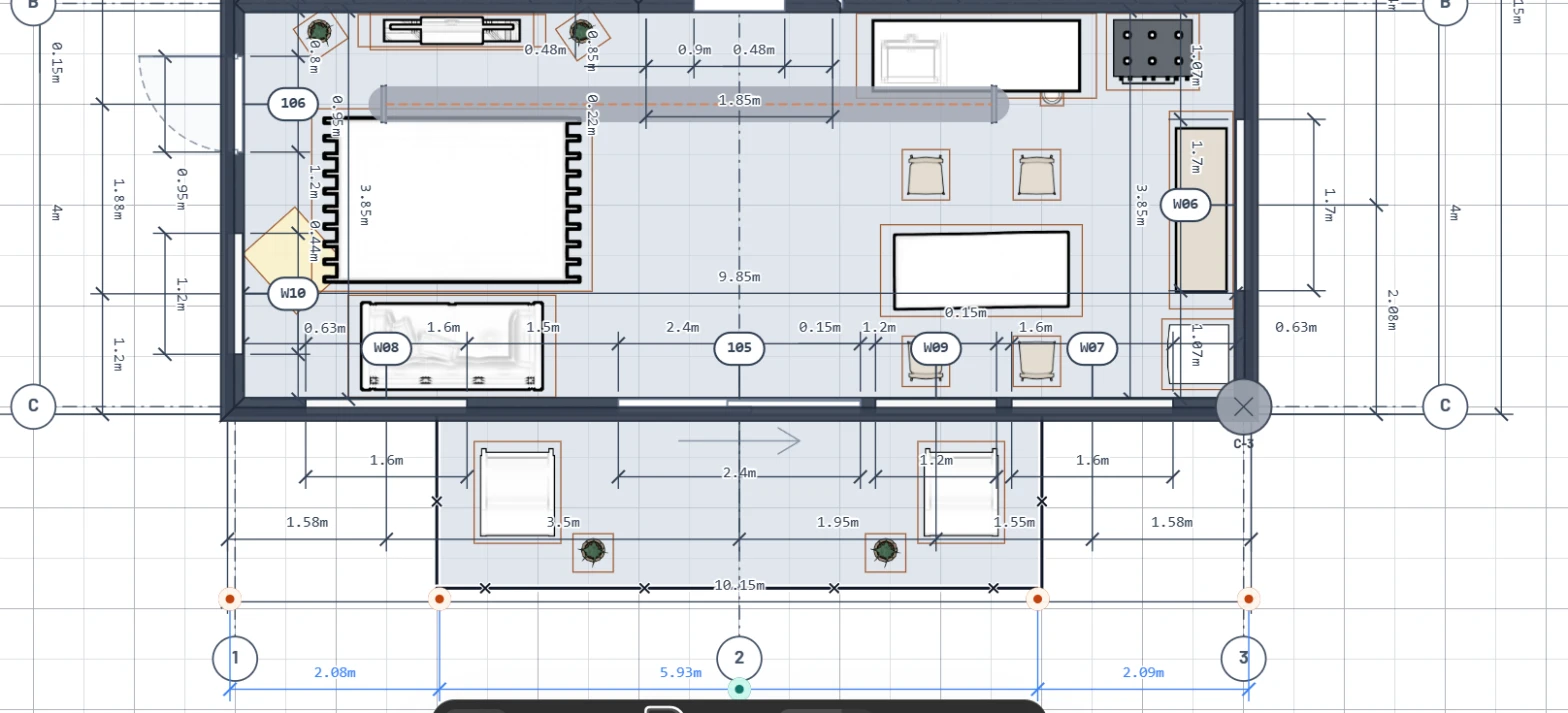
<figure><img src="https://1629954275-files.gitbook.io/~/files/v0/b/gitbook-x-prod.appspot.com/o/spaces%2F3c2lKXqxOtmrzgrQQpGP%2Fuploads%2Fgit-blob-62dc0ddbd4689b00086a38742e8fd5a78fb93196%2Fconstruction-drawings-dimension-string.webp?alt=media" alt="A continuous dimension placed below the south facade and selected, reading 2.08 m, 5.93 m and 2.09 m between grid lines 1, 2 and 3, with its witness points highlighted, above the balcony and the door and window marks W08, W09, W07 and 105"><figcaption><p>A continuous dimension along the balcony side, still selected.</p></figcaption></figure>

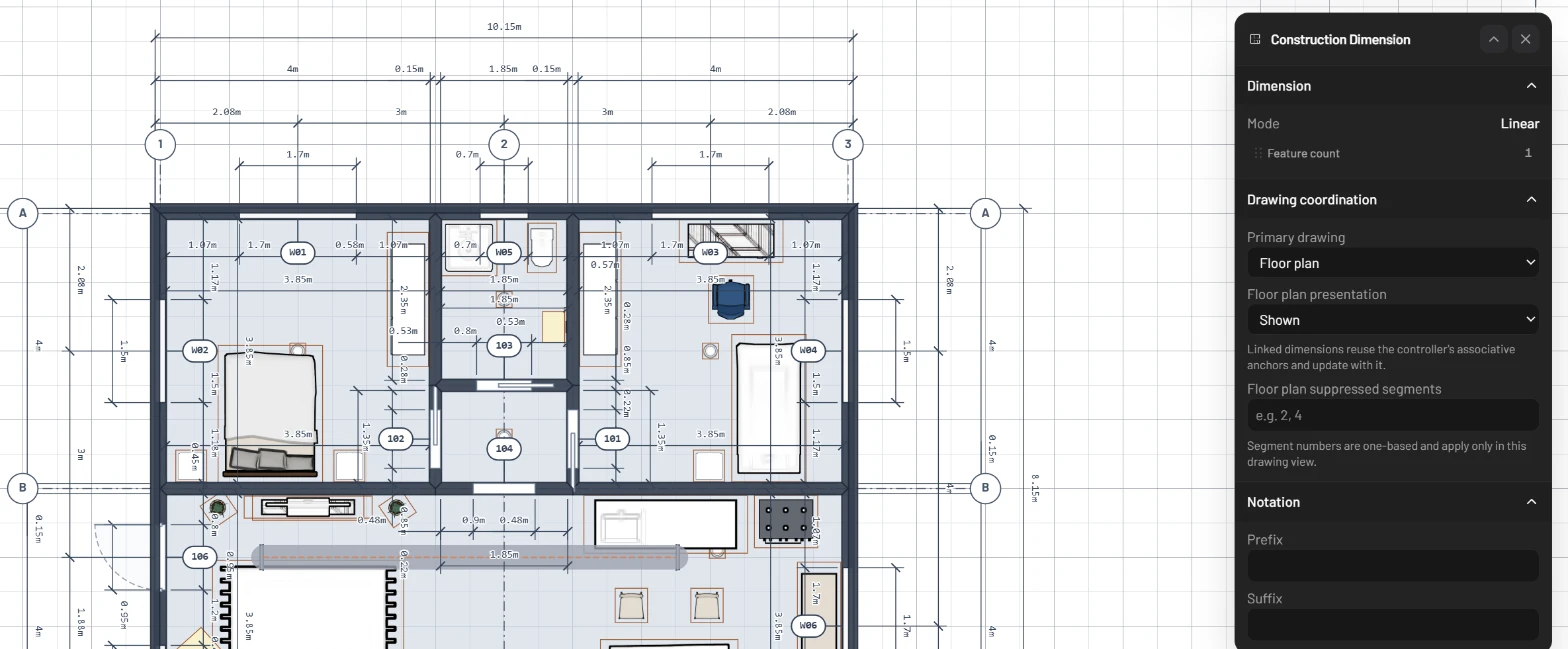
<figure><img src="https://1629954275-files.gitbook.io/~/files/v0/b/gitbook-x-prod.appspot.com/o/spaces%2F3c2lKXqxOtmrzgrQQpGP%2Fuploads%2Fgit-blob-baa46deb6dae2cb4978efb060e5d17b049245a79%2Fconstruction-drawings-dimension-panel.webp?alt=media" alt="The plan of the flat in Expert mode with grid bubbles 1, 2, 3 and A, B, and the Construction Dimension panel open with the Dimension, Drawing coordination and Notation sections"><figcaption><p>The Construction Dimension panel of the selected string.</p></figcaption></figure>

## Edit and annotate a dimension

Click a dimension on the plan to select it. Drag the handle on the dimension line to move the line nearer or further, or drag a witness point somewhere else. The **Construction Dimension** panel holds the rest:

| Section       | What you can set                                                                                                                                                                                                                                                                                                                               |
| ------------- | ---------------------------------------------------------------------------------------------------------------------------------------------------------------------------------------------------------------------------------------------------------------------------------------------------------------------------------------------- |
| **Dimension** | **Feature count**: from 2, the text starts with "2 x", for repeated features. Radius, diameter, arc and angle dimensions add a **Center mark** switch.                                                                                                                                                                                         |
| **Notation**  | **Prefix**, **Suffix**, and a **Text override** that replaces the measured value. Leave it empty to **Use measured value**.                                                                                                                                                                                                                    |
| **Standards** | **Datum policy** (**Centerline**, **Wall face**, **Structural face**, **Finish face**), **Terminator** (**Architectural tick**, **Filled arrow**, **Open arrow**, **Dot**), **Text position** (**Above line** or **Centered on line**), **Imperial precision** (nearest inch down to 1/16 inch), **Extension gap** and **Extension overshoot** |
| **Actions**   | **Delete**                                                                                                                                                                                                                                                                                                                                     |

Use **Prefix** and **Suffix** for short notes such as `CLR.` or `TYP.`, and type the space between note and value yourself.

**Type a value to move things.** In Select mode, click the number on any dimension on the plan, type a length such as `3.6m`, `3600mm` or `12'-6"`, and press `Enter`. The geometry moves until the dimension is true (see [Walls](/luw.ai-studio/building/walls.md)). If nothing attached can move, a dimension you placed shows your value with an **override** badge instead.

**Move a label aside.** Drag a dimension's text to a clearer spot; double-click it to put it back. The PDF keeps your positions.

## Draw a structural grid

1. In the **Build** tab, open **Advanced** and choose **Structural Grid**. The tile appears in Expert mode only.
2. Click where the grid line starts, then where it ends. Depending on the snapping mode, lines turn in 45° steps; hold `Alt` to draw freely.
3. Click more pairs of points for more lines. Press `Esc` when you're done.

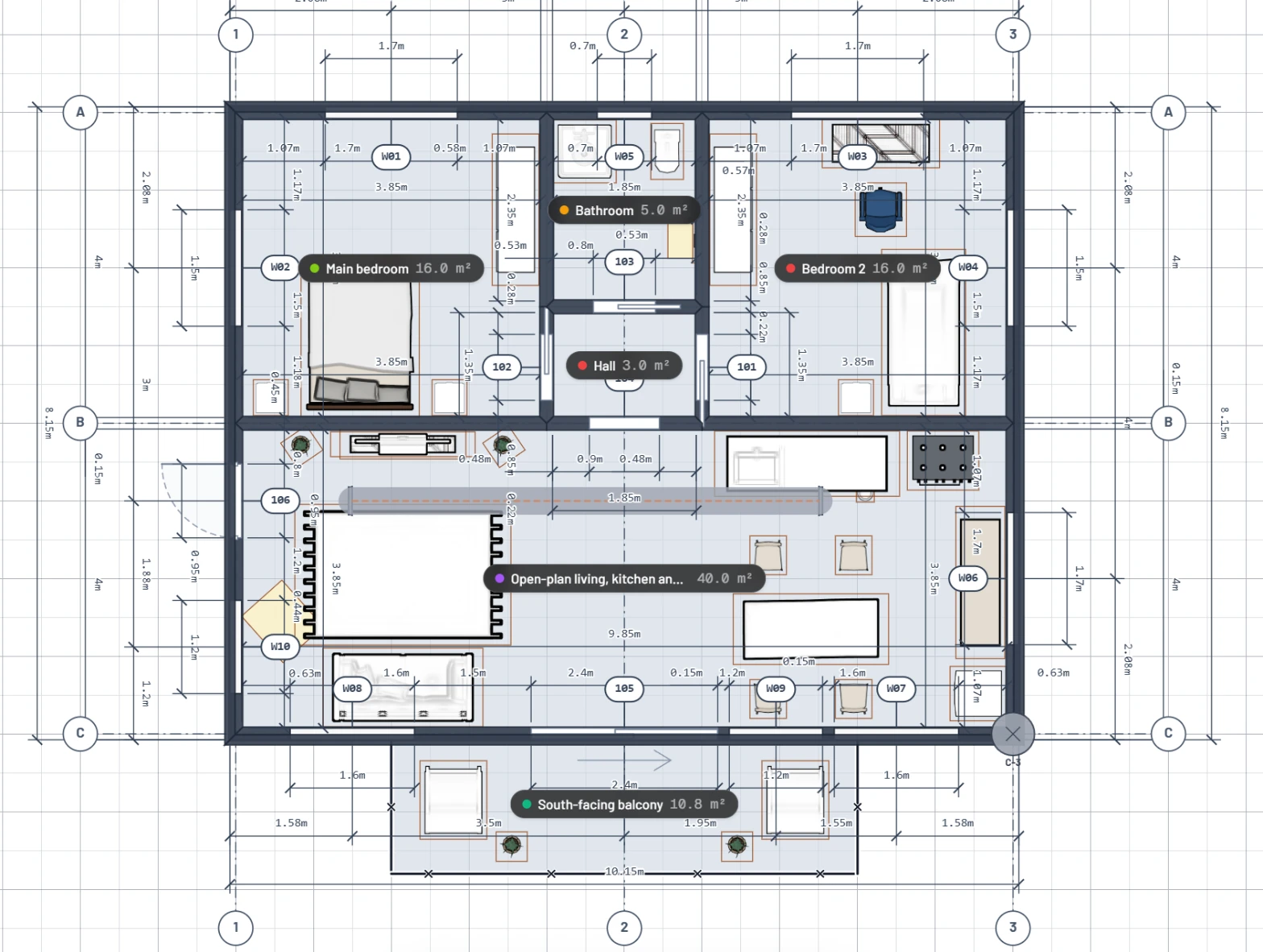
Each line is drawn dash-dotted with a bubble at both ends. Lines running one way are numbered **1**, **2**, **3**, and lines running across them are lettered **A**, **B**, **C**, always with the next free label. With snapping on, columns you place or move near a grid line or crossing snap onto it, and a column on the grid is labelled with its position, such as **A-1**. To remove a grid line, select it and press `Delete`.

<figure><img src="https://1629954275-files.gitbook.io/~/files/v0/b/gitbook-x-prod.appspot.com/o/spaces%2F3c2lKXqxOtmrzgrQQpGP%2Fuploads%2Fgit-blob-ece0e0424caf9a4b7a6a2d209b02436c7b996343%2Fconstruction-drawings-structural-grid.webp?alt=media" alt="The plan of the flat in Expert mode with grid lines 1, 2, 3 and A, B, C, a bubble at each end, and a column on the south-east corner labelled C-3, over the rooms, door and window marks and dimension strings"><figcaption><p>A structural grid over the flat. The column at the corner knows its grid reference, C-3.</p></figcaption></figure>

## Tag doors and windows

With **Door/window marks** on, every opening gets a tag. Doors are numbered by floor: **101**, **102** and so on for the ground floor, **201** onwards for Floor 1. Windows run **W01**, **W02** and onwards. The door and window schedules use the same marks.

## Group rooms and measure them

Room areas and each room's quantities report (wall surface, floor surface, volume) are on [Rooms and zones](/luw.ai-studio/building/zones.md). Two more tools help with drawings:

* **Units** group rooms, such as all the rooms of one flat. Create one with **New unit** in a room's **Unit** menu, in the **Units** section of the **Scene** tab, or from the command palette (`Cmd/Ctrl + K`). Click a unit under **Units** in the **Scene** tab to open its panel: **Name**, **Kind** (**Apartment**, **Hotel room**, **Commercial** or **Common**), **Color**, the member rooms with their areas, and a **Report** with **Members**, **Levels** and **Gross area**. **Focus** fades the rooms outside the unit. In the PDF, a unit's rooms are tinted in its colour and their tags add its name.
* **Measure** (`M`) keeps what you measure: **Distance**, **Angle**, **Area**, **Perimeter** and **Volume** measurements stay in the project and show on the plan's **Measurements** layer. For a volume, outline the base, type the height in the **H** box and click **Create**.

## Export the drawing set

Click **PDF** under **2D Floorplan** in the Export dialog, or **Full floor plan** in the **Settings** tab (see [Export](/luw.ai-studio/import-and-export/export.md)). You get one A4 landscape PDF for the whole building, floor by floor from the bottom up, skipping empty floors. Each floor gets a plan page headed with its name and the drawing, for example **Ground floor - Floor plan**, followed by **Construction Schedules** pages when it has doors, windows or rooms.

| Schedule            | Columns                                                                                               |
| ------------------- | ----------------------------------------------------------------------------------------------------- |
| **DOOR SCHEDULE**   | MARK, TYPE, NOMINAL SIZE, ROUGH OPENING, OPERATION, FRAME T / D, HARDWARE                             |
| **WINDOW SCHEDULE** | MARK, TYPE, NOMINAL SIZE, ROUGH OPENING, SILL, HEAD, OPERATION                                        |
| **ROOM SCHEDULE**   | NO., ROOM NAME, AREA, FLOOR FINISH, WALL FINISH, CEILING FINISH, CLG. HT., OCCUPANCY / USE, ENCLOSURE |

In metric, sizes are in millimetres and areas in m². The room schedule lists the rooms your walls enclose. Long tables carry on overleaf, marked **(CONTINUED)**. Problems appear above a table as **WARNING:** lines, such as a duplicate mark or a room without a number. Rooms drawn in the Studio have no number, so expect one such line per room.

What the plan page shows depends on:

* **Floor plan mode**: Default prints the plan and room tags, with no dimensions, marks or grid. Expert prints the layers switched on under **Floor plan annotations**, measured to your **Wall dimensions** choice.
* **Units** in the **Display** menu, for every length on the page.
* The 2D view: the page keeps its rotation, and shows the site plan when the **Site plan** switch is on (see [Site and parcel](/luw.ai-studio/building/site-and-parcel.md)).
* **Structure only** in the Settings tab, which leaves out rooms, the room schedule, placed dimensions and measurements.

{% hint style="warning" %}
Each plan is scaled to fill its page, under a one-line heading instead of a title block. With no fixed drawing scale, read sizes from the dimensions, not with a scale rule.
{% endhint %}

<figure><img src="https://1629954275-files.gitbook.io/~/files/v0/b/gitbook-x-prod.appspot.com/o/spaces%2F3c2lKXqxOtmrzgrQQpGP%2Fuploads%2Fgit-blob-d7accb2de773e6aa951059b32b61e66d3fa33916%2Fconstruction-drawings-measure-menu.webp?alt=media" alt="The Measure menu from the bottom toolbar: Smart, Distance, Angle, Area, Perimeter and Volume, then under Floor plan: Linear, Continuous, Radius, Diameter, Center mark, Chord, Arc length, Angular and Coordinate dimensions"><figcaption><p>The measure and dimension tools, opened from the arrow next to Measure.</p></figcaption></figure>

## Related pages

* [Export](/luw.ai-studio/import-and-export/export.md)
* [Rooms and zones](/luw.ai-studio/building/zones.md)
* [Walls](/luw.ai-studio/building/walls.md)
* [Doors and windows](/luw.ai-studio/building/doors-and-windows.md)