> For the complete documentation index, see [llms.txt](https://luw-ai.gitbook.io/luw.ai-app-docs/llms.txt). Markdown versions of documentation pages are available by appending `.md` to page URLs; this page is available as [Markdown](https://luw-ai.gitbook.io/luw.ai-app-docs/working-with-images/prompts-styles-settings.md).
# Prompts, styles and settings
A reference for the settings many tools share, from Type and Styles to Prompt Enhancer, Visual Strength, Model, HD and Aspect Ratio.
Many tools share the same settings on the right side of the workspace. This page explains each one once, so the tool pages only need to say which ones they show.
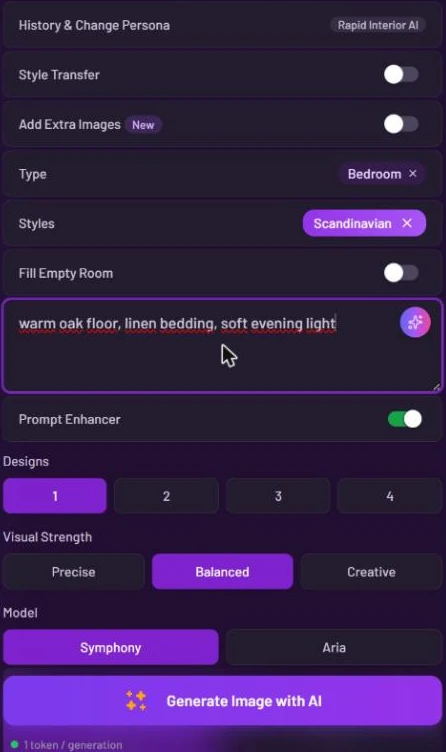
Interior's settings, top to bottom, ready to generate
| Setting | Where you'll find it |
| ------------------- | --------------------------------------------------------------------------------------------------------------------------------- |
| **Type** | Interior, Exterior, Sketch, Change Background |
| **Styles** | Interior, Exterior, Sketch, Change Background, Fluw |
| **Prompt** | Most tools; not 3DGen, Photo Enhancer, Remove Furniture, 3DSpace, Vector or Expand |
| **Prompt Enhancer** | Most tools |
| **Designs** | Most tools; not 3DGen, Photo Enhancer or 3DSpace |
| **Visual Strength** | Interior, Exterior, Sketch, Render, Remove Furniture, Change Background, Photo Enhancer, and Fluw or Pattern when you add a photo |
| **Model** | Most tools |
| **HD** | Magic Prompt, Interior, Exterior, Render |
| **Aspect Ratio** | Magic Prompt |
## Type
**Type** tells the tool what kind of space it's looking at. Interior lists room types such as Living Room, Kitchen, Bedroom, Bathroom, Attic and Dining Room. Exterior lists exterior types, and Sketch and Change Background list both. Click the **×** next to your choice to clear it.
Room types in Interior's Type list
## Choose styles
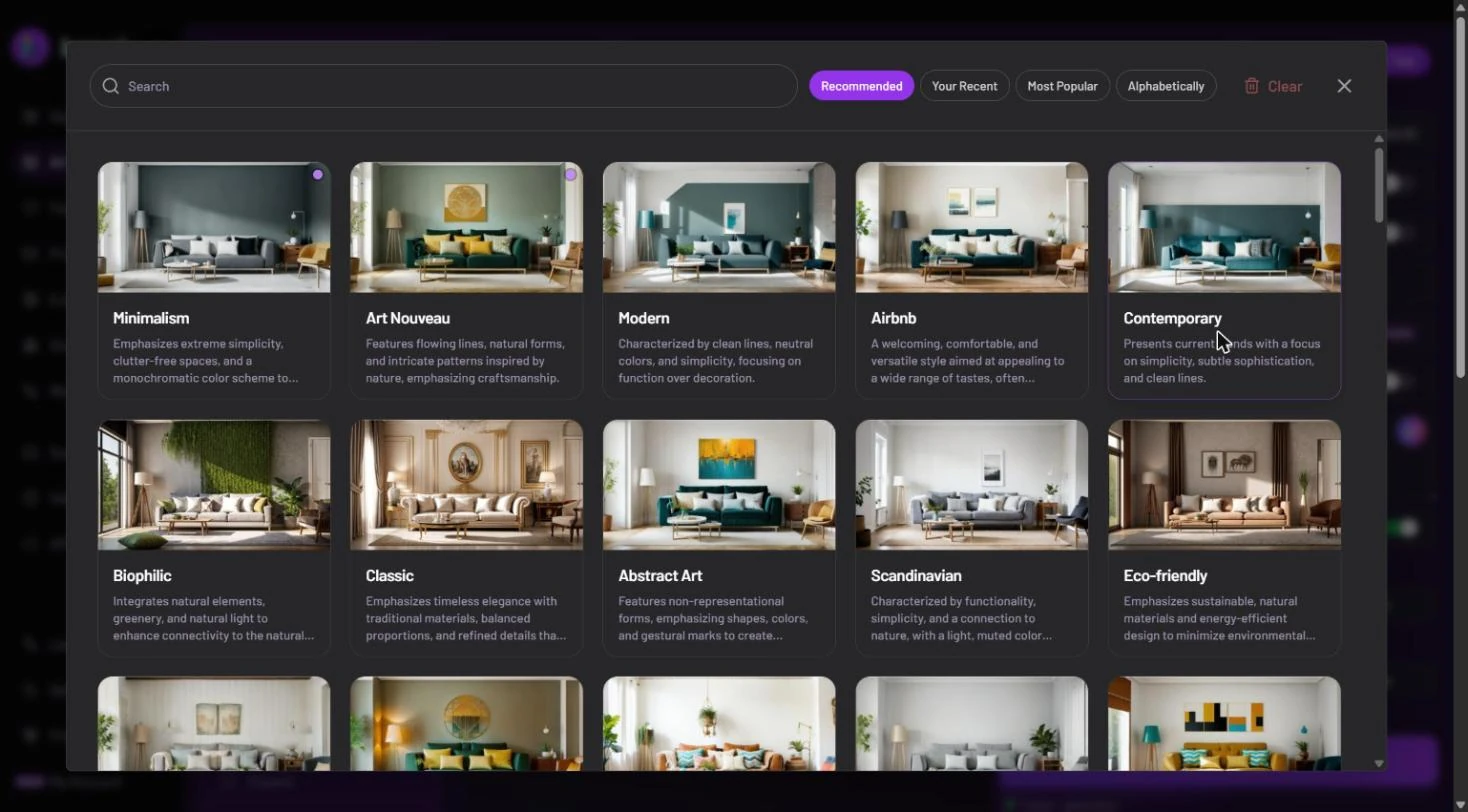
**Styles** opens a full-screen picker of style cards, each with a picture and a short description.
1. Click **Styles**. Before you pick anything, the row reads "Empty".
2. Type in **Search** to find a style by name, or sort the cards with the chips: **Recommended**, **Your Recent**, **Most Popular** or **Alphabetically**.
3. Click a card. The style is added and the picker closes.
4. To add another, open the picker again. You can pick up to **3** styles.
Search or sort, then click a card to add that style
Your styles show as chips in the form. To remove one, click its **×** chip, or click the card again in the picker. **Clear** in the picker removes them all, and the **×** at the top right closes the picker. The styles you choose are kept with the current persona.
If a search finds nothing, **Request a style?** appears. Click it, describe the style you'd like, and it's sent to the Luw\.ai team.
Mood Board AI uses its Styles slot to choose a mode instead. See [Mood Board AI](/luw.ai-app-docs/redesign-spaces/mood-board-ai.md).
## Write a prompt
**Prompt** is where you say what you want, in your own words: materials, colours, light, furniture, mood. Magic Prompt can't run without one; if the box is empty you see "Required: Prompt".
### Let ArchiGPT write it
Every prompt box has an ArchiGPT button (the sparkle in its corner). Click it and confirm ("1 token = \~3000 words"). An ArchiGPT chat opens, and the prompt it writes goes into the box. See [ArchiGPT](/luw.ai-app-docs/assistant/archigpt.md).
## Prompt Enhancer
**Prompt Enhancer** is a switch that rewrites your prompt into a fuller one before generating.
| On by default | Off by default |
| ----------------------------------------------------- | ------------------------------------------------- |
| Interior, Exterior, Video, Pattern, Change Background | Magic Prompt, Mood Board, Landscape, Sketch, Fluw |
{% hint style="info" %}
If a result ignores your exact words, turn **Prompt Enhancer** off so your prompt is used as you wrote it. This helps most in Change Background, where an enhanced prompt can produce a background unrelated to what you asked for.
{% endhint %}
## Designs
**Designs** (**1**, **2**, **3** or **4**) sets how many results you get. Each design is a separate generation and uses its own credits. The credit line under the Generate button shows the price of one design; it doesn't multiply by your choice. On the free plan you get 1 design at a time.
## Visual Strength
**Visual Strength** sets how closely the result keeps your photo:
* **Precise** keeps more of the original.
* **Balanced** is the default.
* **Creative** changes more.
## Model
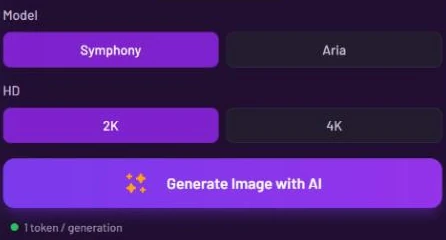
**Model** picks the engine: **Symphony** (the default) or **Aria**. Magic Prompt adds a third choice, **Nano Banana**. In the image tools both engines cost the same. In Video AI and 3DGen the price depends on the engine:
| Tool | Aria | Symphony |
| -------- | ---------- | ---------- |
| Video AI | 10 credits | 20 credits |
| 3DGen AI | 3 credits | 8 credits |
See [Credits and engines](/luw.ai-app-docs/getting-started/credits-and-engines.md).
## HD
**HD** sets the output resolution: **2K** (the default) or **4K**. **4K adds 1 credit** to each design. On the free plan the output is 0.5K, and 2K and 4K are locked.
Model and HD sit just above the Generate button
## Aspect Ratio
In Magic Prompt, **Aspect Ratio** sets the shape of the result:
| Option | Shape |
| ------------ | -------------------------------------- |
| **Auto** | The default. It doesn't force a shape. |
| **Wide** | 16:9 |
| **Vertical** | 9:16 |
| **Square** | 1:1 |
## Locked options
Options your plan doesn't include show a lock. Clicking one shows an upgrade message with a **Pricing** button. See [Account and plans](/luw.ai-app-docs/account/account-and-plans.md).
## Related
* [The tool workspace](/luw.ai-app-docs/getting-started/tool-workspace.md)
* [Credits and engines](/luw.ai-app-docs/getting-started/credits-and-engines.md)
* [Interior AI](/luw.ai-app-docs/redesign-spaces/interior-ai.md)
* [Magic Prompt AI](/luw.ai-app-docs/edit-images/magic-prompt-ai.md)