> For the complete documentation index, see [llms.txt](https://luw-ai.gitbook.io/luw.ai-app-docs/llms.txt). Markdown versions of documentation pages are available by appending `.md` to page URLs; this page is available as [Markdown](https://luw-ai.gitbook.io/luw.ai-app-docs/working-with-images/generate-an-image.md).
# Generate an image to start from
Make a starting picture from a written description inside a tool's upload area, for when you don't have a photo yet.
This page explains **Generate Image with AI** in the upload area, which makes a picture from your description and uses it as the tool's photo.
## When to use it
* **You don't have a photo yet.** Describe the room, building or object, generate a picture, and work on that.
* **You want a 3D model from words.** 3DGen needs a photo to start from. Generate a picture of the object here first, then make the model. See [3DGen AI](/luw.ai-app-docs/3d-and-video/3dgen-ai.md).
* **You want to try a tool with an idea** before you have real pictures of the space.
## Make a starting image
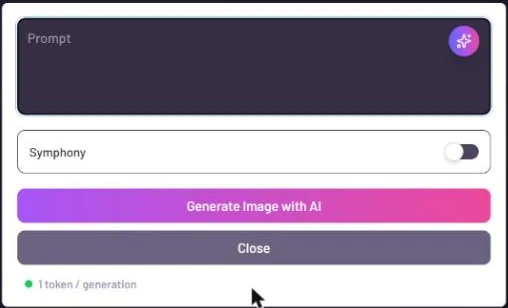
1. In the empty upload area, click **Generate Image with AI** (under "OR"). The upload area turns into a small panel.
2. Describe the picture you want in the **Prompt** box. To get help writing it, click the ArchiGPT button (the sparkle in the corner of the box). It asks you to confirm ("1 token = \~3000 words"), then opens an ArchiGPT chat, and the prompt it writes goes into the box.
3. Turn on **Symphony** if you want that engine. It's off to start with.
4. Click **Generate Image with AI**.
5. Wait for the picture. It can take up to a minute or two, so leave the panel open until it appears.
Prompt, Symphony switch and the credit line, all inside the upload box
If you aren't signed in, clicking the prompt box takes you to the sign-in screen.
## Keep it or try again
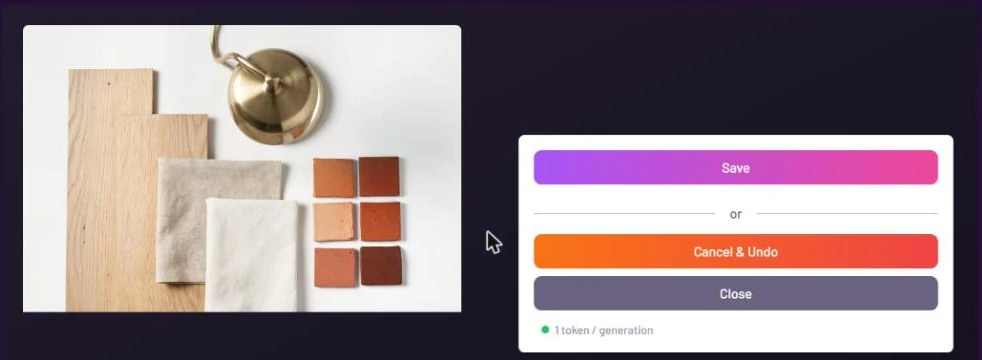
When the picture is ready, it appears next to three buttons:
| Button | What it does |
| ----------------- | --------------------------------------------------------------------------------------------------------------------------------- |
| **Save** | Uses the picture as your photo. It's uploaded like any other photo, and the form moves on to the next step. |
| **Cancel & Undo** | Asks you to confirm, then throws the picture away and takes you back to the prompt so you can try again. |
| **Close** | Closes the panel and returns to the empty upload area. If a picture is showing or still being made, it asks you to confirm first. |
Save keeps the picture as your photo; Cancel & Undo lets you try another prompt
## Credits
The credit line under the buttons reads "1 token / generation". With **Symphony** on, each picture uses 2 credits. Every time you click **Generate Image with AI**, a new picture is made and charged.
## Tips
* Describe the kind of picture the tool works with: a room for Interior, a house front for Exterior, a single object for 3DGen.
* Wait for the result rather than clicking Generate again, so you don't pay for a second picture.
* If you only want a picture and not a redesign, Fluw makes images from text as finished results. See [Fluw](/luw.ai-app-docs/render-and-create/fluw.md).
## Related
* [Uploading images](/luw.ai-app-docs/working-with-images/uploading-images.md)
* [3DGen AI](/luw.ai-app-docs/3d-and-video/3dgen-ai.md)
* [Credits and engines](/luw.ai-app-docs/getting-started/credits-and-engines.md)