> For the complete documentation index, see [llms.txt](https://luw-ai.gitbook.io/luw.ai-app-docs/llms.txt). Markdown versions of documentation pages are available by appending `.md` to page URLs; this page is available as [Markdown](https://luw-ai.gitbook.io/luw.ai-app-docs/results/save-share-download.md).
# Save, share and download
Keep, organise, share, publish, download or delete a result from the result viewer, and which of these actions each kind of result has.
This page covers the actions in the result viewer that keep a result, send it somewhere, or remove it.
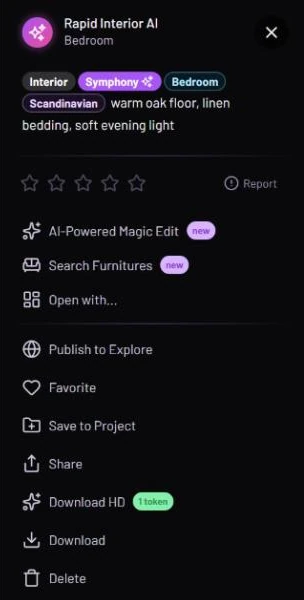
The full action list for an image result
## Which actions you see
| Action | Images | 3D models | Videos |
| ---------------------------------------------------------------- | ------ | --------- | ------ |
| **AI-Powered Magic Edit**, **Search Furnitures**, **Open with…** | Yes | No | No |
| **See 3D In Your Space** | No | Yes | No |
| **Continue from Last Frame** | No | No | Yes |
| **Publish to Explore** | Yes | Yes | Yes |
| **Favorite** | Yes | Yes | Yes |
| **Save to Project** | Yes | Yes | Yes |
| **Share** | Yes | Yes | Yes |
| **Download HD** | Yes | No | No |
| **Download** | Yes | Yes | Yes |
| **Delete** | Yes | Yes | Yes |
The editing actions are covered in [Edit and reuse a result](/luw.ai-app-docs/results/edit-and-reuse.md). Vector AI and Photo Enhancer results have a plain **Download** but no **Download HD**.
## Add to Favorites
**Favorite** adds the result to your Favorites, where liked designs are grouped by tool. Once a design is in your Favorites, the button no longer appears for it. See [Favorites](/luw.ai-app-docs/organize-your-work/favorites.md).
## Save to a project
Projects hold designs in folders and can be shared with other people. To save a result into one:
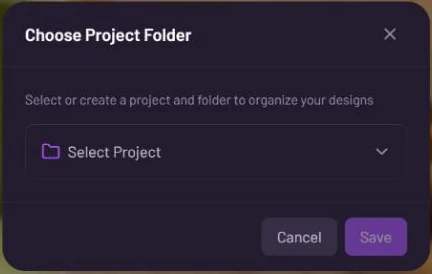
1. Click **Save to Project**. The **Choose Project Folder** dialog opens: "Select or create a project and folder to organize your designs".
2. Click **Select Project** and pick a project, or choose **New Project**, type a name and click **Create**.
3. Under **Select Folder**, pick a folder, or click **New Folder** to make one. A folder is optional.
4. Click **Save**.
Pick or create a project, then a folder, then Save
**Cancel** closes the dialog without saving. To save many results at once, tick them in **Latest Designs** and use **Save to Project (n)**. See [Latest Designs](/luw.ai-app-docs/results/latest-designs.md) and [Projects](/luw.ai-app-docs/organize-your-work/projects.md).
## Share a link
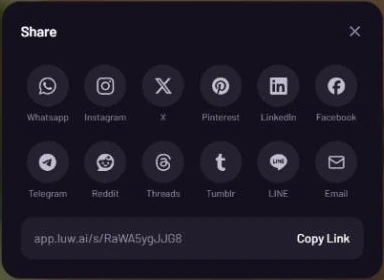
**Share** opens the "Share" sheet. It shows "Preparing your link" for a moment, then a link of the form app.luw\.ai/s/… with **Copy Link** next to it.
Twelve places to share, plus a link you can copy
The twelve destinations are Whatsapp, Instagram, X, Pinterest, LinkedIn, Facebook, Telegram, Reddit, Threads, Tumblr, LINE and Email. Click one to share the link there.
Instagram doesn't accept shared links, so clicking it copies the link for you, opens Instagram and shows "Link copied — paste it into your Instagram post". On a phone, your phone's own share menu may open instead.
If the link can't be made, the sheet says "Could not create the link"; click **Try again**.
## Publish to Explore
**Publish to Explore** offers your design to the community gallery in [Explore](/luw.ai-app-docs/organize-your-work/explore.md).
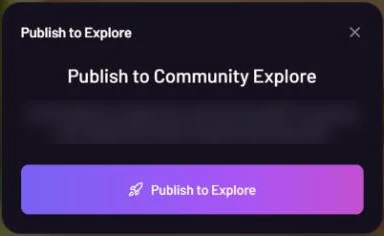
1. Click **Publish to Explore**. The "Publish to Community Explore" dialog opens.
2. Click **Publish to Explore** in the dialog.
3. ArchiGPT reviews the design. If it approves, the design is published to Explore. If not, a short message tells you.
ArchiGPT reviews the design before it appears in Explore
## Download the result
* **Download** saves the original file: the image, the 3D model or the video.
* **Download HD** (badge "1 token") upscales the image and then downloads the larger version. It uses 1 credit. It's for paid plans only; on the free plan it shows a PRO lock, and clicking it shows the upgrade message. After the upscale, clicking **Download HD** again downloads the same HD file without another charge.
If you close the viewer while an HD upscale is still running, it asks you to confirm, because the credit would be lost.
To download several results at once, use **Download All** or tick results in [Latest Designs](/luw.ai-app-docs/results/latest-designs.md).
## Delete a result
**Delete** removes the result after asking you to confirm. To delete several at once, tick them in **Latest Designs** and use the **Delete** button in the bar there.
## Related
* [The result viewer](/luw.ai-app-docs/results/result-viewer.md)
* [Edit and reuse a result](/luw.ai-app-docs/results/edit-and-reuse.md)
* [Favorites](/luw.ai-app-docs/organize-your-work/favorites.md)
* [Projects](/luw.ai-app-docs/organize-your-work/projects.md)