> For the complete documentation index, see [llms.txt](https://luw-ai.gitbook.io/luw.ai-app-docs/llms.txt). Markdown versions of documentation pages are available by appending `.md` to page URLs; this page is available as [Markdown](https://luw-ai.gitbook.io/luw.ai-app-docs/results/latest-designs.md).
# Latest Designs
Where your results appear in each tool, how to follow their progress, and how to select, download, save or delete several at once.
**Latest Designs** is the list of results under every tool's workspace. This page covers how results arrive, how to manage them in bulk, and what happens when a design fails.
The list shows the results of the current persona only. To see another persona's results, switch persona with **History & Change Persona**. See [Personas and history](/luw.ai-app-docs/getting-started/personas.md).
## Watch a design being made
When you press the Generate button, placeholder cards appear in **Latest Designs** right away, one per design, and the page scrolls down to them. Each card shows your photo blurred, a spinner and a percentage.
A placeholder card while the design is being made
The card checks its progress every few seconds and turns into the finished result by itself. Some tools take a minute or more, and Video AI takes several minutes.
You don't have to wait on the page. Leave and come back later, and the result will be in the list.
### Messages you may see
| Message | What it means |
| ------------------------------------------------------------------ | ---------------------------------------------------------------------------------------------------------------------------------- |
| "Waiting for image" | The tool needs a photo and you haven't uploaded one. |
| "No area selected. Use the brush to mark where you want changes." | Magic Wand or Landscape needs a selected area. See [Selecting an area](/luw.ai-app-docs/working-with-images/selecting-an-area.md). |
| "Required: Prompt" | Magic Prompt needs a prompt. |
| "NSFW content detected. Please try again with a different prompt." | The request was flagged. Change the prompt and try again. |
| "Something went wrong" | The design couldn't be made. See [When a design fails](#when-a-design-fails). |
If you run out of credits, a pricing window opens with subscriptions and credit packs. See [Account and plans](/luw.ai-app-docs/account/account-and-plans.md).
## Browse your results
Finished results are laid out in four columns, newest first. When there are many, a **Show All** button at the bottom shows the rest. Before your first result, the list reads "No designs yet. Upload your image and generate your first AI design."
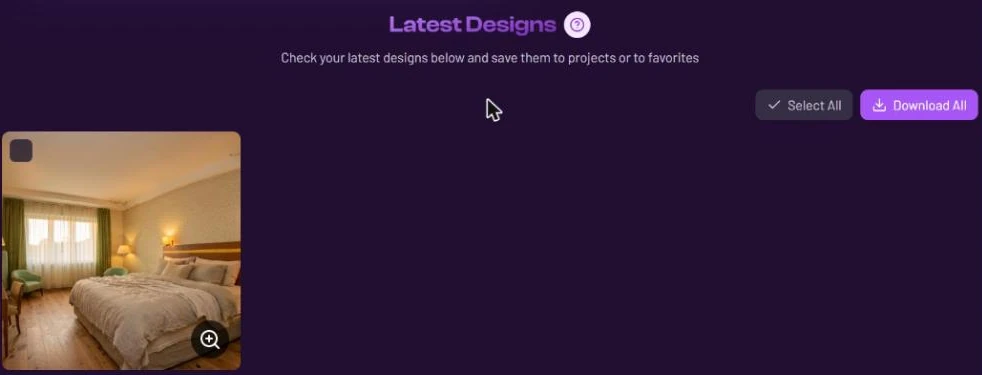
Each finished card has a checkbox in its top-left corner and a zoom button in its bottom-right corner. Click a card to open it in the result viewer. See [The result viewer](/luw.ai-app-docs/results/result-viewer.md).
A finished result with its checkbox and zoom button
The **?** next to the heading shows the tool's help again.
## Download everything
**Download All** downloads every finished design in the list. Files are saved one at a time, and a small bar at the bottom right shows "Downloading" with a count and a percentage. Click **Cancel** there to stop.
## Work with several results at once
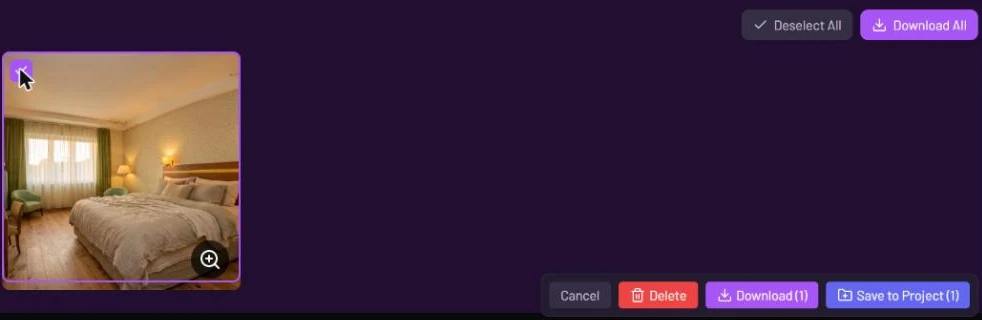
1. Tick the checkboxes of the results you want, or click **Select All**. (Once everything is ticked, the button reads **Deselect All**.)
2. A bar appears at the bottom right of the screen.
3. Choose an action.
| Button | What it does |
| ----------------------- | ------------------------------------------------------------------------------------------------------------------------------------------------------------------------ |
| **Cancel** | Clears your selection. |
| **Delete** | Deletes the selected results after asking you to confirm. With more than one selected, it reads **Delete All**. |
| **Download (n)** | Downloads the selected results. |
| **Save to Project (n)** | Opens **Choose Project Folder** so you can put them all in a project. See [Save, share and download](/luw.ai-app-docs/results/save-share-download.md#save-to-a-project). |
With a result ticked, the bar offers Cancel, Delete, Download and Save to Project
## When a design fails
A design that couldn't be made shows a "Something went wrong" picture instead of a result. Click it to open it, then click **Delete Design & Refund**. The design is removed for good and the credits it used are refunded. The message warns that the refund can take up to 24 hours.
If a finished result is flagged as unsafe, it's removed automatically and its credits are refunded.
## Related
* [The result viewer](/luw.ai-app-docs/results/result-viewer.md)
* [Save, share and download](/luw.ai-app-docs/results/save-share-download.md)
* [Personas and history](/luw.ai-app-docs/getting-started/personas.md)
* [Troubleshooting](/luw.ai-app-docs/connect/troubleshooting.md)