> For the complete documentation index, see [llms.txt](https://luw-ai.gitbook.io/luw.ai-app-docs/llms.txt). Markdown versions of documentation pages are available by appending `.md` to page URLs; this page is available as [Markdown](https://luw-ai.gitbook.io/luw.ai-app-docs/results/edit-and-reuse.md).

# Edit and reuse a result

Keep working on a finished result, with a quick Magic Edit, a furniture search, opening it in another tool, or continuing a video or a 3D model.

A result doesn't have to be the end of the road. This page covers the actions in the result viewer that change a result or carry it into your next step.

| Action                       | Shown for |
| ---------------------------- | --------- |
| **AI-Powered Magic Edit**    | Images    |
| **Search Furnitures**        | Images    |
| **Open with…**               | Images    |
| **Continue from Last Frame** | Videos    |
| **See 3D In Your Space**     | 3D models |

## Make a quick change with Magic Edit

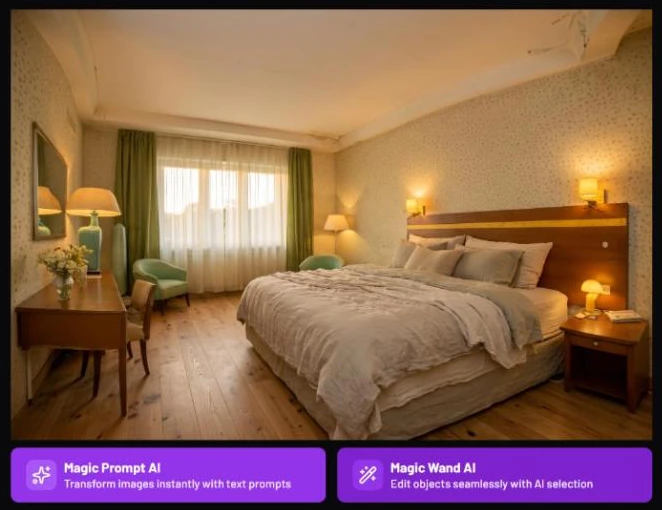
**AI-Powered Magic Edit** (badge new) lets you change a result right in the viewer. Click it and choose how you want to edit:

* **Magic Prompt AI** changes the whole picture from a written instruction.
* **Magic Wand AI** changes only the part you mark.

<figure><img src="https://1930792265-files.gitbook.io/~/files/v0/b/gitbook-x-prod.appspot.com/o/spaces%2F4yESzclcaZeSiIDZ8eIa%2Fuploads%2Fgit-blob-afc96339ab45c8125e8c2b3ec22003b4d04d4a0f%2Fmagic-edit-choice.webp?alt=media" alt="A bedroom result with two buttons underneath: Magic Prompt AI, Transform images instantly with text prompts, and Magic Wand AI"><figcaption><p>Pick Magic Prompt AI for the whole picture, Magic Wand AI for one part</p></figcaption></figure>

### Edit with a prompt

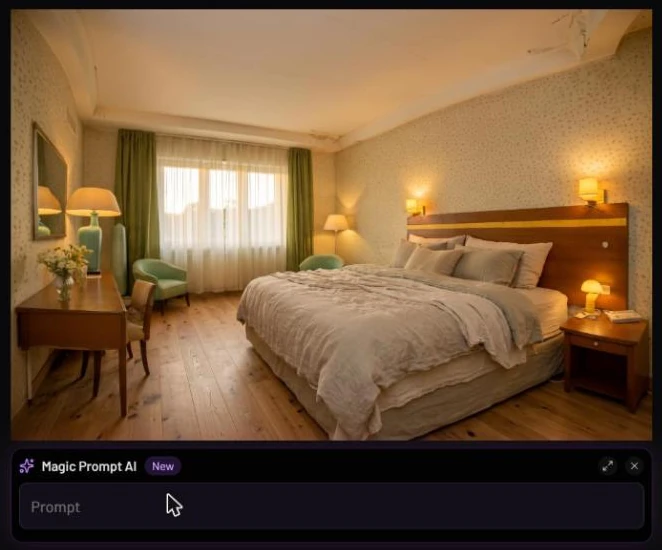
1. Choose **Magic Prompt AI**. A prompt box appears under the image.
2. Click the box and type the change, for example "add a plant next to the window".
3. Click **Generate Image with AI**, or press `Ctrl+Enter` (`Cmd+Enter` on a Mac).
4. Wait for the edit. It appears as a before/after slider over the result.

<figure><img src="https://1930792265-files.gitbook.io/~/files/v0/b/gitbook-x-prod.appspot.com/o/spaces%2F4yESzclcaZeSiIDZ8eIa%2Fuploads%2Fgit-blob-16bc37e7fe8a8e013f65023a8c6ac442a2e49974%2Fmagic-edit-prompt.webp?alt=media" alt="The bedroom result with a Magic Prompt AI box labelled New underneath, holding an empty Prompt field, with expand and close buttons"><figcaption><p>The Magic Prompt AI box sits right under the image</p></figcaption></figure>

### Edit one part

1. Choose **Magic Wand AI**.
2. Paint over the part of the picture you want to change.
3. Click the text box, then either click **Remove Objects**, or type what should appear there and click **Generate Image with AI**.
4. Wait for the edit, which appears as a before/after slider.

### After the edit

Once an edit is done, the download button in the action list becomes **Download Magic Edit**, which saves the edited picture. **Open with…** also uses the edited version.

The edit uses credits; the price is shown in the prompt box. If you close the viewer while an edit is still running, it asks you to confirm, because the credits would be lost.

For more settings, open the result in the full tool with **Open with…**. See [Magic Prompt AI](/luw.ai-app-docs/edit-images/magic-prompt-ai.md) and [Magic Wand AI](/luw.ai-app-docs/edit-images/magic-wand-ai.md).

## Find similar furniture

**Search Furnitures** (badge new) helps you shop for what you see in a design.

1. Click **Search Furnitures**. A window shows "Searching furnitures..." while the image is prepared.
2. When it reads "Ready to search", click **Show Results**.
3. Google Lens opens in a new tab with your design, so you can find similar products.

## Open the result in another tool

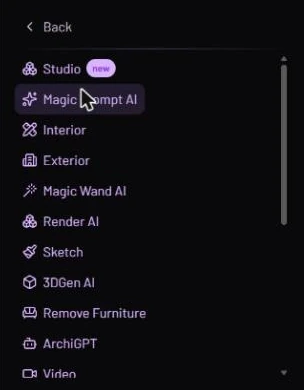
**Open with…** turns the action list into a list of destinations: **Back**, **Studio** (badge new), then every tool except Floor Planner.

<figure><img src="https://1930792265-files.gitbook.io/~/files/v0/b/gitbook-x-prod.appspot.com/o/spaces%2F4yESzclcaZeSiIDZ8eIa%2Fuploads%2Fgit-blob-88317ebfd9ef70c10f5503fee234f1a6642144d9%2Fopen-with-list.webp?alt=media" alt="The Open with list: Back, Studio with a new badge, Magic Prompt AI, Interior, Exterior, Magic Wand AI, Render AI, Sketch, 3DGen AI, Remove Furniture, ArchiGPT and Video"><figcaption><p>Studio first, then every tool you can send the result to</p></figcaption></figure>

* **Studio** opens the image in Luw\.ai Studio in a new tab. See [Luw.ai Studio](/luw.ai-app-docs/connect/luw-ai-studio.md).
* Any tool opens the image there as the photo of a **new persona**. A loading screen with the tool's name appears while it opens.

This is how you chain tools: for example, restyle a room in Interior, then send the result to Video AI for a flythrough, or to Magic Wand AI to swap one piece of furniture. If you made a Magic Edit or an HD version first, that newer version is the one that's sent. See [Personas and history](/luw.ai-app-docs/getting-started/personas.md).

## Continue a video

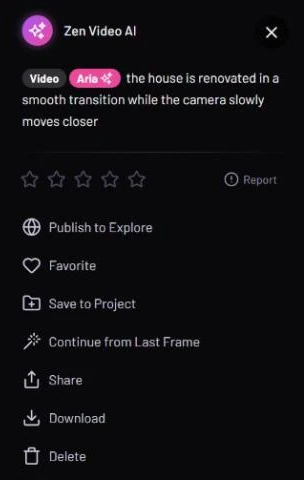
Video results have **Continue from Last Frame**. It takes the video's last frame and opens it in Video AI, in a new persona, so you can make the next shot from where this one ends.

<figure><img src="https://1930792265-files.gitbook.io/~/files/v0/b/gitbook-x-prod.appspot.com/o/spaces%2F4yESzclcaZeSiIDZ8eIa%2Fuploads%2Fgit-blob-5dd3b592f9d19e40a1155977aa39f007cac8ea74%2Fvideo-actions.webp?alt=media" alt="The panel of a Video AI result with the tags Video and Aria, the prompt, rating stars, Report, and the actions Publish to Explore, Favorite, Save to Project, Continue from Last Frame, Share, Download and Delete"><figcaption><p>Continue from Last Frame chains one video shot into the next</p></figcaption></figure>

See [Video AI](/luw.ai-app-docs/3d-and-video/video-ai.md).

## See a 3D model in your space

3D results have **See 3D In Your Space** (badge new):

* On a phone, it opens an AR viewer so you can place the model in the room around you.
* On a desktop, it shows a QR code. Scan it with your phone to open the AR viewer there.

See [3DGen AI](/luw.ai-app-docs/3d-and-video/3dgen-ai.md).

## Related

* [The result viewer](/luw.ai-app-docs/results/result-viewer.md)
* [Save, share and download](/luw.ai-app-docs/results/save-share-download.md)
* [Personas and history](/luw.ai-app-docs/getting-started/personas.md)
* [Luw.ai Studio](/luw.ai-app-docs/connect/luw-ai-studio.md)