> For the complete documentation index, see [llms.txt](https://luw-ai.gitbook.io/luw.ai-app-docs/llms.txt). Markdown versions of documentation pages are available by appending `.md` to page URLs; this page is available as [Markdown](https://luw-ai.gitbook.io/luw.ai-app-docs/render-and-create/pattern-ai.md).
# Pattern AI
Generate tileable textures and patterns from a prompt or a photo, ready to repeat across floors, walls and fabrics.
Pattern AI makes tileable textures: square images that repeat without visible seams when you place them side by side. Use them for floors, walls, fabrics, wallpaper or materials in 3D programs.
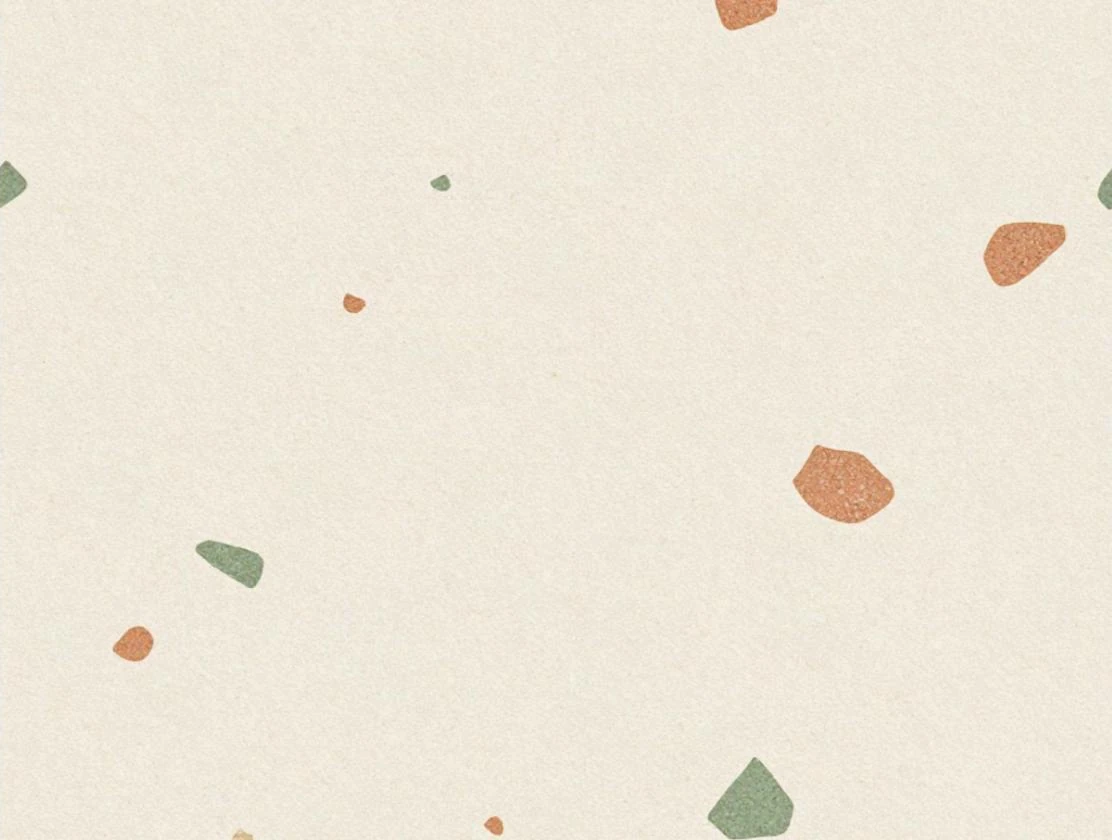
A terrazzo texture from a short prompt. Placed side by side, the tiles line up at the edges.
## What you need
* A prompt describing the texture, or a photo to start from.
* Credits for each design. See [Credits](#credits).
## Make a texture
1. Open **Pattern** from the Dashboard, or pick **Pattern AI** in **All Tools**.
2. Describe the texture in the **Prompt** box at the top, for example "terrazzo with terracotta and sage chips on warm white".
3. Optional: under "or, generate prompt from image", upload a photo of a material you want to start from. See [Uploading images](/luw.ai-app-docs/working-with-images/uploading-images.md).
4. Choose a **Model**, then a **Texture Size**.
5. Choose **Designs** and decide whether to keep **Prompt Enhancer** on.
6. Press **Generate Image with AI**. The texture appears in **Latest Designs**.
The Texture Size options change with the model you pick.
## Settings
| Setting | What it does |
| ---------------------------- | -------------------------------------------------------------------------------------------------------------------------- |
| **History & Change Persona** | Switches to another persona or starts a new one. See [Personas and history](/luw.ai-app-docs/getting-started/personas.md). |
| **Prompt** | The material or pattern you want, in your own words. |
| Photo (optional) | A picture under "or, generate prompt from image" to start from. |
| **Model** | **Symphony** (default) or **Aria**. |
| **Texture Size** | How big the tile is. **Symphony** offers **512** or **1024**; **Aria** offers **512** or **768**. |
| **Prompt Enhancer** | Rewrites your prompt into a fuller one before generating. On by default here. |
| **Designs** | How many textures to make at once (1–4). Each one is a separate generation. The free plan makes 1. |
For more on the shared controls, see [Prompts, styles and settings](/luw.ai-app-docs/working-with-images/prompts-styles-settings.md).
## Credits
Each design uses 1 credit, with either model. See [Credits and engines](/luw.ai-app-docs/getting-started/credits-and-engines.md).
## Tips
* Name the material, the colours and the scale, such as "small hexagon tiles, matte sage green, thin white grout".
* Pick the largest **Texture Size** your model offers when the texture will cover a big surface.
* Upload a close-up of the material, not a photo of a whole room. If you upload a room photo, a [smart suggestion](/luw.ai-app-docs/working-with-images/smart-suggestions.md) offers to switch to a better tool.
* Make several **Designs** at once and keep the one that repeats best.
## Related
* [Fluw](/luw.ai-app-docs/render-and-create/fluw.md)
* [Mood Board AI](/luw.ai-app-docs/redesign-spaces/mood-board-ai.md)
* [Prompts, styles and settings](/luw.ai-app-docs/working-with-images/prompts-styles-settings.md)
* [Latest Designs](/luw.ai-app-docs/results/latest-designs.md)