> For the complete documentation index, see [llms.txt](https://luw-ai.gitbook.io/luw.ai-app-docs/llms.txt). Markdown versions of documentation pages are available by appending `.md` to page URLs; this page is available as [Markdown](https://luw-ai.gitbook.io/luw.ai-app-docs/render-and-create/fluw.md).
# Fluw
Create photos and illustrations from a text prompt, optionally guided by a photo, as an image or an SVG vector.
Fluw creates pictures from words. Describe what you want, such as a product shot, an interior or an illustration, and Fluw generates it. You can add a photo to guide the result, or ask for a vector (SVG) illustration instead of a photo.
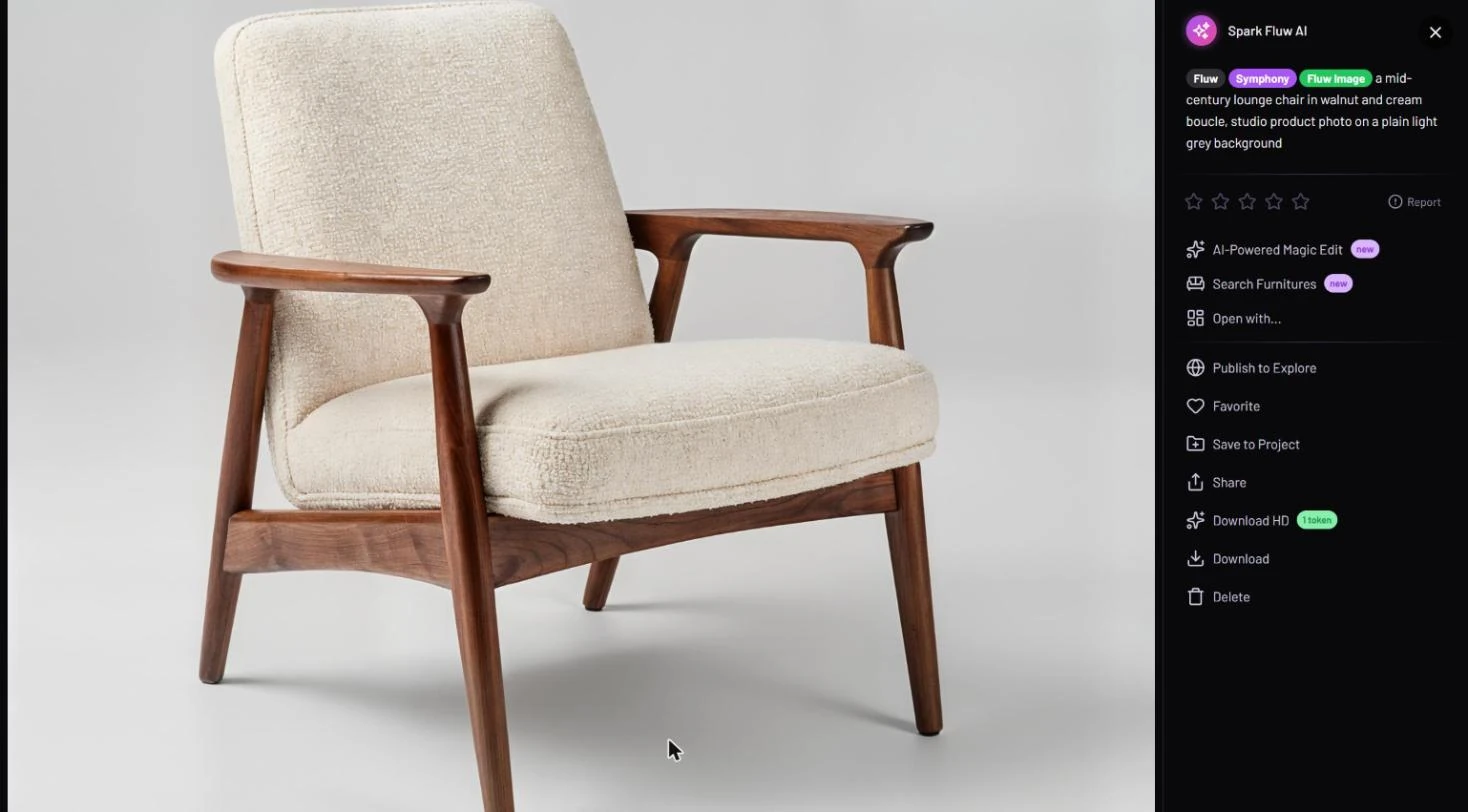
A product photo made from a one-line prompt. The Fluw Image tag marks a photo result.
## What you need
* A prompt describing the picture.
* Optional: a photo to guide the result.
* Credits for each design. See [Credits](#credits).
## Make an image
1. Open **Fluw** from the Dashboard, or pick it in **All Tools**. Fluw has no step bar; everything is on one screen.
2. Type what you want in the **Prompt** box at the top. The sparkle button in the box can write a prompt for you with ArchiGPT.
3. Optional: under "or, generate prompt from image", upload a photo to guide the result. See [Uploading images](/luw.ai-app-docs/working-with-images/uploading-images.md).
4. Pick **Styles**, a **Crop Image** ratio and, if you want an SVG, turn on **Generate vector image**.
5. Choose **Designs** and **Model**. With a photo added, **Visual Strength** appears too.
6. Press **Generate Image with AI**. The result appears in **Latest Designs**.
Fluw puts the prompt first. The photo below it is optional.
## Settings
| Setting | What it does |
| ---------------------------- | -------------------------------------------------------------------------------------------------------------------------- |
| **History & Change Persona** | Switches to another persona or starts a new one. See [Personas and history](/luw.ai-app-docs/getting-started/personas.md). |
| **Prompt** | What you want to see, in your own words. |
| Photo (optional) | A picture under "or, generate prompt from image" that guides the result. |
| **Styles** | Pick up to three styles from the picker. |
| **Generate vector image** | Makes an SVG illustration instead of a photo. Vector results get the **Fluw Vector** tag; photos get **Fluw Image**. |
| **Crop Image** | The shape of the picture: **16:9**, **3:2**, **4:3**, **1:1** (default), **3:4**, **2:3** or **9:16**. |
| **Prompt Enhancer** | Rewrites your prompt into a fuller one before generating. Off by default here. |
| **Designs** | How many images to make at once (1–4). Each one is a separate generation. The free plan makes 1. |
| **Visual Strength** | Shown when you add a photo. **Precise** stays closer to the photo, **Creative** changes more. |
| **Model** | **Symphony** (default) or **Aria**. |
For more on the shared controls, see [Prompts, styles and settings](/luw.ai-app-docs/working-with-images/prompts-styles-settings.md).
## Credits
Each design uses 2 credits. The credit line under the button shows "2 tokens / generation". See [Credits and engines](/luw.ai-app-docs/getting-started/credits-and-engines.md).
## Tips
* Be specific: name the object, the materials, the background and the kind of shot, as in "studio product photo on a plain light grey background".
* Pick **Crop Image** before you generate. **16:9** suits banners and wide interiors, **9:16** suits phone stories.
* Need a logo-like graphic or a drawing you can scale? Turn on **Generate vector image** to get an SVG.
* If your prompt is short, try **Prompt Enhancer** to add detail. If the result drifts from your words, turn it off.
## Related
* [Pattern AI](/luw.ai-app-docs/render-and-create/pattern-ai.md)
* [Vector AI](/luw.ai-app-docs/edit-images/vector-ai.md)
* [Generate an image to start from](/luw.ai-app-docs/working-with-images/generate-an-image.md)
* [The result viewer](/luw.ai-app-docs/results/result-viewer.md)