> For the complete documentation index, see [llms.txt](https://luw-ai.gitbook.io/luw.ai-app-docs/llms.txt). Markdown versions of documentation pages are available by appending `.md` to page URLs; this page is available as [Markdown](https://luw-ai.gitbook.io/luw.ai-app-docs/redesign-spaces/remove-furniture.md).
# Remove Furniture
Empty a furnished room in a photo by removing the furniture and objects, with no prompt needed.
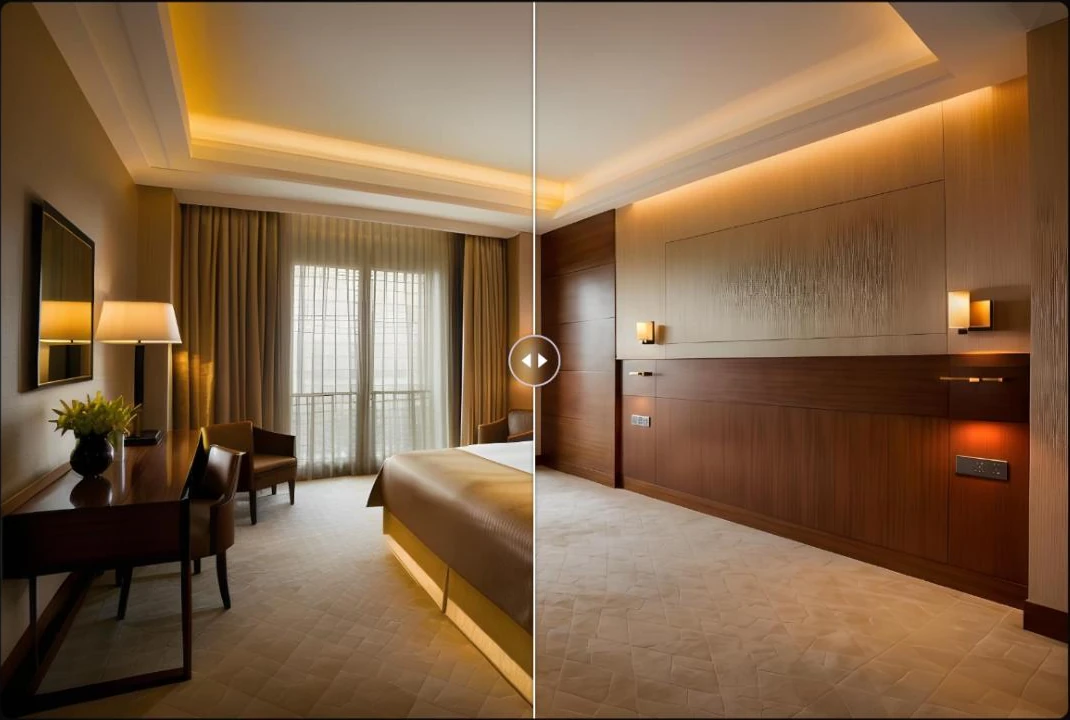
Remove Furniture takes the furniture and objects out of an interior photo and leaves an empty room. It's useful when you want to show a space without its current contents, or start over before refurnishing it.
The furnished bedroom, emptied.
## What you need
* A photo of a furnished interior. See [Uploading images](/luw.ai-app-docs/working-with-images/uploading-images.md) for the file types you can use.
* Nothing else: there's no prompt to write.
## Empty a room
1. Open **Remove Furniture** from the Dashboard or from **All Tools** (app.luw\.ai/remove-furniture).
2. Upload your photo. When the upload finishes, the form moves to **Customize and Generate** by itself.
3. Choose the number of **Designs** and the **Visual Strength**.
4. Press **Generate Image with AI**. Your results appear in **Latest Designs** below the form. Click one to open it in the [result viewer](/luw.ai-app-docs/results/result-viewer.md) and compare it with the original.
Only two settings: how many designs and how closely to keep the photo.
## Settings
| Setting | What it does |
| ---------------------------- | -------------------------------------------------------------------------------------------------------------------------- |
| **History & Change Persona** | Switches to another persona or starts a new one. See [Personas and history](/luw.ai-app-docs/getting-started/personas.md). |
| **Designs** | How many results to make: 1, 2, 3 or 4. The free plan makes 1. |
| **Visual Strength** | How closely the result keeps your photo: **Precise** keeps more, **Creative** changes more. **Balanced** is the default. |
## Credits
Each design uses 1 credit ("1 token / generation"). Making several designs multiplies the cost.
## Tips
* If walls, floors or windows change more than you want, try **Precise**.
* Make 2 to 4 designs and keep the cleanest one.
* To remove just one object and keep the rest, use [Magic Wand AI](/luw.ai-app-docs/edit-images/magic-wand-ai.md) with **Remove** instead.
* To refurnish the empty room, open the result, choose **Open with…** → **Interior**, and turn on **Fill Empty Room**.
## Related
* [Interior AI](/luw.ai-app-docs/redesign-spaces/interior-ai.md)
* [Magic Wand AI](/luw.ai-app-docs/edit-images/magic-wand-ai.md)
* [Edit and reuse a result](/luw.ai-app-docs/results/edit-and-reuse.md)
* [The result viewer](/luw.ai-app-docs/results/result-viewer.md)