> For the complete documentation index, see [llms.txt](https://luw-ai.gitbook.io/luw.ai-app-docs/llms.txt). Markdown versions of documentation pages are available by appending `.md` to page URLs; this page is available as [Markdown](https://luw-ai.gitbook.io/luw.ai-app-docs/redesign-spaces/mood-board-ai.md).
# Mood Board AI
Create a new mood board from your elements, render a mood board as a finished room, or see a mood board inside a photo of your own space.
Mood Board AI works with mood boards in three ways: it builds a new board from your elements, renders a board as a finished room, or shows a board inside a photo of your own space.
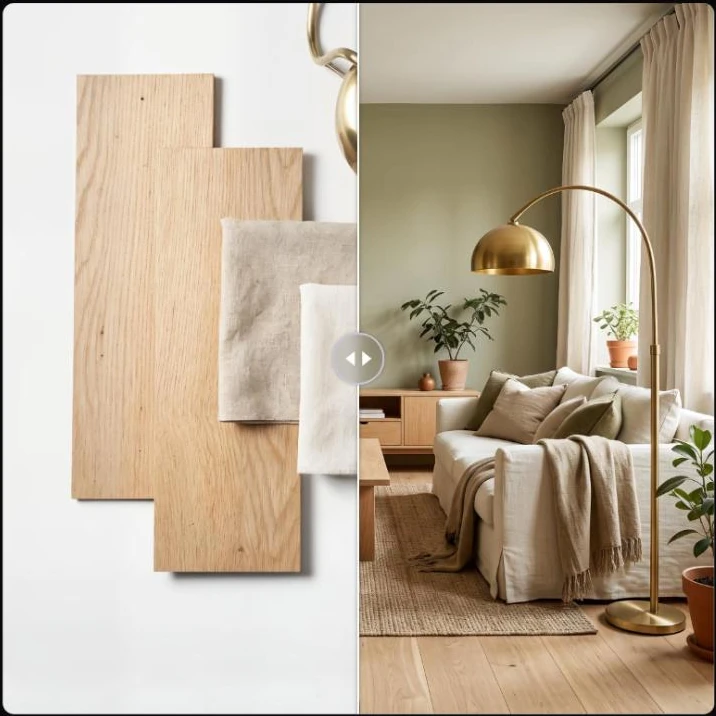
A material board rendered as a living room with Moodboard to Render.
## What you need
What you need depends on the mode. You choose the mode in the **Styles** row, which opens these three cards:
The three Mood Board modes.
The main photo is the one you upload in the **Upload an image** step. Extra images go in the slots of **Add Extra Images**.
| Mode | Main photo | Add Extra Images | What you get |
| ------------------------------- | --------------------- | --------------------------------------------------------- | ----------------------------------------------------------------------- |
| **Generate Moodboard with AI** | One of your elements | The rest of your elements (furniture, materials, colours) | A new mood board with a colour scheme |
| **Moodboard to Render** | Your mood board | Not needed | A full render of a room in the board's colours, materials and furniture |
| **See moodboard in Your Space** | A photo of your space | Your mood board | Your space designed with the board |
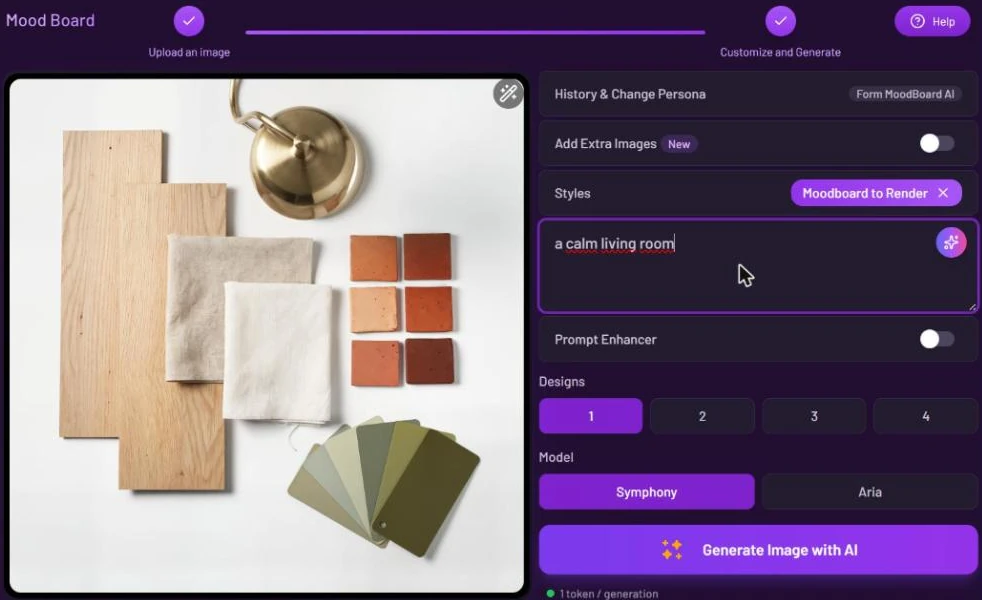
See [Uploading images](/luw.ai-app-docs/working-with-images/uploading-images.md) for the file types you can use. A short prompt that names the room, such as "a calm living room", is optional.
## Use a mood board
1. Open **Mood Board** from the Dashboard or from **All Tools** (app.luw\.ai/moodboard-ai).
2. Upload the main photo your mode needs. When the upload finishes, the form moves to **Customize and Generate** by itself.
3. Open **Styles** and pick one mode.
4. If your mode uses extra images, turn on **Add Extra Images** and add them to the slots.
5. Optional: type a **Prompt**.
6. Choose the number of **Designs** and the **Model**.
7. Press **Generate Image with AI**. Your results appear in **Latest Designs** below the form.
Moodboard to Render with a material board as the main photo.
## Settings
| Setting | What it does |
| ---------------------------- | -------------------------------------------------------------------------------------------------------------------------- |
| **History & Change Persona** | Switches to another persona or starts a new one. See [Personas and history](/luw.ai-app-docs/getting-started/personas.md). |
| **Add Extra Images** | Six slots for extra images: your elements or your mood board, depending on the mode. |
| **Styles** | The mode: **Generate Moodboard with AI**, **Moodboard to Render** or **See moodboard in Your Space**. |
| **Prompt** | What you want, in your own words. |
| **Prompt Enhancer** | Rewrites your prompt into a fuller one before generating. Off by default here. |
| **Designs** | How many results to make: 1, 2, 3 or 4. The free plan makes 1. |
| **Model** | **Symphony** (default) or **Aria**. Both cost the same. |
## Credits
Each design uses 1 credit ("1 token / generation"). Making several designs multiplies the cost.
## Tips
* Pick one mode at a time, and check the table before you upload so each picture goes in the right place.
* Use the prompt to name the room, such as "a calm living room" or "a small home office".
* Open a result to compare the board and the room side by side with the before/after slider.
* Like the render? Use **Open with…** in the result viewer to keep working on it in another tool, such as [Interior AI](/luw.ai-app-docs/redesign-spaces/interior-ai.md).
## Related
* [Uploading images](/luw.ai-app-docs/working-with-images/uploading-images.md)
* [Interior AI](/luw.ai-app-docs/redesign-spaces/interior-ai.md)
* [Prompts, styles and settings](/luw.ai-app-docs/working-with-images/prompts-styles-settings.md)
* [The result viewer](/luw.ai-app-docs/results/result-viewer.md)