> For the complete documentation index, see [llms.txt](https://luw-ai.gitbook.io/luw.ai-app-docs/llms.txt). Markdown versions of documentation pages are available by appending `.md` to page URLs; this page is available as [Markdown](https://luw-ai.gitbook.io/luw.ai-app-docs/redesign-spaces/landscape-ai.md).

# Landscape AI

Redesign a garden, yard or outdoor area by selecting the part to change and choosing a garden style, sun exposure and city.

Landscape AI redesigns a garden, yard or any outdoor area in a photo. You select the part to change, choose a garden style, the sun exposure and your city, and get a photo-realistic design matched to your city, light and climate.

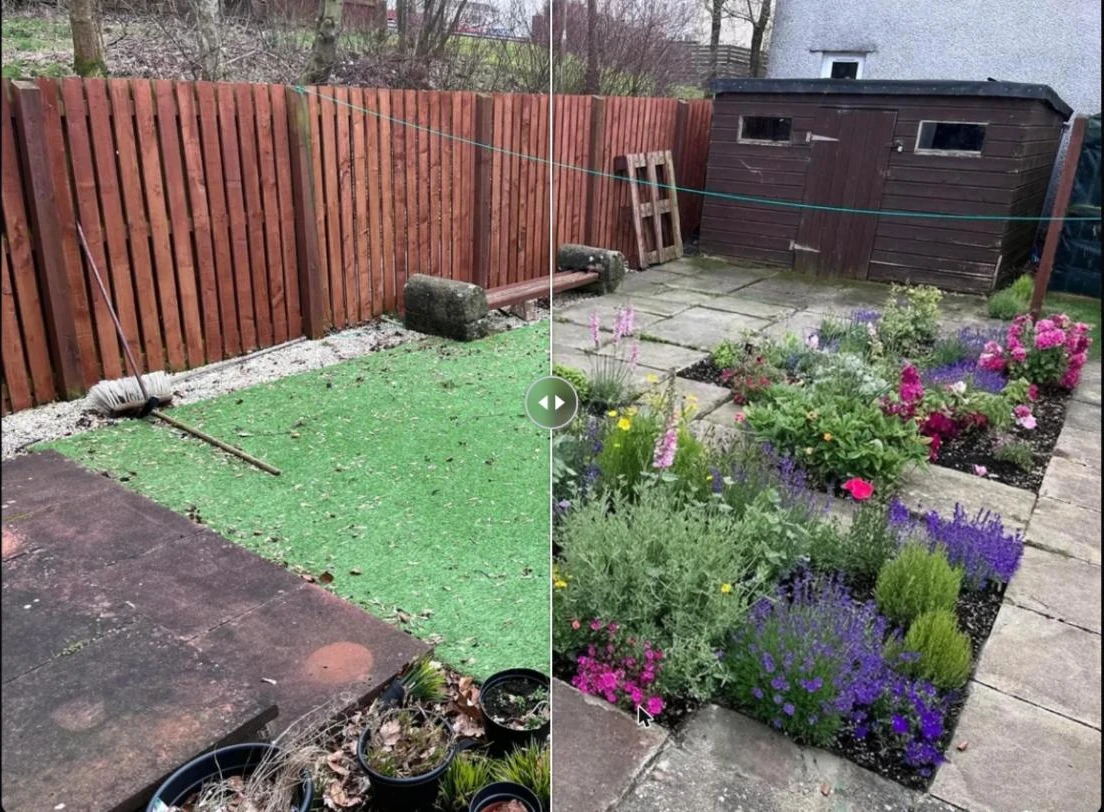
<figure><img src="https://1930792265-files.gitbook.io/~/files/v0/b/gitbook-x-prod.appspot.com/o/spaces%2F4yESzclcaZeSiIDZ8eIa%2Fuploads%2Fgit-blob-ece5d9507c58282f431aa5eb80bd4c910a92be81%2Flandscape-result.webp?alt=media" alt="Before/after slider on a back garden: artificial grass on the left, flower beds with lavender and roses between paving stones on the right, with the same fence and shed on both sides"><figcaption><p>An English garden planted in the selected area. The fence and shed stay as they were.</p></figcaption></figure>

## What you need

* A photo of the outdoor area. See [Uploading images](/luw.ai-app-docs/working-with-images/uploading-images.md) for the file types you can use.
* The name of your city, so the design suits your climate.

## Make a garden design

Landscape works in three steps: **Upload an image** → **Select editing area** → **Customize and Generate**.

1. Open **Landscape** from the Dashboard or from **All Tools** (app.luw\.ai/landscape-ai).
2. Upload your photo. The form moves on to **Select editing area** by itself.
3. Select the area you want to redesign (see below), then press **Continue**.
4. Open **Style** and pick a garden style.
5. Open **Sun Exposure** and choose how much sun the area gets.
6. Open **City**, type at least two letters of your city and choose it from the list.
7. Optional: add details in the **Prompt** box.
8. Choose the number of **Designs** and the **Model**, then press **Generate Image with AI**. Your designs appear in **Latest Designs** below the form.

### Select the area

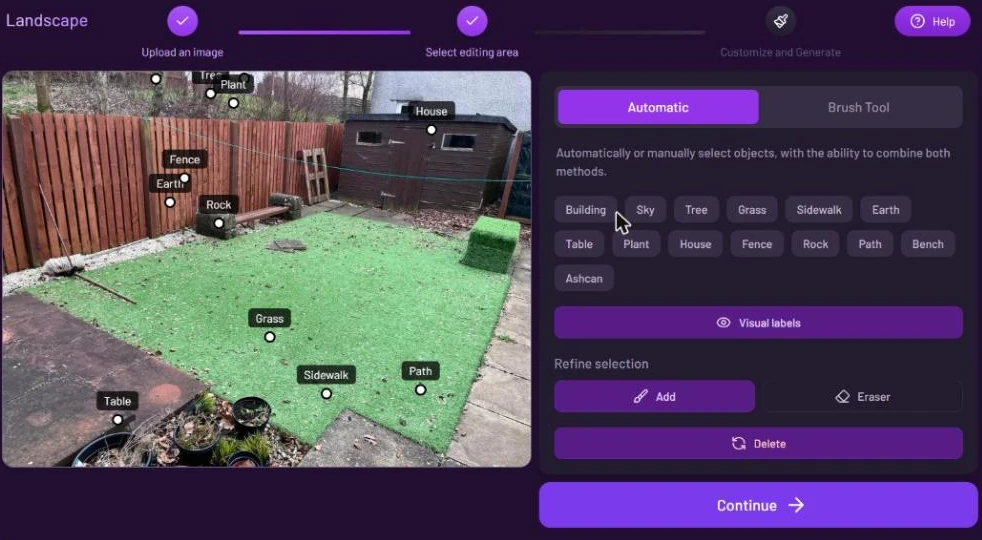
The selection step opens on the **Automatic** tab. Press **Magic Select** to find the objects in your photo. Labels appear on the photo and as chips, such as **Grass**, **Fence**, **Path** or **Sidewalk**. Click a chip or a label to select it, and click it again to deselect it. You can select several.

<figure><img src="https://1930792265-files.gitbook.io/~/files/v0/b/gitbook-x-prod.appspot.com/o/spaces%2F4yESzclcaZeSiIDZ8eIa%2Fuploads%2Fgit-blob-29e39f01fff88f02cae2fd9bae494b1d4cfd3695%2Fmagic-select-results.webp?alt=media" alt="Select editing area step on a back garden photo: object labels such as Grass, Fence, Rock and Path on the photo, matching chips on the right, Visual labels, Refine selection with Add and Eraser, Delete and Continue"><figcaption><p>Magic Select found the objects in the garden. Click the ones you want to redesign.</p></figcaption></figure>

Other ways to select:

* **Prompt & Select**: type what to find, and matching objects are selected.
* **Refine selection**: **Add** paints more area with a brush, **Eraser** takes some away. **Delete** clears the automatic selection.
* The **Brush Tool** tab lets you paint the area yourself.

[Selecting an area](/luw.ai-app-docs/working-with-images/selecting-an-area.md) covers every selection tool in detail.

### Choose the style, sun and city

After **Continue**, the settings step opens. **Back** at the top returns you to the selection.

<figure><img src="https://1930792265-files.gitbook.io/~/files/v0/b/gitbook-x-prod.appspot.com/o/spaces%2F4yESzclcaZeSiIDZ8eIa%2Fuploads%2Fgit-blob-414c5a1c624162a7f726aa6a3a8d3bf775a41d4b%2Flandscape-settings.webp?alt=media" alt="Landscape settings: Back, History &#x26; Change Persona, Style Empty, Sun Exposure showing Full sun (6+ hours), City Empty, Prompt, Prompt Enhancer off, Designs and Model"><figcaption><p>The settings step: Style, Sun Exposure and City come first.</p></figcaption></figure>

**Style** opens a picker of garden styles with pictures and short descriptions: Modern, Scandinavian, Contemporary, Rustic, Zen, Coastal, Cottage, Desert, Edible Garden, English and more, 22 in all.

<figure><img src="https://1930792265-files.gitbook.io/~/files/v0/b/gitbook-x-prod.appspot.com/o/spaces%2F4yESzclcaZeSiIDZ8eIa%2Fuploads%2Fgit-blob-e3e3e0d9b747d9d79adb8268ab7f5efad0a13037%2Fgarden-styles.webp?alt=media" alt="Garden style picker with search, sort chips and style cards for Modern, Scandinavian, Contemporary, Rustic, Zen, Coastal, Cottage, Desert, Edible Garden and English"><figcaption><p>Each garden style has a picture and a short description.</p></figcaption></figure>

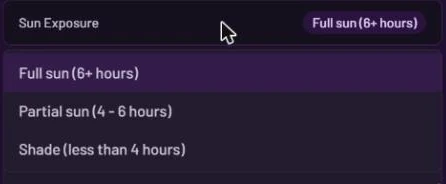
**Sun Exposure** tells the tool how much direct sun the area gets: **Full sun (6+ hours)**, **Partial sun (4 - 6 hours)** or **Shade (less than 4 hours)**.

{% hint style="warning" %}
The box shows **Full sun (6+ hours)** before you choose anything, but that is only a placeholder. Open **Sun Exposure** and pick an option yourself, even if it is Full sun, so your choice is used.
{% endhint %}

<figure><img src="https://1930792265-files.gitbook.io/~/files/v0/b/gitbook-x-prod.appspot.com/o/spaces%2F4yESzclcaZeSiIDZ8eIa%2Fuploads%2Fgit-blob-28a5b2626f93396832816149530ad1056eb929c4%2Fsun-exposure.webp?alt=media" alt="Sun Exposure list open with Full sun (6+ hours), Partial sun (4 - 6 hours) and Shade (less than 4 hours)"><figcaption><p>Pick the option that matches the spot.</p></figcaption></figure>

**City** opens a **Select City** search. Type at least two letters, then choose your city from the list.

<figure><img src="https://1930792265-files.gitbook.io/~/files/v0/b/gitbook-x-prod.appspot.com/o/spaces%2F4yESzclcaZeSiIDZ8eIa%2Fuploads%2Fgit-blob-6797bc920b8cd3aa47ee210f7ac05b8265ce66ac%2Fselect-city.webp?alt=media" alt="Select City window with London typed in the search box and a list of matching cities with country codes"><figcaption><p>Several cities can share a name; the country code tells them apart.</p></figcaption></figure>

## Settings

| Setting                      | What it does                                                                                                               |
| ---------------------------- | -------------------------------------------------------------------------------------------------------------------------- |
| **Back**                     | Returns to the selection step.                                                                                             |
| **History & Change Persona** | Switches to another persona or starts a new one. See [Personas and history](/luw.ai-app-docs/getting-started/personas.md). |
| **Style**                    | The garden style, chosen from a picker with pictures.                                                                      |
| **Sun Exposure**             | How much sun the area gets: full sun, partial sun or shade.                                                                |
| **City**                     | Your city, so the design matches your climate.                                                                             |
| **Prompt**                   | Extra details in your own words.                                                                                           |
| **Prompt Enhancer**          | Rewrites your prompt into a fuller one before generating. Off by default here.                                             |
| **Designs**                  | How many results to make: 1, 2, 3 or 4. The free plan makes 1.                                                             |
| **Model**                    | **Symphony** (default) or **Aria**. Both cost the same.                                                                    |

## Credits

Each design uses 1 credit ("1 token / generation"). **Magic Select** and **Prompt & Select** use 1 credit each time you run them.

## Tips

* Select only what you want replaced, such as the lawn. Everything outside the selection stays as it is.
* If you press Generate with nothing selected, or with the whole image selected, you'll see "No area selected. Use the brush to mark where you want changes." Go **Back** and mark the area.
* Always pick **Sun Exposure** and **City** yourself; they help the design suit the real light and climate.
* To restyle the building itself, use [Exterior AI](/luw.ai-app-docs/redesign-spaces/exterior-ai.md).

## Related

* [Selecting an area](/luw.ai-app-docs/working-with-images/selecting-an-area.md)
* [Exterior AI](/luw.ai-app-docs/redesign-spaces/exterior-ai.md)
* [Magic Wand AI](/luw.ai-app-docs/edit-images/magic-wand-ai.md)
* [The result viewer](/luw.ai-app-docs/results/result-viewer.md)