> For the complete documentation index, see [llms.txt](https://luw-ai.gitbook.io/luw.ai-app-docs/llms.txt). Markdown versions of documentation pages are available by appending `.md` to page URLs; this page is available as [Markdown](https://luw-ai.gitbook.io/luw.ai-app-docs/redesign-spaces/exterior-ai.md).
# Exterior AI
Restyle the outside of a house or any building from a photo with exterior types, styles and an optional prompt.
Exterior AI restyles the outside of a building from a photo, from a family house to an office block. You choose the building type and styles, add a prompt if you like, and get new designs of the same facade.
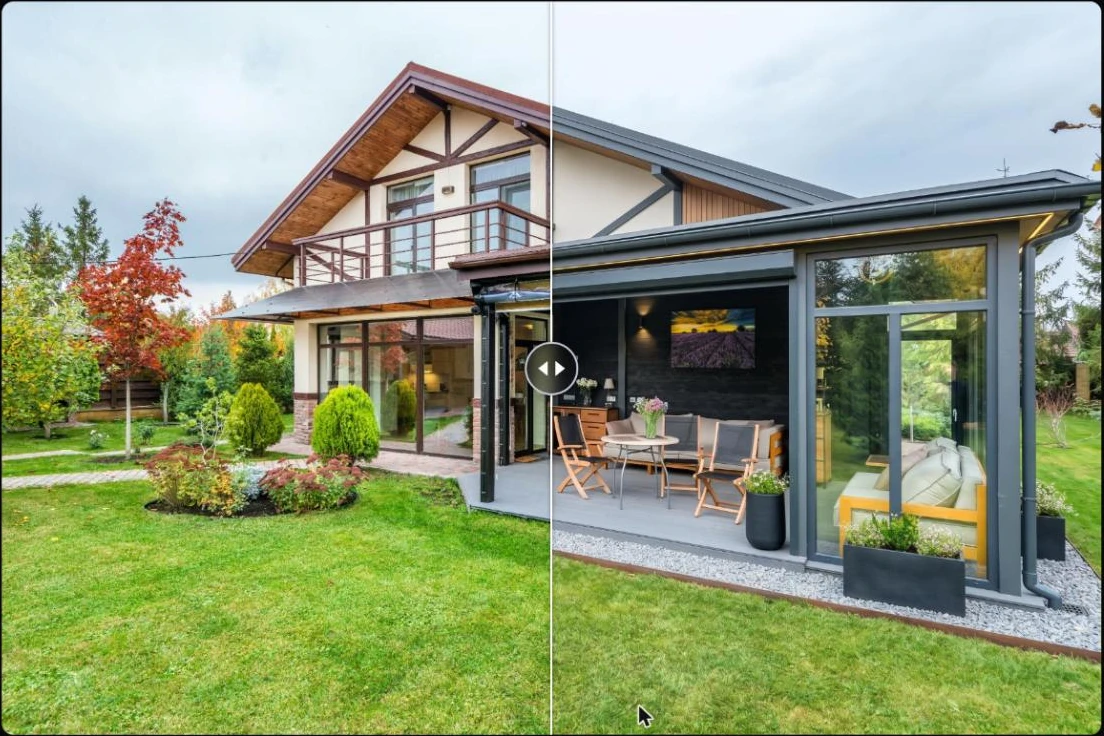
The same house restyled in the Modern style.
## What you need
* A photo of the outside of the building. See [Uploading images](/luw.ai-app-docs/working-with-images/uploading-images.md) for the file types you can use.
* Optional: reference pictures for **Add Extra Images**, or one photo whose style you want to copy for **Style Transfer**.
## Restyle a building
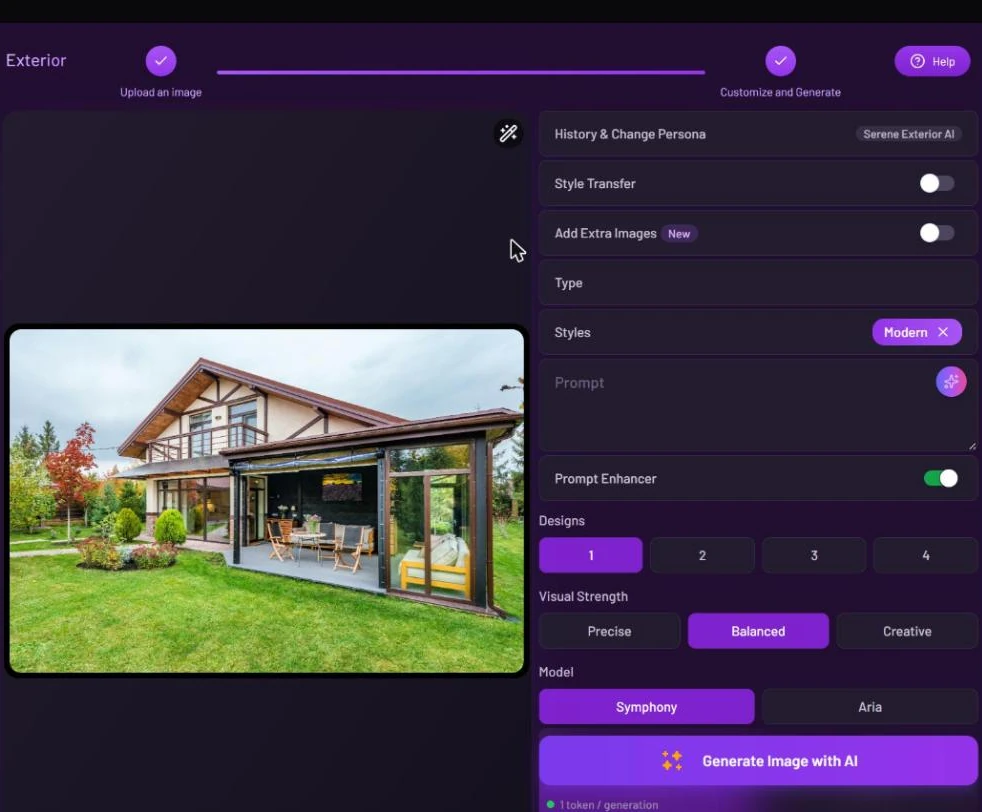
1. Open **Exterior** from the Dashboard or from **All Tools** (app.luw\.ai/exterior-ai).
2. Upload your photo. When the upload finishes, the form moves to **Customize and Generate** by itself.
3. Optional: pick the building in **Type**, for example **House Exterior**, **Modern House Exterior**, **Luxury Villa Exterior**, **Apartment Complex** or **Office Building**.
4. Open **Styles** and choose up to three styles, for example **Modern**.
5. Optional: describe what you want in the **Prompt** box.
6. Choose the number of **Designs**, the **Visual Strength**, the **Model** and the **HD** size.
7. Press **Generate Image with AI**. Your designs appear in **Latest Designs** below the form. Click one to open it in the [result viewer](/luw.ai-app-docs/results/result-viewer.md).
Exterior with a house photo and the Modern style selected.
### Copy the style of another photo
Turn on **Style Transfer** and add a picture in the **Add Photo for Style Transfer** slot. The building is restyled after that picture. While Style Transfer is on, the **Prompt**, **Styles**, **Add Extra Images**, **Prompt Enhancer** and **Visual Strength** settings are hidden, because the style comes from the photo.
### Uploaded a room by mistake?
If your photo shows an interior, a [smart suggestion](/luw.ai-app-docs/working-with-images/smart-suggestions.md) offers to switch to [Interior AI](/luw.ai-app-docs/redesign-spaces/interior-ai.md). Click the **×** to dismiss it.
## Settings
These controls work the same way as in Interior. [Prompts, styles and settings](/luw.ai-app-docs/working-with-images/prompts-styles-settings.md) explains them in detail.
| Setting | What it does |
| ---------------------------- | -------------------------------------------------------------------------------------------------------------------------- |
| **History & Change Persona** | Switches to another persona or starts a new one. See [Personas and history](/luw.ai-app-docs/getting-started/personas.md). |
| **Style Transfer** | Takes the style from a photo you add instead of from styles and a prompt. |
| **Add Extra Images** | Six slots for reference images. |
| **Type** | The kind of building, from house exteriors to hotels, offices and apartment complexes. The **×** clears it. |
| **Styles** | Opens the style picker. Choose up to 3 styles; click a style again to remove it. |
| **Prompt** | What you want, in your own words. |
| **Prompt Enhancer** | Rewrites your prompt into a fuller one before generating. On by default here. |
| **Designs** | How many results to make: 1, 2, 3 or 4. The free plan makes 1. |
| **Visual Strength** | How closely the result keeps your photo: **Precise** keeps more, **Creative** changes more. **Balanced** is the default. |
| **Model** | **Symphony** (default) or **Aria**. Both cost the same here. |
| **HD** | Output resolution: **2K** or **4K**. On the free plan the output is 0.5K and 2K/4K are locked. |
## Credits
Each design uses 1 credit ("1 token / generation"). With **HD** set to **4K**, each design uses 1 more credit. Making several designs multiplies the cost.
## Tips
* Use **Precise** when the shape of the building must stay as it is, and **Creative** when you want a bigger change.
* To redesign only the garden or yard, use [Landscape AI](/luw.ai-app-docs/redesign-spaces/landscape-ai.md). It changes just the area you select.
* To show the change as a clip, open the original photo in [Video AI](/luw.ai-app-docs/3d-and-video/video-ai.md) and add your redesign as the **End Frame (Optional)**. The video starts on the photo and ends on the redesign.
* **Prompt Enhancer** rewrites your words. Turn it off when you want your prompt used exactly as written.
## Related
* [Interior AI](/luw.ai-app-docs/redesign-spaces/interior-ai.md)
* [Landscape AI](/luw.ai-app-docs/redesign-spaces/landscape-ai.md)
* [Prompts, styles and settings](/luw.ai-app-docs/working-with-images/prompts-styles-settings.md)
* [The result viewer](/luw.ai-app-docs/results/result-viewer.md)