> For the complete documentation index, see [llms.txt](https://luw-ai.gitbook.io/luw.ai-app-docs/llms.txt). Markdown versions of documentation pages are available by appending `.md` to page URLs; this page is available as [Markdown](https://luw-ai.gitbook.io/luw.ai-app-docs/getting-started/your-first-design.md).

# Your first design

Make your first design with Interior AI, from uploading a room photo to saving the result.

This walkthrough takes you through one complete design with Interior AI, from an empty form to a saved result. Most other tools work the same way, so it's a good place to start.

**What you need**

* A Luw\.ai account. Sign in at **app.luw\.ai** with Google, or with your email and password.
* A photo of a room. No photo to hand? You can use one of the example photos.
* 1 credit. See [Credits and engines](/luw.ai-app-docs/getting-started/credits-and-engines.md).

## 1. Open Interior

On the **Dashboard**, find the **Interior** card and click **Launch Tool**. You can also click **All Tools** in the sidebar and choose **Interior** from the tool list.

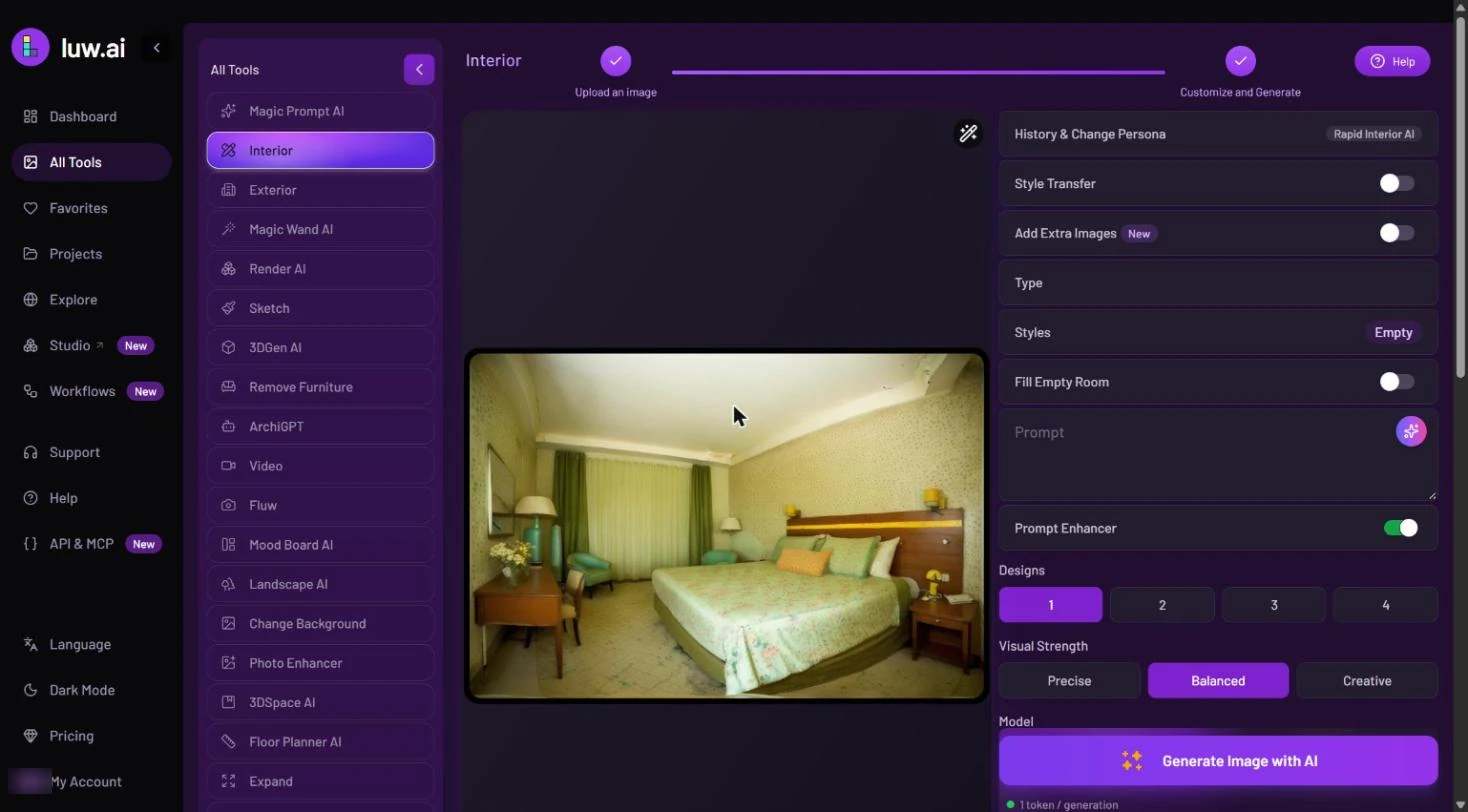
The Interior page has the photo area on the left and the settings on the right.

## 2. Upload a photo

1. Click **Upload your image**. The upload window opens.
2. Click **Upload** and choose a photo from your computer. You can also drop a file onto the window, or paste an image with Ctrl+V (Cmd+V on a Mac).
3. Or skip your own photo and click one of the pictures under "or try with an example".
4. Wait while "Uploading image: N%" counts up.

When the upload finishes, the photo appears on the left and the step bar moves on to **Customize and Generate** by itself. JPG, PNG, WebP and HEIC photos all work; see [Uploading images](/luw.ai-app-docs/working-with-images/uploading-images.md) for the full list.

<figure><img src="https://1930792265-files.gitbook.io/~/files/v0/b/gitbook-x-prod.appspot.com/o/spaces%2F4yESzclcaZeSiIDZ8eIa%2Fuploads%2Fgit-blob-992871a219be62ad8a5db3c059eab1b97ba859d3%2Ftool-workspace.webp?alt=media" alt="The Interior page: the All Tools list on the left, a step bar with Upload an image and Customize and Generate both ticked, a bedroom photo in the middle, and the settings column with History &#x26; Change Persona, Style Transfer, Add Extra Images, Type, Styles, Fill Empty Room, Prompt, Prompt Enhancer, Designs, Visual Strength and the Generate Image with AI button"><figcaption><p>Interior with a photo uploaded and the settings ready to fill in</p></figcaption></figure>

Right after the upload, Interior takes a quick look at the photo. If it looks like the outside of a building, a smart suggestion offers to switch to Exterior. If the room is empty, it suggests **Fill Empty Room**. You can follow the suggestion or close it with its **×**. More in [Smart suggestions](/luw.ai-app-docs/working-with-images/smart-suggestions.md).

## 3. Choose the room type and a style

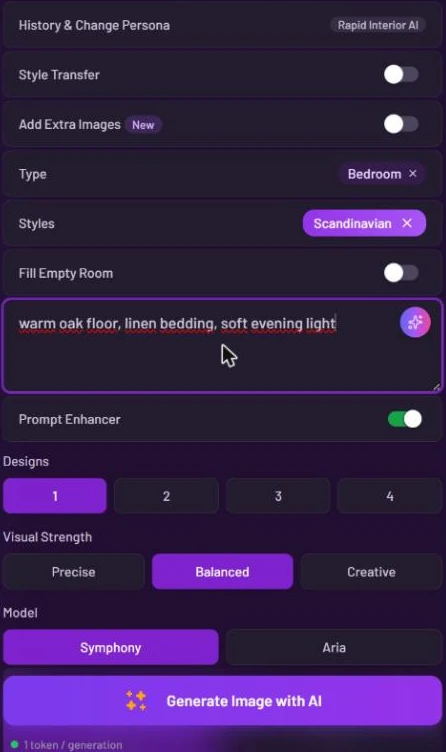
1. Click **Type** and choose the kind of room, for example **Bedroom**.
2. Click **Styles**. A full-screen picker opens with style cards, a **Search** box and sort options.
3. Click a style card to select it, for example **Scandinavian**. You can pick up to 3 styles; click a style again to remove it.
4. Close the picker with **×**. Your styles now show as chips in the **Styles** row.

## 4. Describe what you want

Type a few words in the **Prompt** box, for example *warm oak floor, linen bedding, soft evening light*.

Leave **Prompt Enhancer** switched on for now. It rewrites your words into a fuller prompt before generating. The other settings can stay as they are: **Designs** at 1, **Visual Strength** at **Balanced** and **Model** at **Symphony**.

<figure><img src="https://1930792265-files.gitbook.io/~/files/v0/b/gitbook-x-prod.appspot.com/o/spaces%2F4yESzclcaZeSiIDZ8eIa%2Fuploads%2Fgit-blob-06088a617065b00b314742103ad435fc77177e21%2Finterior-settings.webp?alt=media" alt="Interior settings filled in: Type set to Bedroom, Styles set to Scandinavian, the prompt &#x27;warm oak floor, linen bedding, soft evening light&#x27;, Prompt Enhancer on, Designs 1, Visual Strength Balanced, Model Symphony, and the line &#x27;1 token / generation&#x27; under Generate Image with AI"><figcaption><p>One room type, one style and a short prompt are enough to start</p></figcaption></figure>

## 5. Generate

Click **Generate Image with AI**. The line under the button shows what one design costs, here "1 token / generation".

## 6. Watch the card

The page scrolls down to **Latest Designs**, where a placeholder card appears straight away. It shows your photo blurred, with a spinner and a percentage, and checks its progress every few seconds. When the design is ready, the card turns into the result.

<figure><img src="https://1930792265-files.gitbook.io/~/files/v0/b/gitbook-x-prod.appspot.com/o/spaces%2F4yESzclcaZeSiIDZ8eIa%2Fuploads%2Fgit-blob-51237e168b0771ff6fbbd8a9138a8dad4f019096%2Fprocessing-card.webp?alt=media" alt="Latest Designs with a single placeholder card: the bedroom photo blurred behind a spinner"><figcaption><p>The placeholder card turns into your design when it's ready</p></figcaption></figure>

You don't have to wait on the page. You can leave and come back later; the result will be there.

## 7. Open the result

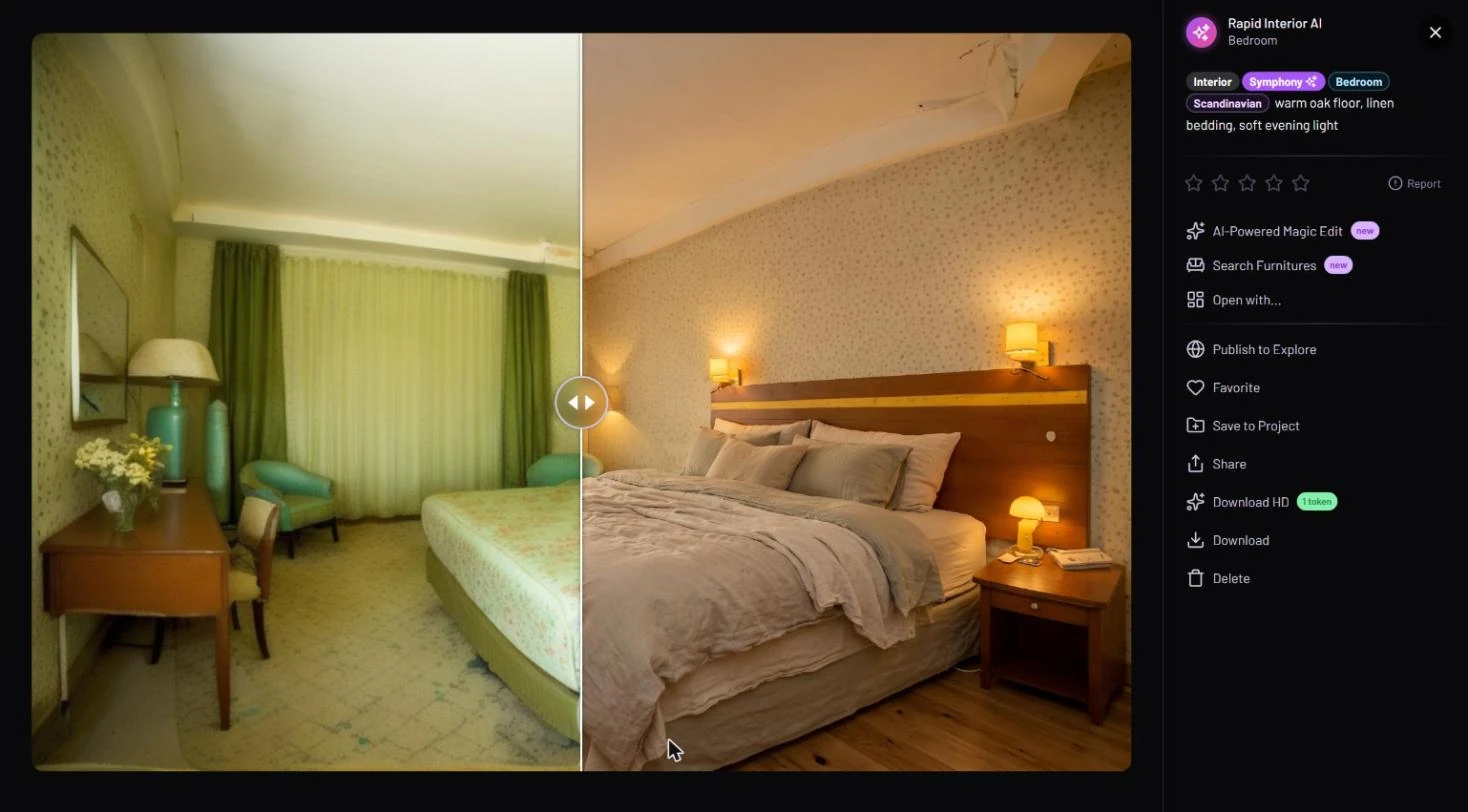
Click the finished card. The result viewer opens with a before/after slider over the picture: drag it, or hover over the picture, to compare your photo with the design. Click the picture for a full-screen zoom.

The panel on the right shows the persona name and room type, tags for the tool, the engine, the style and the room type, your prompt, and a star rating.

<figure><img src="https://1930792265-files.gitbook.io/~/files/v0/b/gitbook-x-prod.appspot.com/o/spaces%2F4yESzclcaZeSiIDZ8eIa%2Fuploads%2Fgit-blob-c79a5b24827ca483ae5890d079f5bb026175f690%2Fresult-viewer.webp?alt=media" alt="The result viewer: a before/after slider over the original and the redesigned bedroom; on the right the persona name Rapid Interior AI with Bedroom, the tags Interior, Symphony, Bedroom and Scandinavian, the prompt, five rating stars, Report, and the actions from AI-Powered Magic Edit down to Delete"><figcaption><p>Drag the slider to compare your photo with the design</p></figcaption></figure>

## 8. Keep your design

The actions in the right panel let you keep the result:

* **Favorite** adds it to your [Favorites](/luw.ai-app-docs/organize-your-work/favorites.md).
* **Save to Project** opens the "Choose Project Folder" dialog. Click **Select Project**, pick a project (or create one) and then a folder, and click **Save**. See [Projects](/luw.ai-app-docs/organize-your-work/projects.md).
* **Download** saves the original file to your computer. **Download HD** upscales the image first; it costs 1 credit and is available on paid plans.

Close the viewer with **×** or your browser's Back button.

## What next?

* Press **Generate Image with AI** again, or try another style. Every result stays in **Latest Designs**.
* Change one detail of the result with **AI-Powered Magic Edit**. See [Edit and reuse a result](/luw.ai-app-docs/results/edit-and-reuse.md).
* Get to know the page you just used in [The tool workspace](/luw.ai-app-docs/getting-started/tool-workspace.md).
* See everything Interior can do in [Interior AI](/luw.ai-app-docs/redesign-spaces/interior-ai.md).