> For the complete documentation index, see [llms.txt](https://luw-ai.gitbook.io/luw.ai-app-docs/llms.txt). Markdown versions of documentation pages are available by appending `.md` to page URLs; this page is available as [Markdown](https://luw-ai.gitbook.io/luw.ai-app-docs/getting-started/interface-tour.md).

# Interface tour

A tour of the Luw\.ai screen, covering the sidebar, the Dashboard and its tool cards, the All Tools list, the phone layout, and the language and theme menus.

This page goes round the Luw\.ai screen: the sidebar on the left, the Dashboard of tool cards, the tool list inside each tool page, and how things change on a phone.

## The sidebar

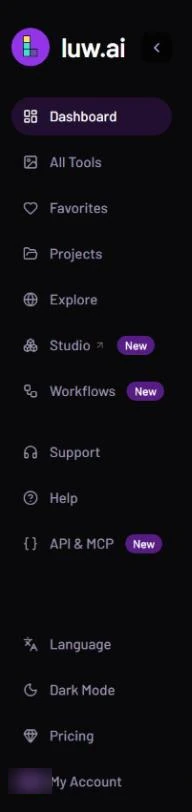
The sidebar runs down the left edge of every page on a computer.

<figure><img src="https://1930792265-files.gitbook.io/~/files/v0/b/gitbook-x-prod.appspot.com/o/spaces%2F4yESzclcaZeSiIDZ8eIa%2Fuploads%2Fgit-blob-578a8268d11fbacb328bbb63491b585d32d90c87%2Fsidebar.webp?alt=media" alt="The left sidebar: the luw.ai logo with a collapse arrow, then Dashboard, All Tools, Favorites, Projects, Explore, Studio with a New badge, Workflows with a New badge, Support, Help, API &#x26; MCP with a New badge, and at the bottom Language, Dark Mode, Pricing and My Account"><figcaption><p>The sidebar, from top to bottom</p></figcaption></figure>

| Item                       | What it does                                                                                                                                                               |
| -------------------------- | -------------------------------------------------------------------------------------------------------------------------------------------------------------------------- |
| **luw\.ai** logo and arrow | The arrow folds the sidebar down to icons only; hover an icon to see its name. Luw\.ai remembers your choice. On medium-width screens the sidebar always shows icons only. |
| **Dashboard**              | Shows all the tools as cards. See [The Dashboard](#the-dashboard) below.                                                                                                   |
| **All Tools**              | Opens the tool workspace on Magic Prompt, with every tool listed in a second column. See [The All Tools list](#the-all-tools-list).                                        |
| **Favorites**              | The designs you've liked, grouped by tool. See [Favorites](/luw.ai-app-docs/organize-your-work/favorites.md).                                                              |
| **Projects**               | Your projects and folders. See [Projects](/luw.ai-app-docs/organize-your-work/projects.md).                                                                                |
| **Explore**                | The community gallery of published designs. See [Explore](/luw.ai-app-docs/organize-your-work/explore.md).                                                                 |
| **Studio ↗**               | Opens Luw\.ai Studio in a new tab, already signed in. See [Luw.ai Studio](/luw.ai-app-docs/connect/luw-ai-studio.md).                                                      |
| **Workflows**              | Chains of AI tools on a canvas. See [Workflows](/luw.ai-app-docs/workflows/workflows.md).                                                                                  |
| **Support**                | The contact form, followed by the help articles. See [Help and support](/luw.ai-app-docs/connect/help-and-support.md).                                                     |
| **Help**                   | Help articles, questions and answers, and a tool finder. Hidden on very short screens.                                                                                     |
| **API & MCP**              | API keys and connections to AI assistants. See [API and MCP](/luw.ai-app-docs/connect/api-and-mcp.md).                                                                     |
| **Language**               | Switches the interface between 26 languages.                                                                                                                               |
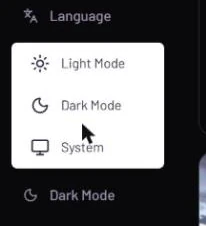
| **Dark Mode**              | Chooses **Light Mode**, **Dark Mode** or **System**.                                                                                                                       |
| **Pricing**                | Plans and credit packs. See [Account and plans](/luw.ai-app-docs/account/account-and-plans.md).                                                                            |
| **My Account**             | Your account page. Once you're signed in, its icon becomes a small pill showing your credit balance.                                                                       |

## The Dashboard

The Dashboard is the first thing you see. It shows a card for each of the 20 tools.

### Filter the tools

Category tabs run along the top. **Tools** shows everything; **Interior**, **Exterior**, **Real Estate**, **Construction** and **Furniture** narrow the cards down to one kind of work. The last three tabs are shortcuts: **Workflows**, **Explore** and **Studio ↗**.

<figure><img src="https://1930792265-files.gitbook.io/~/files/v0/b/gitbook-x-prod.appspot.com/o/spaces%2F4yESzclcaZeSiIDZ8eIa%2Fuploads%2Fgit-blob-564d0e08d7428d144143cbd4b45c4d4f03544e31%2Fcategory-tabs.webp?alt=media" alt="The Dashboard category tabs: Tools selected, then Interior, Exterior, Real Estate, Construction and Furniture, followed by the Workflows, Explore and Studio shortcuts"><figcaption><p>Category tabs filter the cards; the last three open other areas</p></figcaption></figure>

{% hint style="info" %}
Some newer tools don't appear under the category tabs yet. If you can't find a tool, click **Tools** to see them all.
{% endhint %}

### Read a tool card

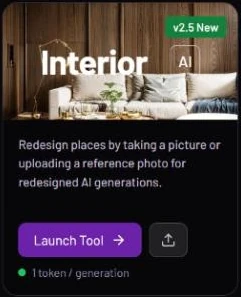
Each card tells you what the tool does and what it costs:

* a cover picture with the tool's name
* a badge such as **new**, **v2**, **v2.5 New**, **PRO** or **Beta**
* a one-line description
* **Launch Tool**, which opens the tool
* an upload button, which opens the tool and lets you upload an image straight into it
* the cost line, for example "1 token / generation", "10 tokens / generation" on Video, or "1 tokens / \~3000 words" on ArchiGPT

<figure><img src="https://1930792265-files.gitbook.io/~/files/v0/b/gitbook-x-prod.appspot.com/o/spaces%2F4yESzclcaZeSiIDZ8eIa%2Fuploads%2Fgit-blob-da3b6df08ae41df2c1a13ba030ff0b0209f1b72b%2Ftool-card.webp?alt=media" alt="The Interior tool card: a cover picture with the name Interior and a v2.5 New badge, the description, a purple Launch Tool button, an upload button beside it, and the line &#x27;1 token / generation&#x27;"><figcaption><p>A tool card: what it does, how to open it, and what it costs</p></figcaption></figure>

### Drag a photo onto a card

You can drag an image from your computer onto any card. The tool opens with that image already in place, in a new persona (see [Personas and history](/luw.ai-app-docs/getting-started/personas.md)).

## The All Tools list

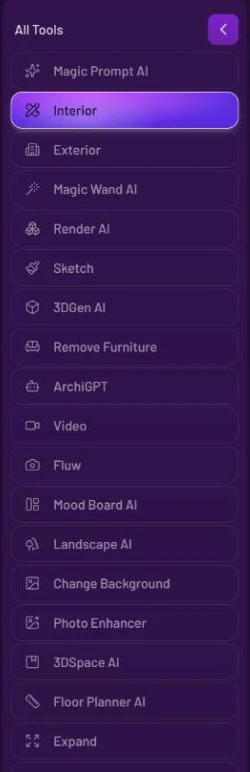
Inside every tool page, a second column lists all the tools by their full names: Magic Prompt AI, Interior, Exterior, Magic Wand AI, Render AI, Sketch, 3DGen AI, Remove Furniture, ArchiGPT, Video, Fluw, Mood Board AI, Landscape AI, Change Background, Photo Enhancer, 3DSpace AI, Floor Planner AI, Expand, Vector AI and Pattern AI.

<figure><img src="https://1930792265-files.gitbook.io/~/files/v0/b/gitbook-x-prod.appspot.com/o/spaces%2F4yESzclcaZeSiIDZ8eIa%2Fuploads%2Fgit-blob-25f8add2f26d2817f168f8f3bf6baa7769a88742%2Fall-tools-list.webp?alt=media" alt="The All Tools column inside a tool page: a list of tools from Magic Prompt AI to Expand, with Interior highlighted and a collapse arrow at the top"><figcaption><p>The tool you're in is highlighted</p></figcaption></figure>

* Click a name to switch tools.
* The arrow at the top folds the list away to give the tool more room.
* Drop an image onto a tool's name to open that tool with the image.

Each tool also has its own address, so you can bookmark the ones you use most:

| Tool              | Address                      |
| ----------------- | ---------------------------- |
| Magic Prompt AI   | app.luw\.ai/magicprompt      |
| Interior          | app.luw\.ai/interior-ai      |
| Exterior          | app.luw\.ai/exterior-ai      |
| Magic Wand AI     | app.luw\.ai/magicwand        |
| Render AI         | app.luw\.ai/render-ai        |
| Sketch            | app.luw\.ai/sketch-ai        |
| 3DGen AI          | app.luw\.ai/3dai             |
| Remove Furniture  | app.luw\.ai/remove-furniture |
| ArchiGPT          | app.luw\.ai/gpt              |
| Video             | app.luw\.ai/video-ai         |
| Fluw              | app.luw\.ai/fluw             |
| Mood Board AI     | app.luw\.ai/moodboard-ai     |
| Landscape AI      | app.luw\.ai/landscape-ai     |
| Change Background | app.luw\.ai/adwizard         |
| Photo Enhancer    | app.luw\.ai/resizer          |
| 3DSpace AI        | app.luw\.ai/3d-space-ai      |
| Floor Planner AI  | app.luw\.ai/floorplan-ai     |
| Expand            | app.luw\.ai/expand-ai        |
| Vector AI         | app.luw\.ai/vector-ai        |
| Pattern AI        | app.luw\.ai/patternai        |

## On a phone

Phones don't show the sidebar. Instead, a bar across the top shows the logo (or the name of the tool you're in), a pill with your credits, and a menu button.

The menu holds **AI Generators** (the Dashboard), **Favorites**, **Projects**, **Explore**, **Manage account**, **Pricing**, **View API keys**, **Help** and **Logout**, plus the language and theme choices.

## Language and theme

* **Language** offers 26 languages. Arabic and Hebrew also switch the layout to right-to-left.
* **Dark Mode** opens a small menu with **Light Mode**, **Dark Mode** and **System**. **System** follows your device's setting.

<figure><img src="https://1930792265-files.gitbook.io/~/files/v0/b/gitbook-x-prod.appspot.com/o/spaces%2F4yESzclcaZeSiIDZ8eIa%2Fuploads%2Fgit-blob-e229c9671b6586f87abb3671c436c232b9d7b909%2Ftheme-picker.webp?alt=media" alt="The theme menu open above the Dark Mode item in the sidebar, with Light Mode, Dark Mode and System"><figcaption><p>Pick a theme, or let your device decide</p></figcaption></figure>

More in [Language and theme](/luw.ai-app-docs/account/language-and-theme.md).