> For the complete documentation index, see [llms.txt](https://luw-ai.gitbook.io/luw.ai-app-docs/llms.txt). Markdown versions of documentation pages are available by appending `.md` to page URLs; this page is available as [Markdown](https://luw-ai.gitbook.io/luw.ai-app-docs/edit-images/vector-ai.md).
# Vector AI
Turn a photo into a precise SVG line drawing, for technical drawings of furniture, facades or products.
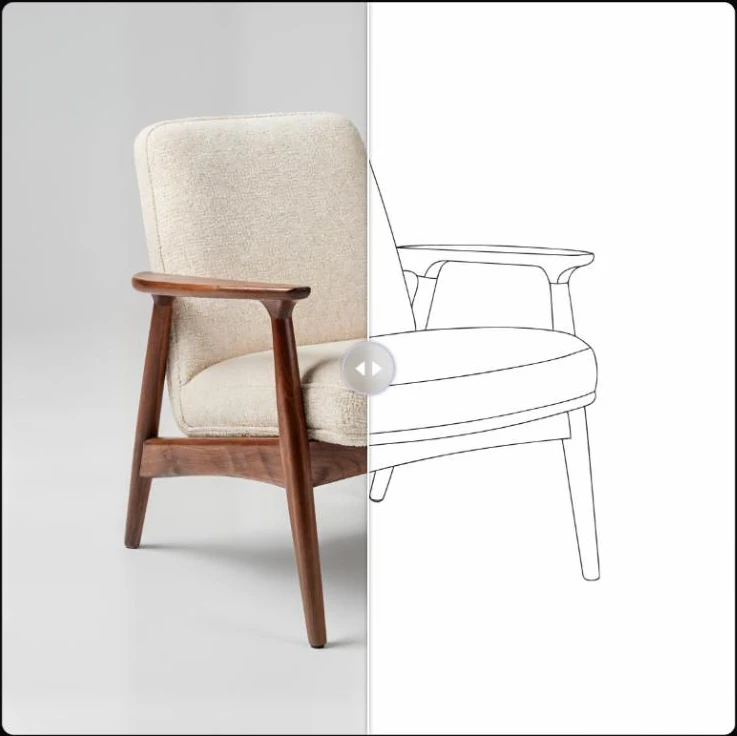
Vector AI turns a photo into a precise SVG line drawing. It's handy for technical drawings of furniture, facades or any kind of product that you want to take into CAD.
The chair photo turned into a line drawing.
## What you need
* A photo of the object or building. See [Uploading images](/luw.ai-app-docs/working-with-images/uploading-images.md) for the file types you can use.
* Nothing else: there's no prompt to write.
## Make a line drawing
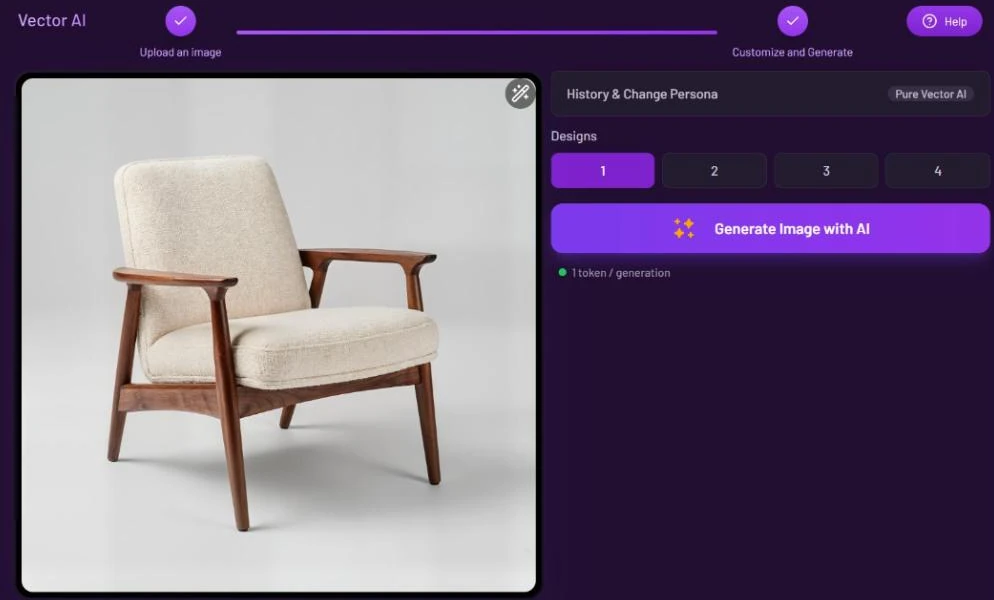
1. Open **Vector** from the Dashboard or from **All Tools** (app.luw\.ai/vector-ai).
2. Upload your photo. When the upload finishes, the form moves to **Customize and Generate** by itself.
3. Choose the number of **Designs**.
4. Press **Generate Image with AI**. Your drawings appear in **Latest Designs** below the form.
5. Click a drawing to open it in the [result viewer](/luw.ai-app-docs/results/result-viewer.md), where the before/after slider compares it with your photo. Use **Download** to save the file.
Vector AI has a single setting: how many designs to make.
## Settings
| Setting | What it does |
| ---------------------------- | -------------------------------------------------------------------------------------------------------------------------- |
| **History & Change Persona** | Switches to another persona or starts a new one. See [Personas and history](/luw.ai-app-docs/getting-started/personas.md). |
| **Designs** | How many drawings to make: 1, 2, 3 or 4. The free plan makes 1. |
## Credits
Each design uses 1 credit ("1 token / generation"). Making several designs multiplies the cost.
## Tips
* Product-style photos work well: in the example above, a chair on a plain grey background became a clean line drawing.
* Make 2 to 4 designs and keep the one with the cleanest lines.
* To get an SVG illustration from a text prompt instead of a photo, use [Fluw](/luw.ai-app-docs/render-and-create/fluw.md) with **Generate vector image** turned on.
* Have a result from another tool you'd like as a drawing? Open it and choose **Open with…** → **Vector AI**.
## Related
* [Fluw](/luw.ai-app-docs/render-and-create/fluw.md)
* [The result viewer](/luw.ai-app-docs/results/result-viewer.md)
* [Save, share and download](/luw.ai-app-docs/results/save-share-download.md)
* [Uploading images](/luw.ai-app-docs/working-with-images/uploading-images.md)