> For the complete documentation index, see [llms.txt](https://luw-ai.gitbook.io/luw.ai-app-docs/llms.txt). Markdown versions of documentation pages are available by appending `.md` to page URLs; this page is available as [Markdown](https://luw-ai.gitbook.io/luw.ai-app-docs/edit-images/photo-enhancer.md).
# Photo Enhancer
On a paid plan, make a picture larger and cleaner by resizing it 2X or 4X while reducing noise and enhancing details.
Photo Enhancer makes a picture larger and cleaner. It resizes the image 2X or 4X while reducing noise and enhancing details, which helps when a photo is too small or soft for print or a presentation. Photo Enhancer is available on paid plans.
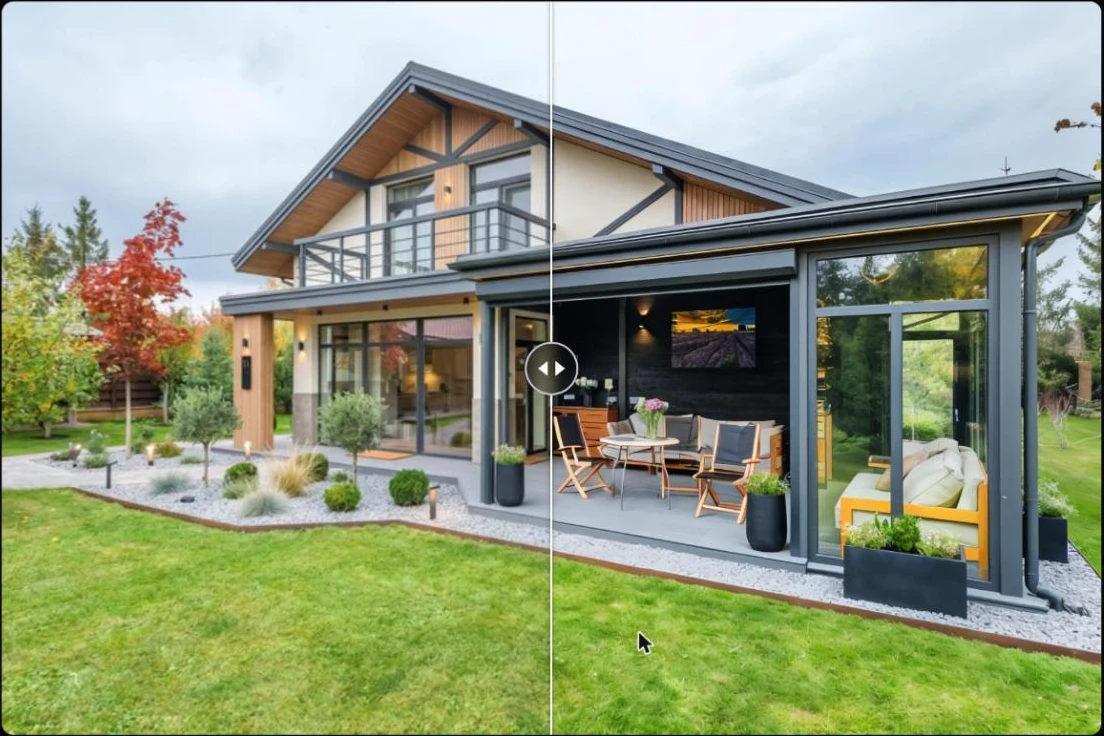
Before and after a 2X enhancement. Drag the slider to compare details.
## What you need
* A photo. See [Uploading images](/luw.ai-app-docs/working-with-images/uploading-images.md) for the file types you can use.
* A paid plan. On the free plan, pressing Generate shows an upgrade message with a **Pricing** button. See [Account and plans](/luw.ai-app-docs/account/account-and-plans.md).
## Enhance a photo
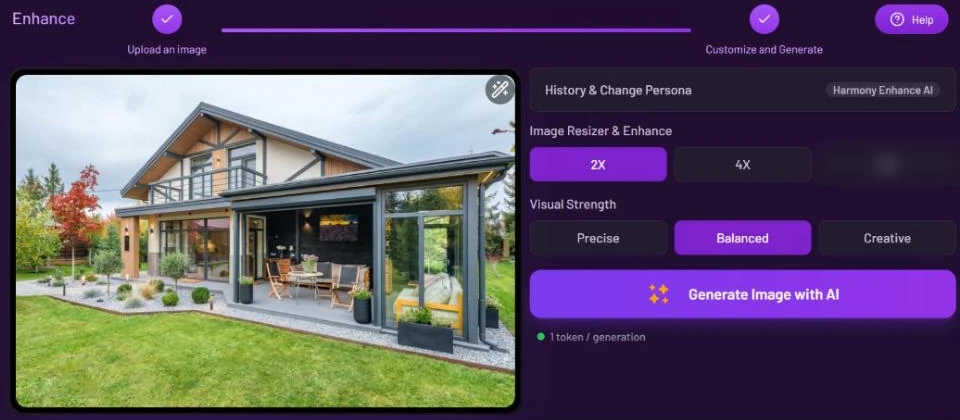
1. Open **Photo Enhancer** from the Dashboard or from **All Tools** (app.luw\.ai/resizer).
2. Upload your photo. When the upload finishes, the form moves to **Customize and Generate** by itself.
3. Under **Image Resizer & Enhance**, choose **2X** or **4X**.
4. Choose the **Visual Strength**.
5. Press **Generate Image with AI**. The enhanced picture appears in **Latest Designs** below the form. Click it to open the [result viewer](/luw.ai-app-docs/results/result-viewer.md) and download it.
Pick the size, then press Generate.
## Settings
| Setting | What it does |
| ---------------------------- | -------------------------------------------------------------------------------------------------------------------------- |
| **History & Change Persona** | Switches to another persona or starts a new one. See [Personas and history](/luw.ai-app-docs/getting-started/personas.md). |
| **Image Resizer & Enhance** | How much larger the picture gets: **2X** (default) or **4X**. |
| **Visual Strength** | How closely the result keeps your photo: **Precise** keeps more, **Creative** changes more. **Balanced** is the default. |
## Credits
Each enhancement uses 1 credit ("1 token / generation").
## Tips
* Use **Precise** when the picture must stay faithful to the original, for example a real property photo.
* For a result you already made in another tool, **Download HD** in the result viewer upscales and downloads it in one step (1 credit, paid plans).
* To enhance a result in this tool instead, open it and choose **Open with…** → **Photo Enhancer**.
* If the photo is cropped too tightly as well as too small, widen it first with [Expand](/luw.ai-app-docs/edit-images/expand-ai.md).
## Related
* [Expand](/luw.ai-app-docs/edit-images/expand-ai.md)
* [Save, share and download](/luw.ai-app-docs/results/save-share-download.md)
* [Account and plans](/luw.ai-app-docs/account/account-and-plans.md)
* [Uploading images](/luw.ai-app-docs/working-with-images/uploading-images.md)