> For the complete documentation index, see [llms.txt](https://luw-ai.gitbook.io/luw.ai-app-docs/llms.txt). Markdown versions of documentation pages are available by appending `.md` to page URLs; this page is available as [Markdown](https://luw-ai.gitbook.io/luw.ai-app-docs/assistant/archigpt.md).
# ArchiGPT
Chat with ArchiGPT, the Luw\.ai design assistant. Ask questions, attach photos, talk by voice, let it make designs and share your chats.
ArchiGPT is the design assistant in Luw\.ai. You chat with it about layouts, colours, materials and ideas, attach photos, talk to it by voice, and let it create designs for you with the Luw\.ai tools.
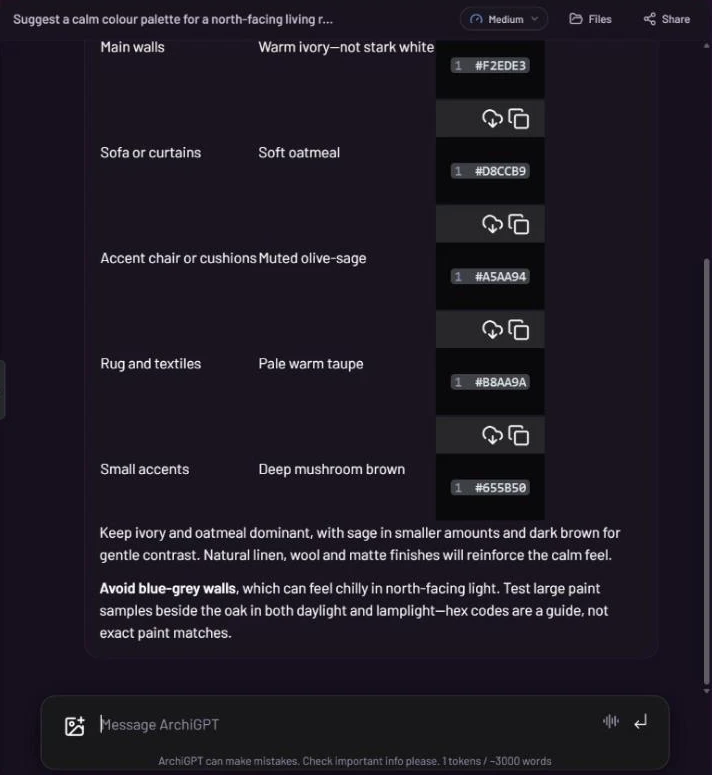
Answers can include tables and colour codes you can copy.
## What you need
* A Luw\.ai account with credits. See [Credits](#credits).
* Optional: a photo to ask about.
## Start a chat
1. Open **ArchiGPT** from the Dashboard, or pick it in **All Tools**.
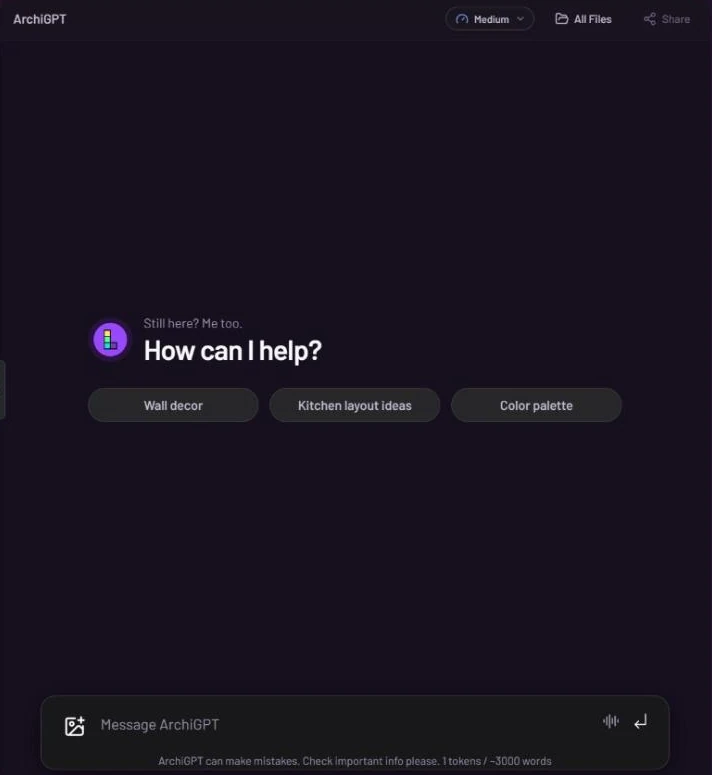
2. An empty chat shows "How can I help?" with suggestion buttons such as **Wall decor**, **Kitchen layout ideas** and **Color palette**. Click one, or type your own question in **Message ArchiGPT**.
3. Press Enter or the send button. Shift+Enter adds a new line.
A new chat. The header holds the effort control, All Files and Share.
The footer under the box reminds you: "ArchiGPT can make mistakes. Check important info please." It also shows the rate.
## Manage your chats
Your chats are listed in the column on the left.
* **New Chat** (with a + icon) starts a fresh chat.
* Click a chat in the list to open it.
* **Rename**: click the pencil next to a chat (on desktop it appears when you hover), type the new name and press Enter. Esc cancels.
* **Delete**: click the bin next to a chat. It asks "Are you sure?" first.
On desktop, the small arrow on the edge of the column hides or shows it. On a phone, open the list with the menu button in the chat header.
## Choose how hard it thinks
The effort control in the chat header shows the current level, for example **Medium**. Click it to open the **Thinking level** panel and move the slider. The change "Applies from your next message".
| Level | What the app says |
| -------------- | ------------------------------------------------------------------- |
| **Low** | "Fast replies and simple edits. Uses the fewest credits." |
| **Medium** | "Recommended. Plans and checks designs well at a sensible cost." |
| **High** | "Thinks longer over complex briefs. Uses more credits per message." |
| **Extra high** | "Very thorough and slower, for demanding multi-step work." |
| **Max** | "The longest thinking, for the hardest briefs only." |
Higher levels think longer and use more credits per message. The panel shows a small meter of thinking credits per message, and **Extra high** and **Max** show a warning. Images, videos and 3D models cost the same at every level.
## Attach a photo
Click the image button on the left of the message box and choose a photo. A thumbnail appears in the box; click it to preview. Then ask about it, for example "What colours would warm up this room?".
## Talk with Voice mode
Click the voice button (the sound-wave icon) in the message box. The **Voice mode** card opens: "Talk with your architect. What you ask goes to the chat, and it tells you what was done."
1. Pick a **Voice**.
2. Check the credit note. The card shows how many credits a minute Voice mode uses, on top of the work itself.
3. Press **Call** and start talking. Press **End call** when you're done.
## Let ArchiGPT make designs
ArchiGPT can use the Luw\.ai tools for you, for example to make an image, a video or a 3D model. Before it spends credits, a **Plan ready** card slides up: "Approve once and the assistant runs the whole chain."
* Each step shows what it will do, the tool it uses and its credits.
* A separate line may show credits "Set aside to correct a result, if needed".
* The **Use Symphony** switch picks the engine for the plan; the line under it says how the credits change.
* **Total** shows the credits for the whole plan.
* Press **Approve** to run it, or **Cancel**.
## Find files from your chats
**Files** in the header shows the pictures and other results made in the open chat. With no chat open, the button reads **All Files** and shows results from all your chats. Click one to open it.
## Share a chat
1. Open the chat and click **Share** in the header.
2. In "Share this conversation", click **Create share link**. "Anyone with the link will be able to view the messages up to now."
3. Click **Copy** to copy the link (app.luw\.ai/c/…).
People with the link can read the chat but can't write in it. To turn the link off, open **Share** again and click **Make private**.
## Write prompts for other tools
Every tool's **Prompt** box has a sparkle button that asks ArchiGPT to write the prompt for you. It asks you to confirm first ("1 token = \~3000 words"), then opens an ArchiGPT chat. The prompt it writes goes into the tool's box. See [Prompts, styles and settings](/luw.ai-app-docs/working-with-images/prompts-styles-settings.md).
## Credits
* Chatting is charged by length. The Dashboard card and the chat footer show "1 tokens / \~3000 words".
* Higher thinking levels use more credits per message.
* Voice mode adds credits per minute; the rate is shown before you start.
* Designs ArchiGPT makes use credits like the tools do. The **Plan ready** card shows the total before anything runs.
See [Credits and engines](/luw.ai-app-docs/getting-started/credits-and-engines.md).
## Tips
* Start on **Medium**. Move up only for complex, multi-step briefs.
* Attach a photo of your space when you ask for advice about it. It gives ArchiGPT something concrete to work from.
* Check the plan on the **Plan ready** card before you approve. Turn **Use Symphony** off if you want the cheaper engine where prices differ.
* Hex codes and product ideas are a guide. Check colours and details in real life before you buy.
* Shared a chat and changed your mind? **Make private** turns the link off.
## Related
* [Prompts, styles and settings](/luw.ai-app-docs/working-with-images/prompts-styles-settings.md)
* [Credits and engines](/luw.ai-app-docs/getting-started/credits-and-engines.md)
* [Workflows](/luw.ai-app-docs/workflows/workflows.md)
* [The result viewer](/luw.ai-app-docs/results/result-viewer.md)