> For the complete documentation index, see [llms.txt](https://luw-ai.gitbook.io/luw.ai-app-docs/llms.txt). Markdown versions of documentation pages are available by appending `.md` to page URLs; this page is available as [Markdown](https://luw-ai.gitbook.io/luw.ai-app-docs/3d-and-video/video-ai.md).

# Video AI

Turn a photo or design into a short video with camera moves, and optionally end it on a second picture for a before-and-after clip.

Video AI turns a photo or a design into a short video: a flythrough, an orbit around a building, a day-to-night change and more. You can also give it a second picture to end on, which makes before-and-after clips easy.

<figure><img src="https://1930792265-files.gitbook.io/~/files/v0/b/gitbook-x-prod.appspot.com/o/spaces%2F4yESzclcaZeSiIDZ8eIa%2Fuploads%2Fgit-blob-1f2096e440062236bd9ee9341f1c460109cdd13e%2Fvideo-end-frame.webp?alt=media" alt="Three frames from one video side by side: the original house with a glass veranda, a middle frame where the garden is changing, and the final frame with the renovated house and new landscaping"><figcaption><p>Start, middle and end of one video. It starts on the original photo and lands on the redesign added as the end frame.</p></figcaption></figure>

## What you need

* A picture to start from: a photo, a render or a design result. It becomes the first frame.
* Optional: a second picture for the video to end on.
* Credits for each video. See [Credits](#credits).

## Make a video

1. Open **Video** from the Dashboard (badge **PRO**), or pick it in **All Tools**. Video has no step bar; everything is on one screen.
2. Upload the picture the video should start from. See [Uploading images](/luw.ai-app-docs/working-with-images/uploading-images.md).
3. Optional: open **Motion** and pick up to three camera moves. See [Choose camera moves](#choose-camera-moves).
4. Optional: add an **End Frame (Optional)**. See [End on a second picture](#end-on-a-second-picture).
5. Describe what should happen in the **Prompt** box, for example "the house is renovated in a smooth transition while the camera slowly moves closer".
6. Choose **Designs** and **Model**, and decide whether to keep **Prompt Enhancer** on.
7. Press **Generate Video with AI**.

A video takes several minutes. You can leave the page and come back; the result appears in **Latest Designs** when it's done.

<figure><img src="https://1930792265-files.gitbook.io/~/files/v0/b/gitbook-x-prod.appspot.com/o/spaces%2F4yESzclcaZeSiIDZ8eIa%2Fuploads%2Fgit-blob-aab1169876e9e9fdd0596a0e581a509ae74c456f%2Fvideo-settings.webp?alt=media" alt="Video AI screen with a house photo on the left; on the right Motion set to Empty, the End Frame (Optional) tile showing a thumbnail of the renovated house, a prompt about the house being renovated while the camera moves closer, Prompt Enhancer on, Designs, Model with Aria selected and Generate Video with AI with 10 tokens per generation"><figcaption><p>A before-and-after setup: the original photo, the redesign as the end frame, and no Motion preset.</p></figcaption></figure>

## Choose camera moves

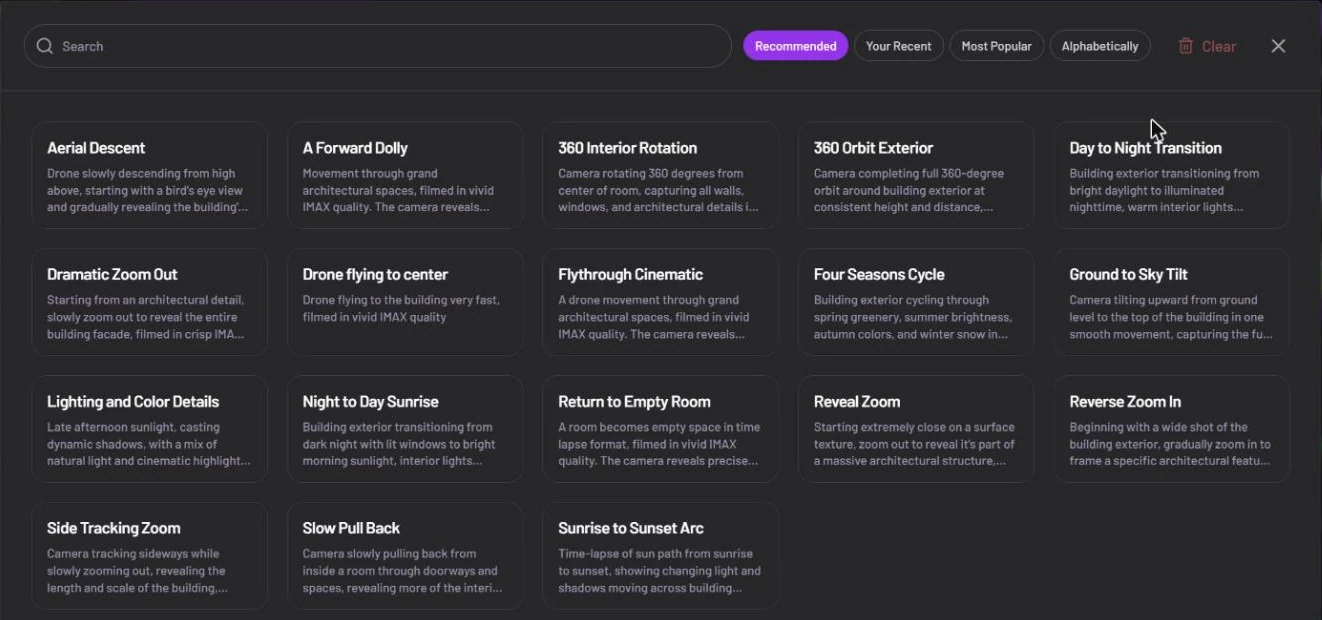
**Motion** opens a full-screen picker with **Search**, sort chips and **Clear**. Each card has a short description of the move. Pick up to three; click a card again to remove it.

<figure><img src="https://1930792265-files.gitbook.io/~/files/v0/b/gitbook-x-prod.appspot.com/o/spaces%2F4yESzclcaZeSiIDZ8eIa%2Fuploads%2Fgit-blob-c6d65837d6534d222d4d6100f13375daa2c635cb%2Fmotion-picker.webp?alt=media" alt="Motion picker with a search box, the sort chips Recommended, Your Recent, Most Popular and Alphabetically, a Clear button, and 18 cards such as Aerial Descent, 360 Orbit Exterior, Day to Night Transition and Return to Empty Room, each with a short description"><figcaption><p>The Motion picker. Each card says what the camera does.</p></figcaption></figure>

The 18 moves:

* Aerial Descent
* A Forward Dolly
* 360 Interior Rotation
* 360 Orbit Exterior
* Day to Night Transition
* Dramatic Zoom Out
* Drone flying to center
* Flythrough Cinematic
* Four Seasons Cycle
* Ground to Sky Tilt
* Lighting and Color Details
* Night to Day Sunrise
* Return to Empty Room
* Reveal Zoom
* Reverse Zoom In
* Side Tracking Zoom
* Slow Pull Back
* Sunrise to Sunset Arc

You don't have to pick a move. With **Motion** empty, the prompt and the pictures decide what happens.

## End on a second picture

**End Frame (Optional)** sets the picture the video ends on. The video starts on your photo and moves to the end frame.

* **Add it**: click the **End Frame (Optional)** tile. The upload window opens; add the picture there.
* **Remove it**: click the tile again and use **Delete** in the same window.

The most useful case is a before-and-after clip:

1. Redesign your photo first, for example with [Exterior AI](/luw.ai-app-docs/redesign-spaces/exterior-ai.md) or [Interior AI](/luw.ai-app-docs/redesign-spaces/interior-ai.md), and download the result.
2. In Video AI, upload the original photo as the start.
3. Add the redesign as the end frame.
4. Write a prompt such as "the house is renovated in a smooth transition", and generate.

For a smooth transition, the two pictures should have the **same camera angle and the same aspect ratio**. A redesign of the same photo already does.

If a **Motion** preset contradicts the end frame, leave **Motion** empty. For example, **Return to Empty Room** empties the room, which clashes with a furnished end frame.

{% hint style="info" %}
The Luw\.ai API accepts an end frame too, with the `end_image` parameter. See [Video AI in the API docs](https://luw-ai.gitbook.io/api/luw.ai-api-documentation/ai-models/video-ai).
{% endhint %}

## Settings

| Setting                      | What it does                                                                                                               |
| ---------------------------- | -------------------------------------------------------------------------------------------------------------------------- |
| **History & Change Persona** | Switches to another persona or starts a new one. See [Personas and history](/luw.ai-app-docs/getting-started/personas.md). |
| **Motion**                   | Up to three camera moves from the picker. Leave empty to let the prompt decide.                                            |
| **End Frame (Optional)**     | A second picture the video ends on.                                                                                        |
| **Prompt**                   | What should happen in the video, in your own words.                                                                        |
| **Prompt Enhancer**          | Rewrites your prompt into a fuller one before generating. On by default here.                                              |
| **Designs**                  | How many videos to make at once (1–4). Each one is a separate generation and uses the full credits. The free plan makes 1. |
| **Model**                    | **Symphony** (default) or **Aria**. They cost different amounts here; see [Credits](#credits).                             |

## Watch and continue a video

Each video is about **8 seconds** long, in **1080p**, **with sound**. Click it in **Latest Designs** to open it in a video player.

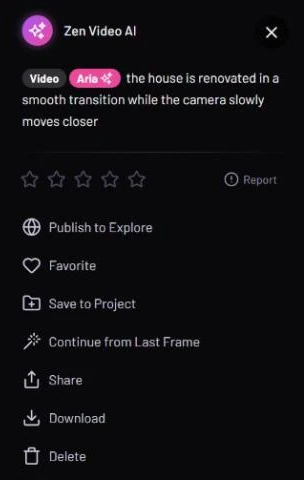
<figure><img src="https://1930792265-files.gitbook.io/~/files/v0/b/gitbook-x-prod.appspot.com/o/spaces%2F4yESzclcaZeSiIDZ8eIa%2Fuploads%2Fgit-blob-5dd3b592f9d19e40a1155977aa39f007cac8ea74%2Fvideo-actions.webp?alt=media" alt="Side panel of a video result with the tags Video and Aria, the prompt, a star rating and the actions Publish to Explore, Favorite, Save to Project, Continue from Last Frame, Share, Download and Delete"><figcaption><p>Continue from Last Frame starts the next shot where this one ends.</p></figcaption></figure>

* **Continue from Last Frame** takes the last frame of the video and opens it in Video AI as the start of a new video. Use it to chain several shots into a longer sequence.
* **Publish to Explore**, **Favorite**, **Save to Project**, **Share**, **Download** and **Delete** work as for other results. See [The result viewer](/luw.ai-app-docs/results/result-viewer.md).

## Credits

Each video uses **10 credits with Aria** or **20 credits with Symphony**. The credit line shows the price of one video; with **Designs** set higher, each video is charged separately. See [Credits and engines](/luw.ai-app-docs/getting-started/credits-and-engines.md).

## Tips

* Start from your best picture. The first frame sets the look of the whole video.
* Keep the prompt about movement and change ("the camera slowly moves closer", "lights turn on at dusk").
* Try one video before setting **Designs** higher, since each video uses the full credits.
* For a before-and-after, use the same photo's redesign as the end frame, and leave **Motion** empty if a preset fights it.
* Plan longer sequences shot by shot with **Continue from Last Frame**.

## Related

* [Exterior AI](/luw.ai-app-docs/redesign-spaces/exterior-ai.md)
* [Render AI](/luw.ai-app-docs/render-and-create/render-ai.md)
* [The result viewer](/luw.ai-app-docs/results/result-viewer.md)
* [API and MCP](/luw.ai-app-docs/connect/api-and-mcp.md)