> For the complete documentation index, see [llms.txt](https://luw-ai.gitbook.io/luw.ai-app-docs/llms.txt). Markdown versions of documentation pages are available by appending `.md` to page URLs; this page is available as [Markdown](https://luw-ai.gitbook.io/luw.ai-app-docs/3d-and-video/3dgen-ai.md).

# 3DGen AI

Turn a photo of an object into a 3D model (GLB) you can rotate, download and place in your own space.

3DGen AI turns a photo of an object, such as a chair, a lamp or a sculpture, into a 3D model. You can turn it around in the browser, download it as a GLB file, or view it in your own room on your phone.

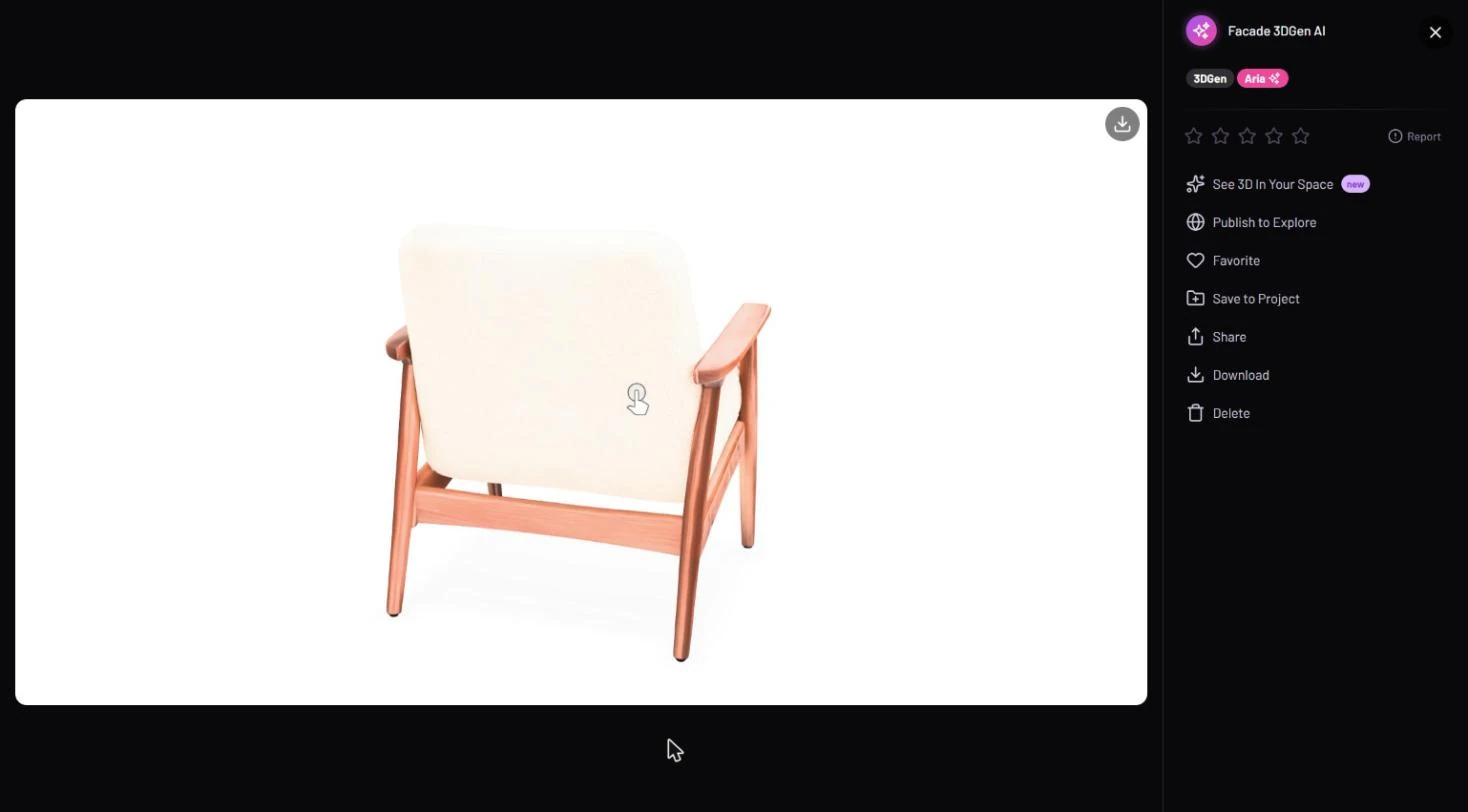
<figure><img src="https://1930792265-files.gitbook.io/~/files/v0/b/gitbook-x-prod.appspot.com/o/spaces%2F4yESzclcaZeSiIDZ8eIa%2Fuploads%2Fgit-blob-6a3398bf36f9e862ecd9c6aaed1f2fdc7aee8a47%2F3dgen-result.webp?alt=media" alt="3D viewer showing the back of a cream lounge chair with wooden legs, a download icon in the corner, and a side panel with the tags 3DGen and Aria and the actions See 3D In Your Space, Publish to Explore, Favorite, Save to Project, Share, Download and Delete"><figcaption><p>The finished model opens in a 3D viewer. Here it's turned to show the back of the chair, which wasn't visible in the photo.</p></figcaption></figure>

## What you need

* A photo of the object. 3DGen works from the picture only; there is no prompt box.
* No photo yet? Use **Generate Image with AI** in the upload area to create one from words first. See [Generate an image to start from](/luw.ai-app-docs/working-with-images/generate-an-image.md).
* Credits for each model. See [Credits](#credits).

## Make a 3D model

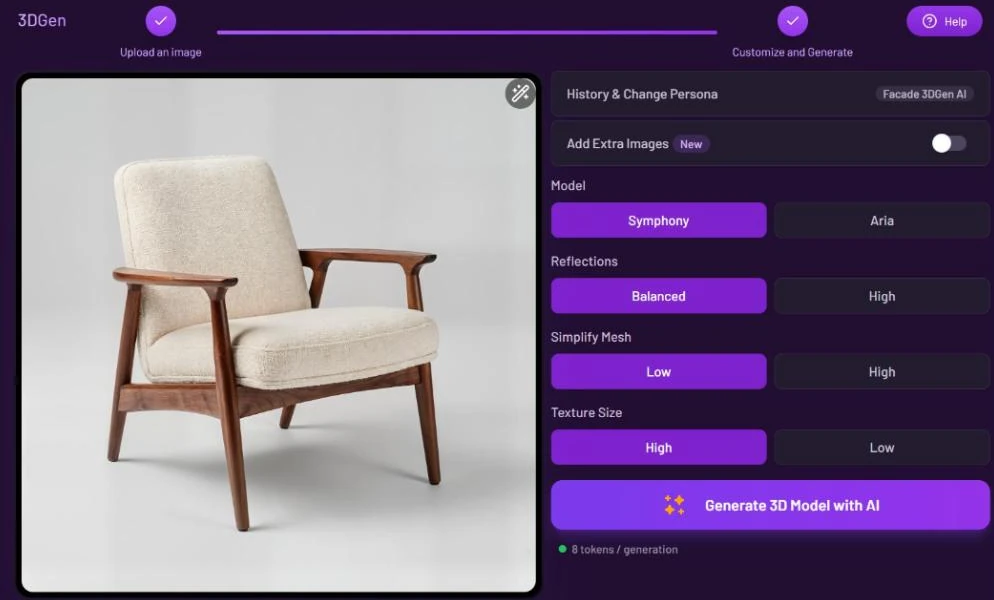
1. Open **3DGen** from the Dashboard, or pick **3DGen AI** in **All Tools**.
2. Upload a photo of the object. See [Uploading images](/luw.ai-app-docs/working-with-images/uploading-images.md). The form moves on to **Customize and Generate** by itself.
3. Optional: turn on **Add Extra Images** and add more photos of the same object from other angles.
4. Choose a **Model**: **Symphony** or **Aria**.
5. Set **Simplify Mesh**. With Symphony you can also set **Reflections** and **Texture Size**.
6. Press **Generate 3D Model with AI**. The model appears in **Latest Designs** when it's ready.

<figure><img src="https://1930792265-files.gitbook.io/~/files/v0/b/gitbook-x-prod.appspot.com/o/spaces%2F4yESzclcaZeSiIDZ8eIa%2Fuploads%2Fgit-blob-efbb3a03a1e8693315a2a55de125ef57710f492c%2F3dgen-settings.webp?alt=media" alt="3DGen form with a photo of a lounge chair on the left and on the right Add Extra Images, Model set to Symphony, Reflections Balanced or High, Simplify Mesh Low or High, Texture Size High or Low, and the Generate 3D Model with AI button with 8 tokens per generation"><figcaption><p>With Symphony selected, all four settings are shown and the credit line reads 8 tokens.</p></figcaption></figure>

## Settings

| Setting                      | What it does                                                                                                                  |
| ---------------------------- | ----------------------------------------------------------------------------------------------------------------------------- |
| **History & Change Persona** | Switches to another persona or starts a new one. See [Personas and history](/luw.ai-app-docs/getting-started/personas.md).    |
| **Add Extra Images**         | Extra photos of the same object from other angles, to help the model get the shape right.                                     |
| **Model**                    | **Symphony** (default) or **Aria**. They cost different amounts here; see [Credits](#credits).                                |
| **Reflections**              | **Balanced** or **High**. **High** gives the model shinier, light-reflecting materials. Symphony only.                        |
| **Simplify Mesh**            | **Low** keeps a more detailed mesh. **High** makes a lighter model with fewer polygons, which is easier to use in other apps. |
| **Texture Size**             | **High** gives sharper surface textures; **Low** gives smaller ones. Symphony only.                                           |

On the free plan only Aria is available and some 3D settings are locked. Clicking a locked option shows an upgrade message.

## Use your 3D model

Click the result to open it in the 3D viewer. The model turns on its own, and you can drag to turn it yourself. From there you can:

* **See 3D In Your Space**: on a phone it opens an AR viewer so you can place the model in your room; on a desktop it shows a QR code to scan with your phone.
* **Download**: saves the GLB file. The download icon in the corner of the viewer does the same.
* **Publish to Explore**, **Favorite**, **Save to Project**, **Share** and **Delete**, as for any result.

3D results don't offer **AI-Powered Magic Edit**, **Search Furnitures**, **Open with…** or **Download HD**. See [The result viewer](/luw.ai-app-docs/results/result-viewer.md) for the rest.

## Credits

Each model uses **3 credits with Aria** or **8 credits with Symphony**. See [Credits and engines](/luw.ai-app-docs/getting-started/credits-and-engines.md).

## Tips

* Start from a photo that shows one object clearly, ideally on a plain background.
* Add photos from other angles with **Add Extra Images** when the back or sides of the object matter.
* Choose **Simplify Mesh: High** if you'll use the model in a real-time app or a large scene, where a lighter file helps.
* Save the model to a project or to your favorites to use it later as furniture in [3DSpace AI](/luw.ai-app-docs/3d-and-video/3dspace-ai.md).

## Related

* [3DSpace AI](/luw.ai-app-docs/3d-and-video/3dspace-ai.md)
* [Generate an image to start from](/luw.ai-app-docs/working-with-images/generate-an-image.md)
* [The result viewer](/luw.ai-app-docs/results/result-viewer.md)
* [Credits and engines](/luw.ai-app-docs/getting-started/credits-and-engines.md)